Skip to content
Cloud8 Logo
  • PRODUCT
  • PRICING
  • SUPPORT
  • CONTACT US
  • LOGIN
  • PRODUCT
  • PRICING
  • SUPPORT
  • CONTACT US
  • LOGIN

Best Practices

  • Best Practices: Custom Rule Notifications via AWS S3
  • Best Practices: Microsoft Teams Support
  • Best Practices: Password and Credential Monitoring
  • AWS Bucket S3 Topic Notification
  • How to integrate Slack into Best Practices
  • How to monitor memory and swap with SSM

Charging

  • AWS account suspension: tips and what to do

Concepts

  • Cloud Control Panel – AWS, Azure, GCP, Huawei and Oracle
  • Cloud server image or template
  • Cost model: pay per use
  • FINOPS: Data Integration and Enhancement Flow (Infographic)
  • Difference between RI Applied vs RI in Cloud8 Panel
  • Security groups
  • Access key
  • Snapshot
  • Additional disks
  • Cloud Computing
  • Comparison: Automation via Cloud8 vs “homemade” automation

Credentials

  • Connecting OCI Providers to Cloud8 – Full Tutorial
  • Best Practices: Enabling user monitoring in Azure
  • Multi-Factor Authentication (MFA) with Cloud8 Panel
  • How to integrate SSO with Azure AD
  • Security credentials for public clouds
  • How to use IAM Role to integrate your security with Cloud8
  • Using Cloud8 with a custom AWS security credential
  • Credential for Huawei Cloud

First Steps

  • Connecting OCI Providers to Cloud8 – Full Tutorial
  • Connecting AWS Providers to Cloud8 – Full Tutorial
  • Onboarding: getting started on Cloud8
  • Cloud8 Users and Profiles
  • How to create an Azure credential to integrate with Cloud8
  • Creating a new Amazon AWS account
  • How to associate your Amazon AWS account with Cloud8
  • Hot to enable cloud cost estimates monitoring
  • How to manage more than one AWS account
  • How to create a GCP Credential to integrate with Cloud8
  • Creating a New Account on Amazon Cloud (AWS)

MSP / Reseller

  • MSP: Configuring markup
  • White label at no additional cost
  • MSP: Configuring costs

Services

  • S3 Lambda Notification Processor (deploy via CLI)
  • Exporting data to Azure Storage Account
  • FinOps: Cost Anomaly Reports and Charts
  • FinOps: Reports, Alerts and Budgets
  • FinOps: Tagged / Untagged
  • FinOps: Tag Sanitization, Compliance and MultiCloud
  • FinOps: Tag Sharing and Prorating
  • FinOps: Reverse API
  • Exporting data to AWS S3 (Bucket)
  • Cloud Task Automations
  • Automated backup of cloud servers
  • How to install the Metricbeat component in OKE
  • How to install Metricbeat component on EKS
  • How to install Metricbeat component on GKE clusters
  • How to install Metricbeat component on AKS
  • GCP Storage Integration
  • How to enable support for ECS / EKS shared costs
  • RDS reports with grouping by ID
  • Add TAGs with CSV file
  • Kubernetes Cost Support
  • Detailed Costs Report
  • Workflow: How to reset tasks periodically
  • How to integrate SSO with Azure AD
  • Cloud aggregator control panel
  • Multiple Users – Multiuser Panel
  • Cloud cost control, alerts and reports
  • Cloud usage statistics
  • Alerts
  • Managers on Cloud8 – Resource management on AWS, Azure and GCP
  • Audit logs
  • ECS / Fargate support on Workflow

Troubleshooting

  • I exported the cloud server usage report. What do the fields mean?
  • I subscribed Amazon and I still can’t access Cloud8
  • How is the cloud cost estimate calculated?
  • I created a security group through the AWS console and it still doesn’t appear in Cloud8
  • Cloud8 and Amazon don’t monitor my cloud server’s memory?
  • Using Cloud8 with a custom AWS security credential

Tutorials

  • S3 Lambda Notification Processor (deploy via CLI)
  • Best Practices: Microsoft Teams Support
  • FinOps: Cost Anomaly Reports and Charts
  • FinOps: Tagged / Untagged
  • FinOps: Tag Sanitization, Compliance and MultiCloud
  • Group data in Pivot Table
  • How to install the Metricbeat component in OKE
  • How to install Metricbeat component on EKS
  • How to install Metricbeat component on GKE clusters
  • How to install Metricbeat component on AKS
  • Workflow: How to reset tasks periodically
  • How to integrate SSO with Azure AD
  • How to configure the Scheduler for script execution on OCI
  • How to access a Windows server in the Amazon AWS cloud
  • How to access a Linux server
  • How to create a cloud server
  • How to configure scheduling for script execution in AWS
  • How to configure scheduling by Tags / Labels
  • Configure vault copy at AWS (cross account) with KMS
  • How to integrate Slack into Best Practices
View Categories
  • Home
  • Docs
  • Credentials

Connecting OCI Providers to Cloud8 – Full Tutorial

5 min read

To integrate an Oracle Cloud (OCI) account with the Cloud8 Platform, you’ll need to provide access credentials in your account settings with us. Follow the tutorial below to complete this setup.

Setting OCI Access Credentials #

 We suggest you open a notepad and be ready to write down the following information:

  • CONFIGURATION FILE PREVIEW (PASSO 1)
  • GROUP NAME ( STEP 2 )
  • PEM ( STEP 2 )

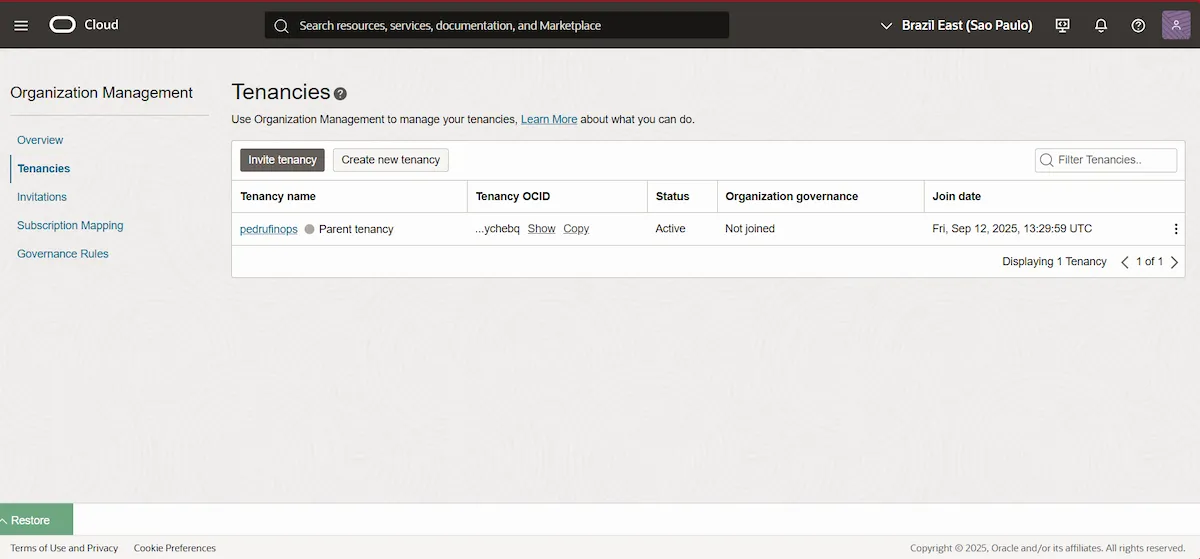
First, we suggest checking the OCI Organization structure . In the top search bar, search for Tenancies . Configuration should first be performed in the Organization ‘s Parent tenancy .
Connecting OCI Providers to Cloud8

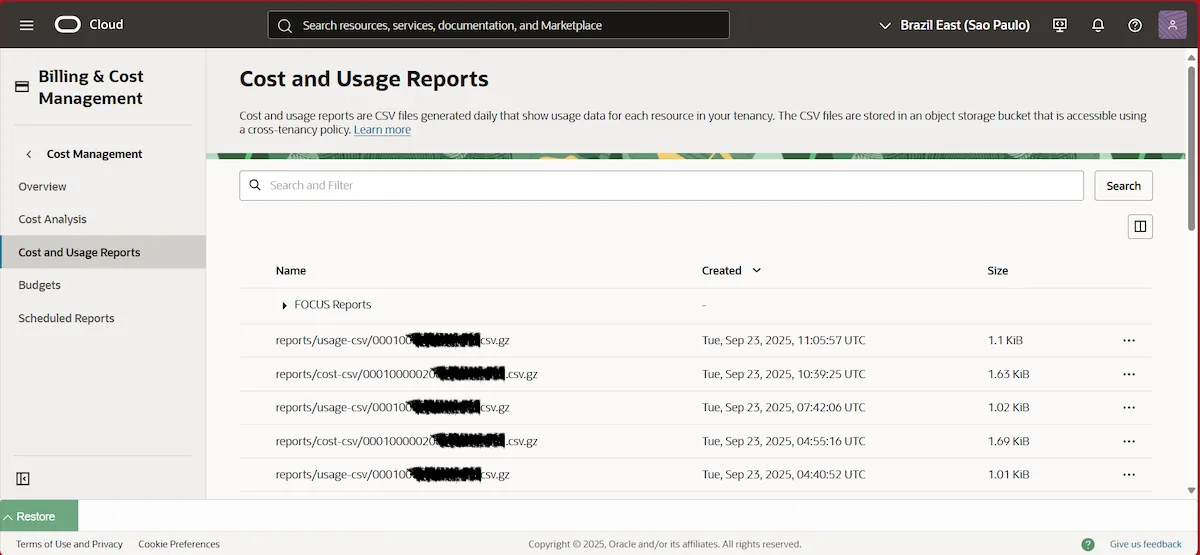
Then, validate the existence of CUR ( Cost and Usage Report ) by searching for “ Cost and Usage Reports ” in the top search bar.
Connecting OCI Providers to Cloud8

Step 1 – Creating a user  #

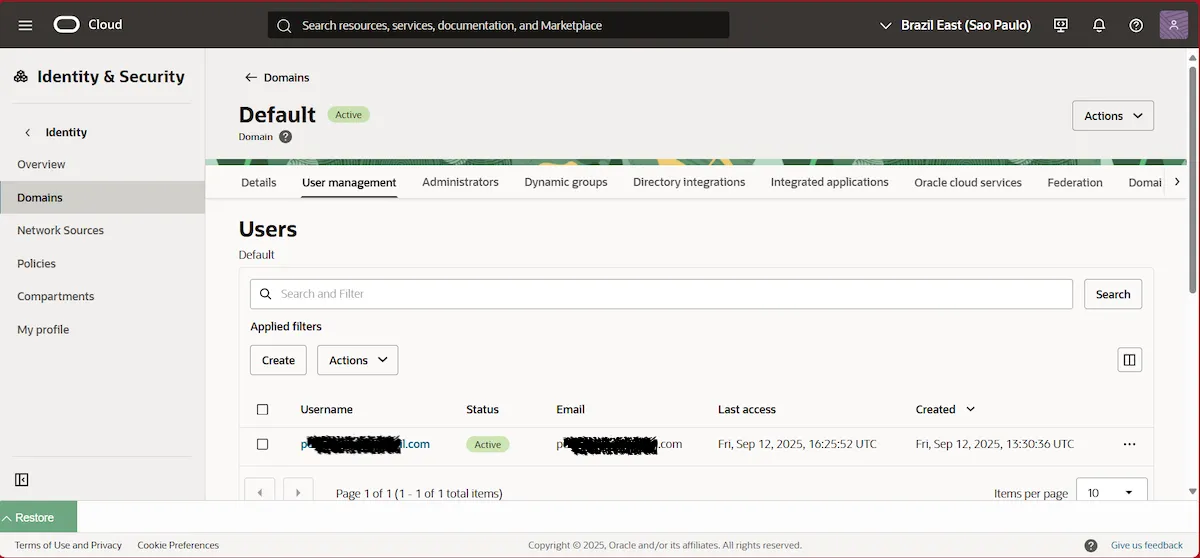
Then, in the top search bar, search for Domains and select the Default domain . In the User management tab , find Users and click Create . We suggest using the username Cloud8.
Connecting OCI Providers to Cloud8

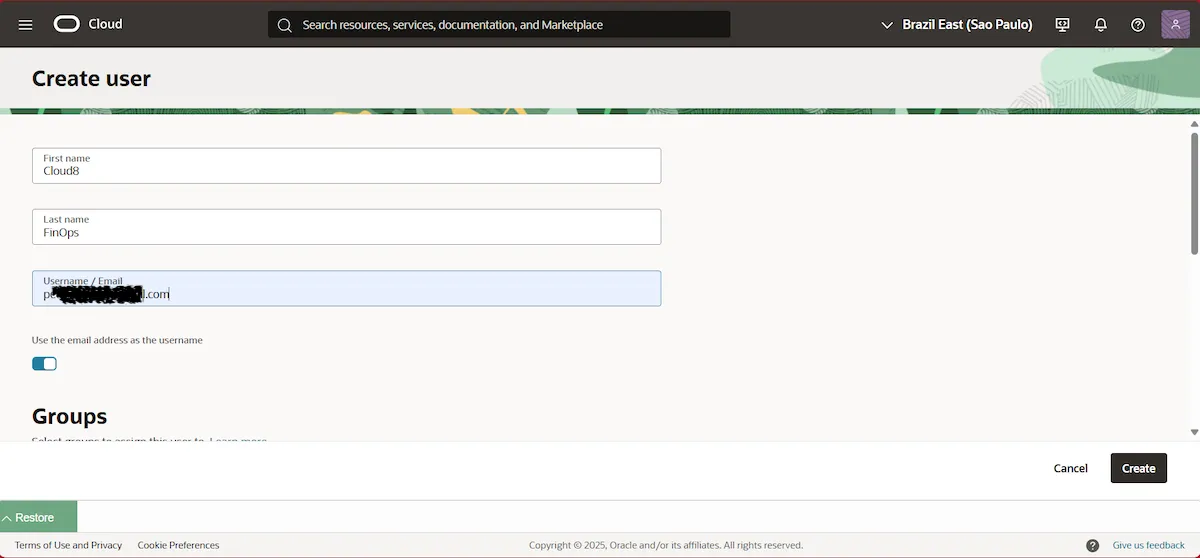
Set your First name , Last name , and Username/Email. We recommend using an email address that allows you to reset your information if necessary. Then click Create .
Connecting OCI Providers to Cloud8

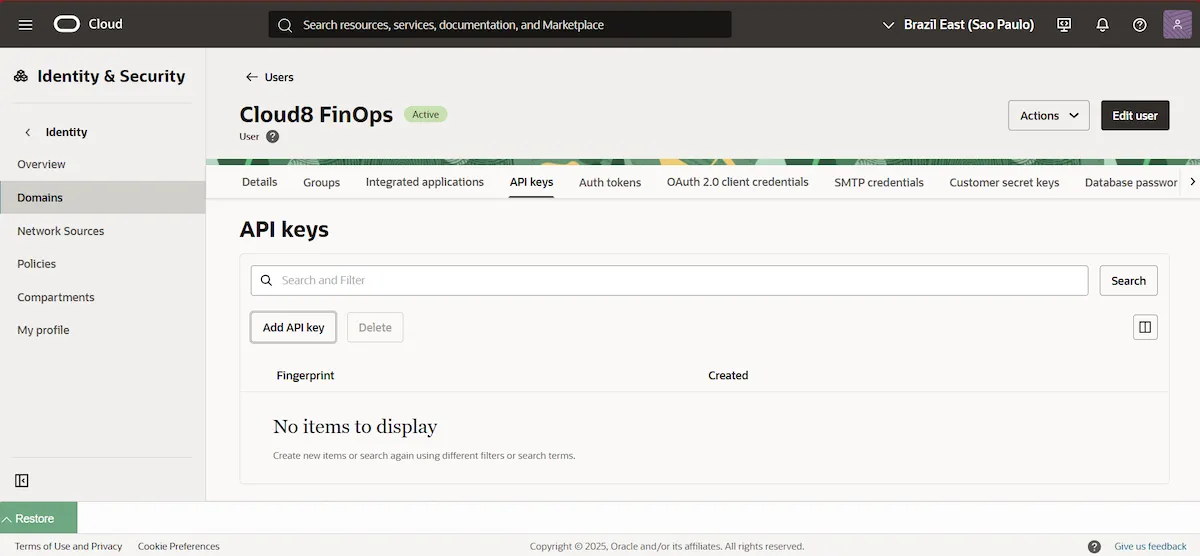
Then, create an API Key for the created user by clicking on the API Key tab and then on Add API key .
Connecting OCI Providers to Cloud8

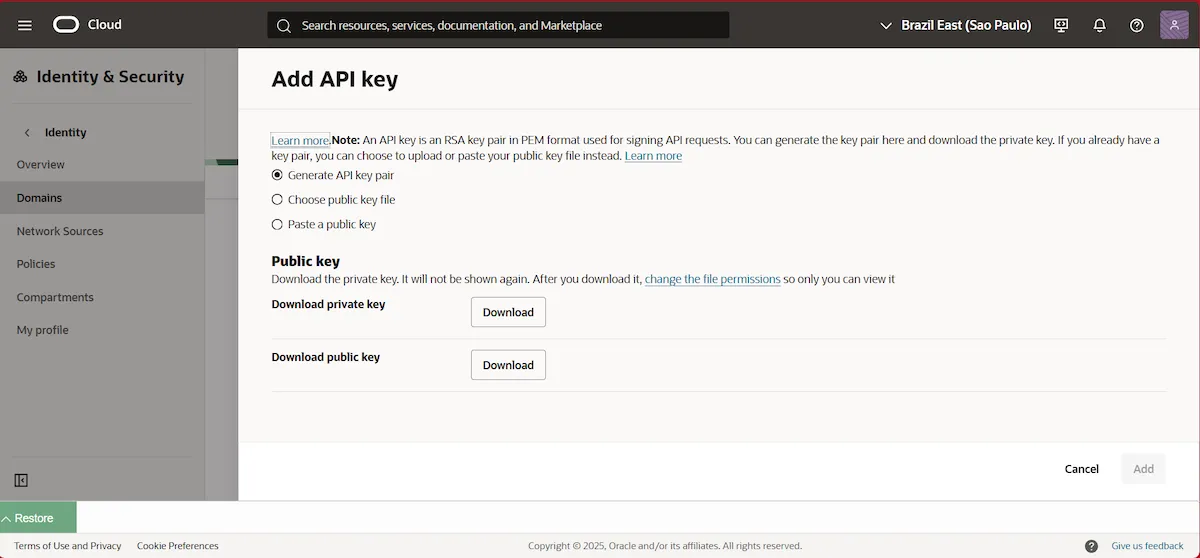
Select the Generate API key pair option , and download the private key and public key .
Connecting OCI Providers to Cloud8

We recommend storing the downloaded API keys in a secure repository or vault in case you need to use them later. Finally, click Add .
Connecting OCI Providers to Cloud8

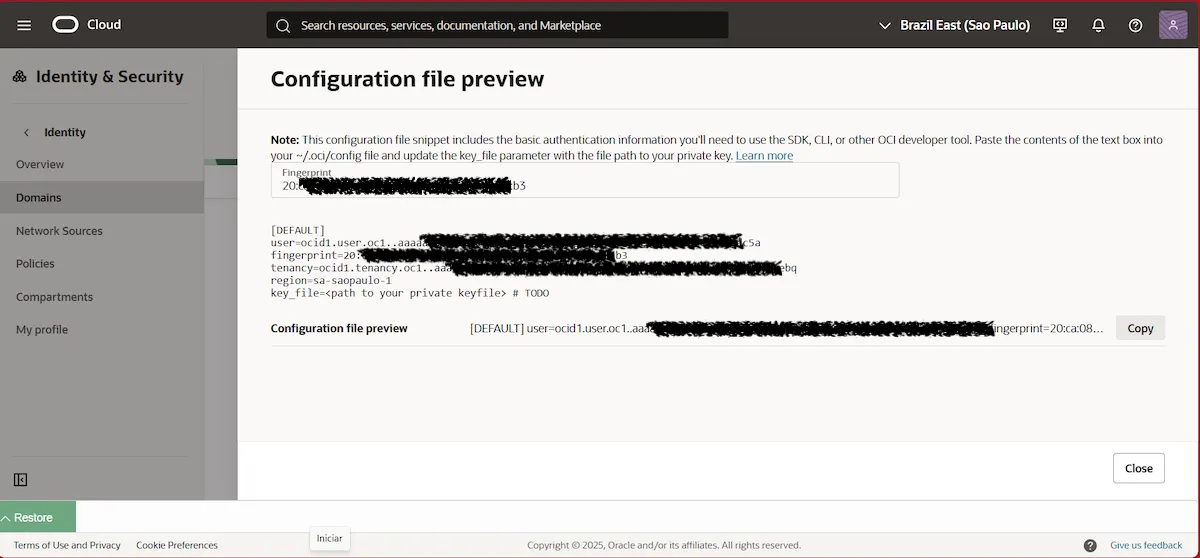
Copy the contents of the Configuration file preview and save it to a notepad.

Step 2 – Create an Access Group #

Return to Domains , select the Default domain again, and in the User Management tab , scroll down until you find Groups . Click Create group .
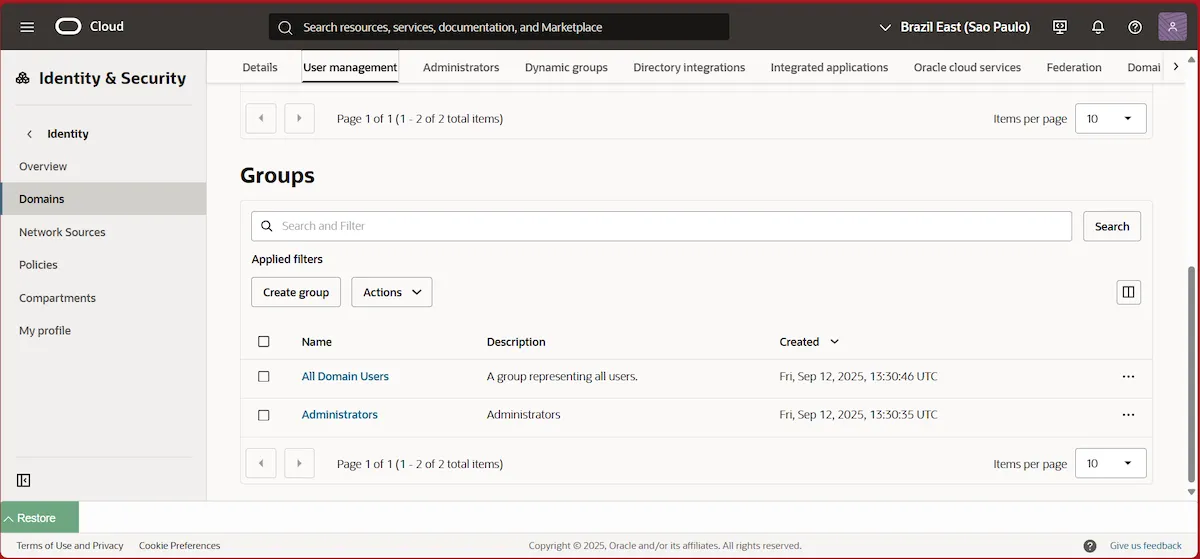
Connecting OCI Providers to Cloud8

Select a name for the group and user you created in the previous step. Then click Create . Write down the group’s Name in notepad for later use.
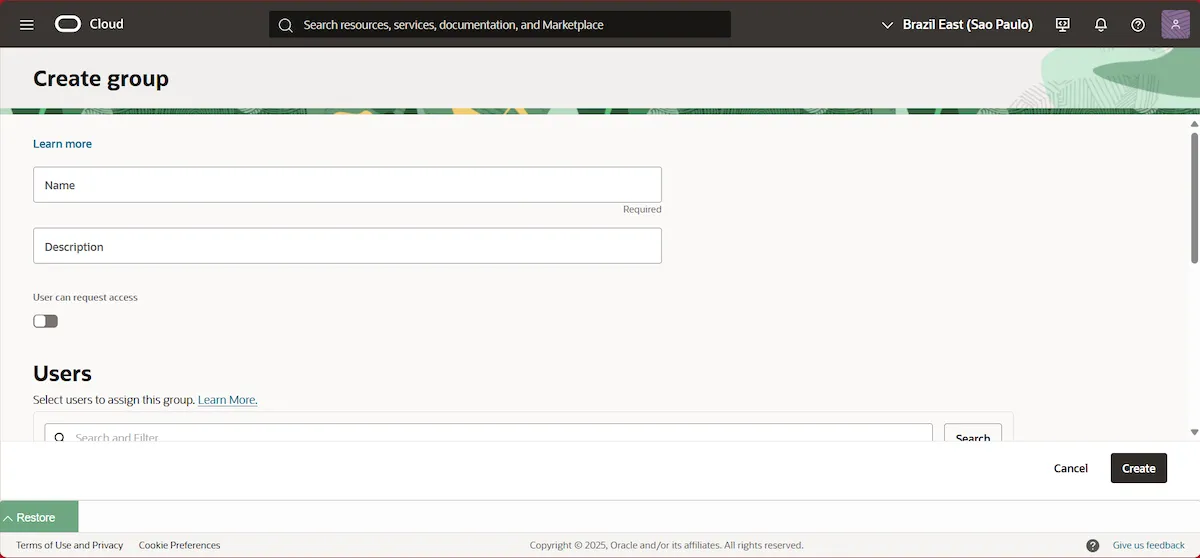
Connecting OCI Providers to Cloud8

Step 3 – Create an Access Policy #

In the left side menu, select Policies , and click Create Policy in the root compartment .
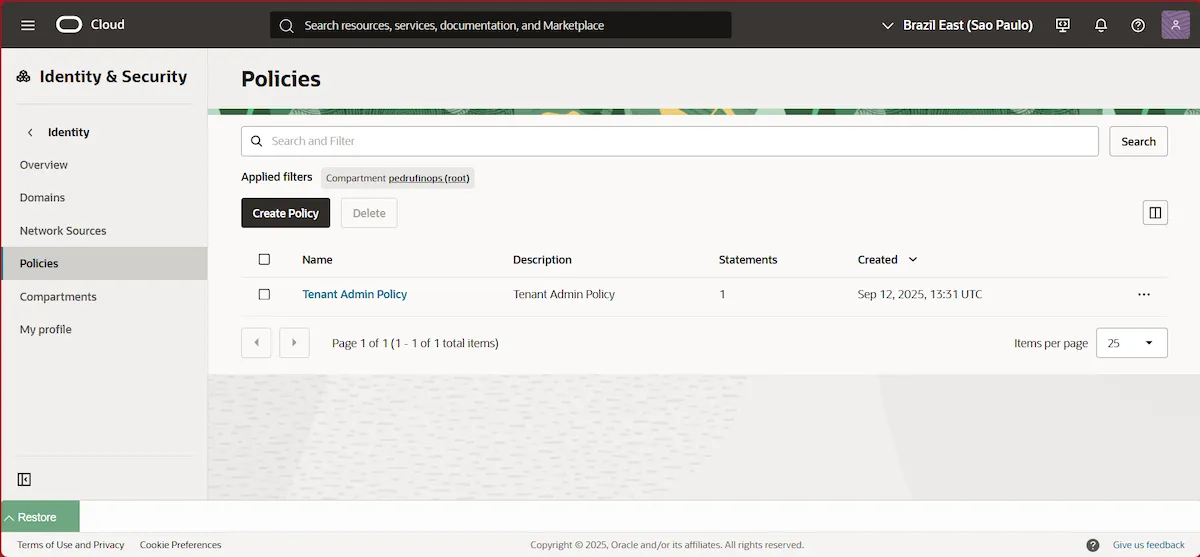
Connecting OCI Providers to Cloud8

Set a name for the policy and select the Root Compartment .
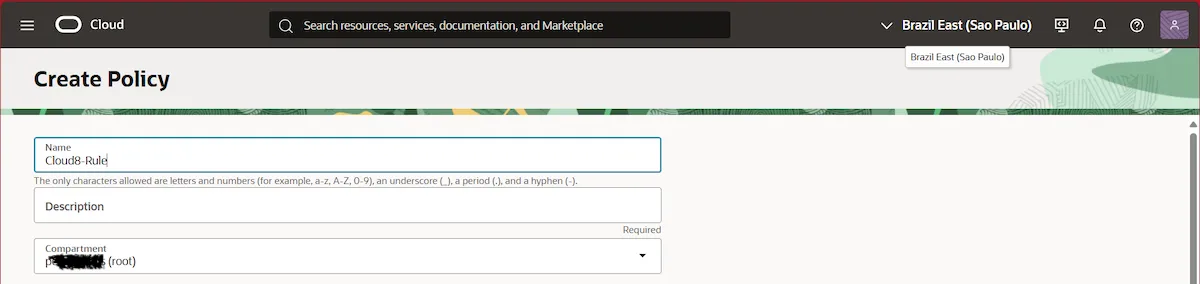
Connecting OCI Providers to Cloud8

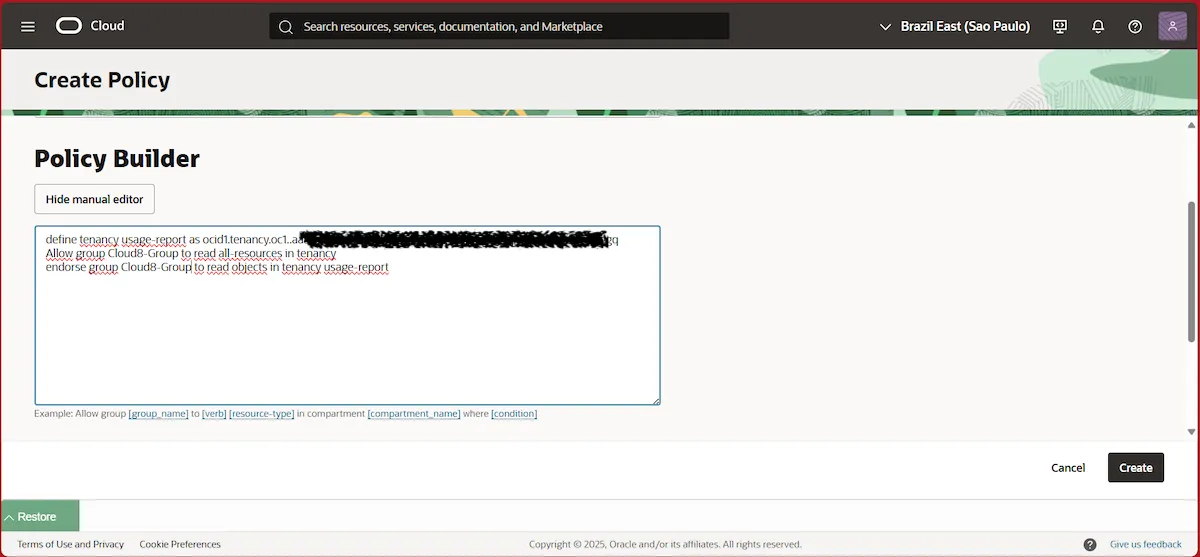
In the Policy Builder section , click Show manual editor . Then, copy the policy definition below:

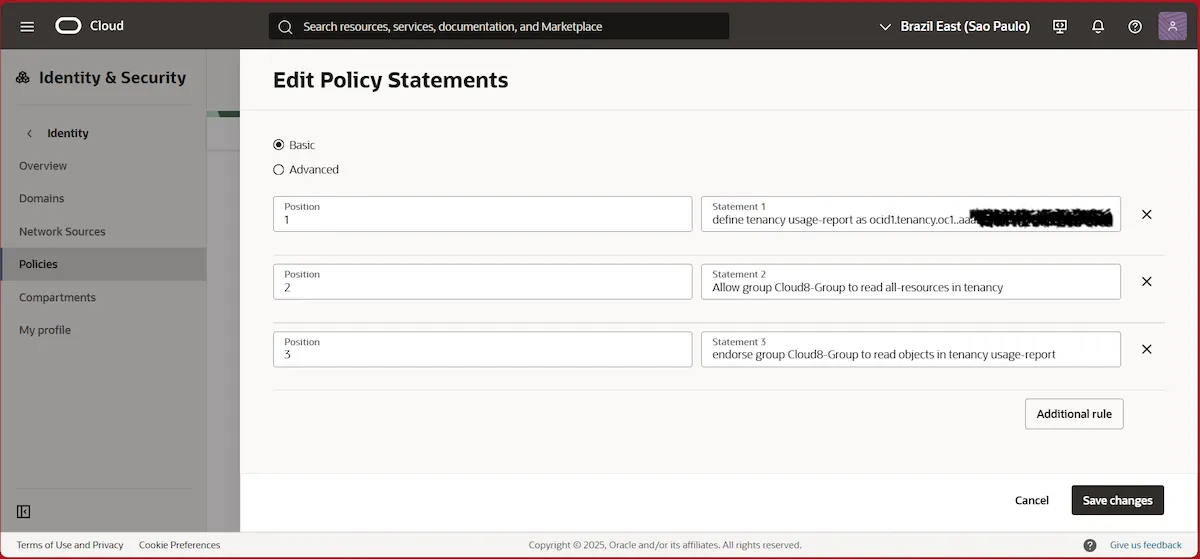
define tenancy usage-report as ocid1.tenancy.oc1..aaaaaaaaned4fkpkisbwjlr56u7cj63lf3wffbilvqknstgtvzub7vhqkggq
Allow group __MYGROUP__ to read all-resources in tenancy
endorse group __MYGROUP__ to read objects in tenancy usage-report

IMPORTANT: Do not change the tenancy code above as it is Oracle default.

Replace __MYGROUP__ with the name of the Group that was created in the previous step, then click Create .
Connecting OCI Providers to Cloud8

Step 4 – Configuring access credentials on Cloud8 #

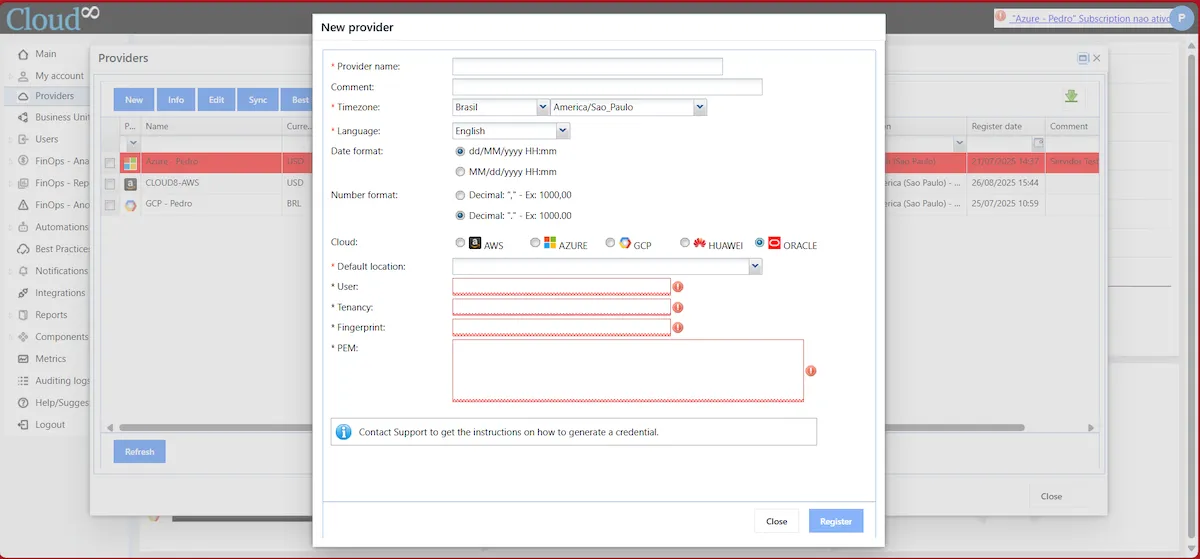
In the left-hand side menu, select “ Providers .” Click “ New ” and fill in the required fields with the data generated in the previous steps.

  • Provider name : The name that will be used to identify the provider in Cloud8.
  • Timezone : local time standard that will be used.
  • Language : default language.
  • Default location : Choose the most popular or most used location for your account, we will scan all regions and zones anyway.
  • User : Available in CONFIGURATION FILE PREVIEW ( Step 1 )
  • Tenancy : Available in CONFIGURATION FILE PREVIEW ( Step 1 )
  • Fingerprint : Available in CONFIGURATION FILE PREVIEW ( Step 1 )
  • PEM : theuser’s private key created in Step 1
Connecting OCI Providers to Cloud8

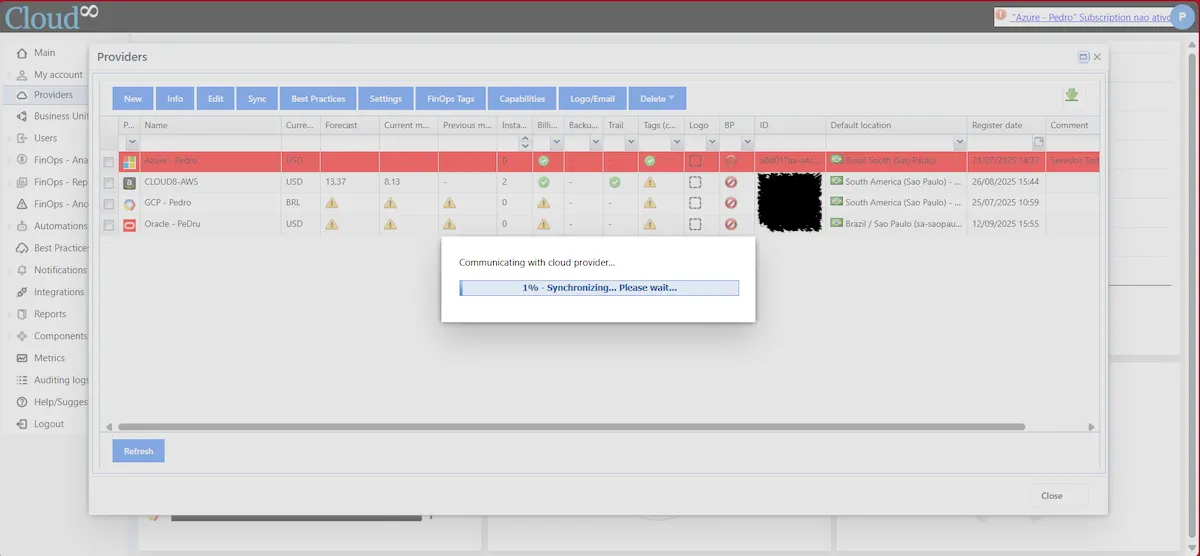
Click Register , and wait for the Synchronization to complete.
Connecting OCI Providers to Cloud8

Specific permissions for automations #

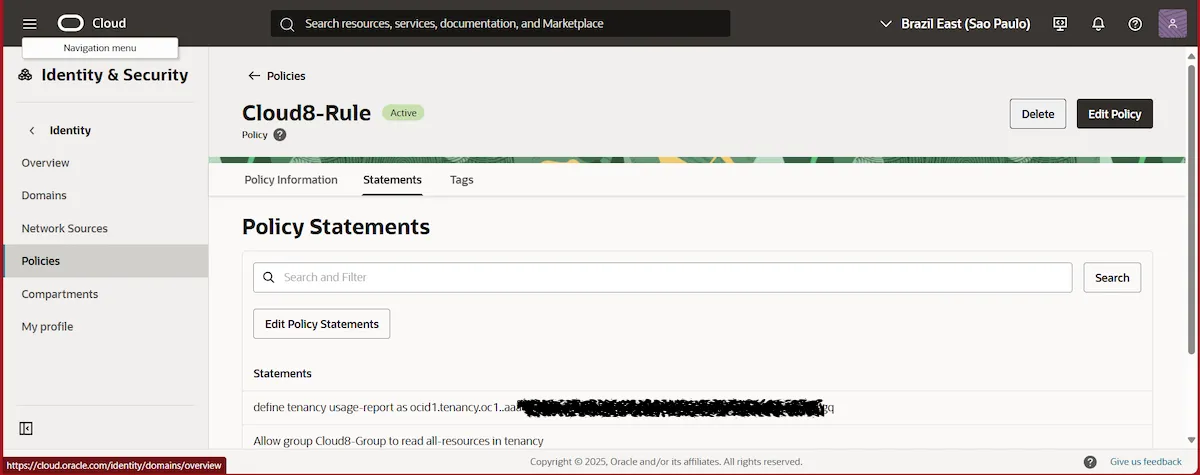
Some Cloud8 modules require specific permissions to be granted. Add them by editing the Statements of the created Policy and clicking Edit Policy .
Connecting OCI Providers to Cloud8

Click Additional rule , add the necessary permissions, and click Save changes .
Connecting OCI Providers to Cloud8

Turn On/Off/Upgrade/Downgrade Instances #

Allow group __MYGROUP__ to manage instance-family in tenancy where any {request.permission='INSTANCE_POWER_ACTIONS', request.permission='INSTANCE_UPDATE'}

Backup #

Allow group __MYGROUP__ to manage volume-family in tenancy where any {request.permission='VOLUME_BACKUP_CREATE', request.permission='VOLUME_WRITE', request.permission='VOLUME_UPDATE', request.permission='VOLUME_BACKUP_DELETE', request.permission='BOOT_VOLUME_BACKUP_CREATE', request.permission='BOOT_VOLUME_BACKUP_DELETE', request.permission='VOLUME_GROUP_BACKUP_CREATE', request.permission='VOLUME_GROUP_BACKUP_DELETE'}

MySQL – On / Off #

Allow group __MYGROUP__ to manage mysql-family in tenancy where any {request.permission='MYSQL_INSTANCE_USE', requesAllow group __MYGROUP__ to manage database-family in tenancy where any {request.permission='DB_NODE_POWER_ACTIONS', request.permission='DB_BACKUP_DELETE', request.permission='DB_BACKUP_CREATE'}

DbSystems – On / Off #

Allow group __MYGROUP__ to manage database-family in tenancy where any {request.permission='DB_NODE_POWER_ACTIONS', request.permission='DB_BACKUP_DELETE', request.permission='DB_BACKUP_CREATE'}

Manage Tags #

Allow group __MYGROUP__ to use tag-namespaces in tenancy

OKE Cluster NodePools – Power On/Off #

Allow group __MYGROUP__ to use subnets in tenancy
Allow group __MYGROUP__ to use vnics in tenancy
Allow group __MYGROUP__ to manage instance-family in tenancy

IMPORTANT:

1 – The ‘manage instance-family’ permission is required for NodePools .

2 – To avoid mixing with non- Kubernetes instances , we recommend using ‘in compartment <compartment-name>’ instead of the entire tenancy.

Instance Pools – On / Off / Scale (zero / +1) #

Allow group __MYGROUP__ to use instance-pools in tenancy
Allow group __MYGROUP__ to manage compute-management-family in tenancy

NOTE: The ‘compute-management-family’ permission is required to scale Instance Pools .

Auto Scaling Groups Policy #

Allow group __MYGROUP__ to use auto-scaling-configurations in tenancy
Allow group __MYGROUP__ to manage auto-scaling-configurations in tenancy

Exadata – Scaling the number of OCPUs #

Allow group __MYGROUP__ to manage cloud-vmcluster in compartment <your_compartment_name> where any {request.permission='CLOUD_VM_CLUSTER_UPDATE', request.permission='CLOUD_EXADATA_INFRASTRUCTURE_UPDATE'}

Autonomous DB – On/Off #

Allow group __MYGROUP__ to use autonomous-databases in compartment <your_compartment_name> where any {request.permission='AUTONOMOUS_DATABASE_UPDATE'}

Setting up FinOps Analytics on Cloud8 #

FinOps Analytics is configured through a Cost and Usage Report configured with the Oracle provider. This configuration is performed automatically in the previous step, through the configured Access Policy .

Enabling Best Practices on Cloud8 #

Once FinOps Analytics configuration is complete and data is synchronized to Cloud8, you can enable the Best Practices feature in Cloud8 .

Best Practices is an advanced advisor that combines over 1,000 unique security, backup, compliance, and cost reduction rules for AWS, Azure, GCP, and OCI with flexible alerting via Teams, Slack, or email.

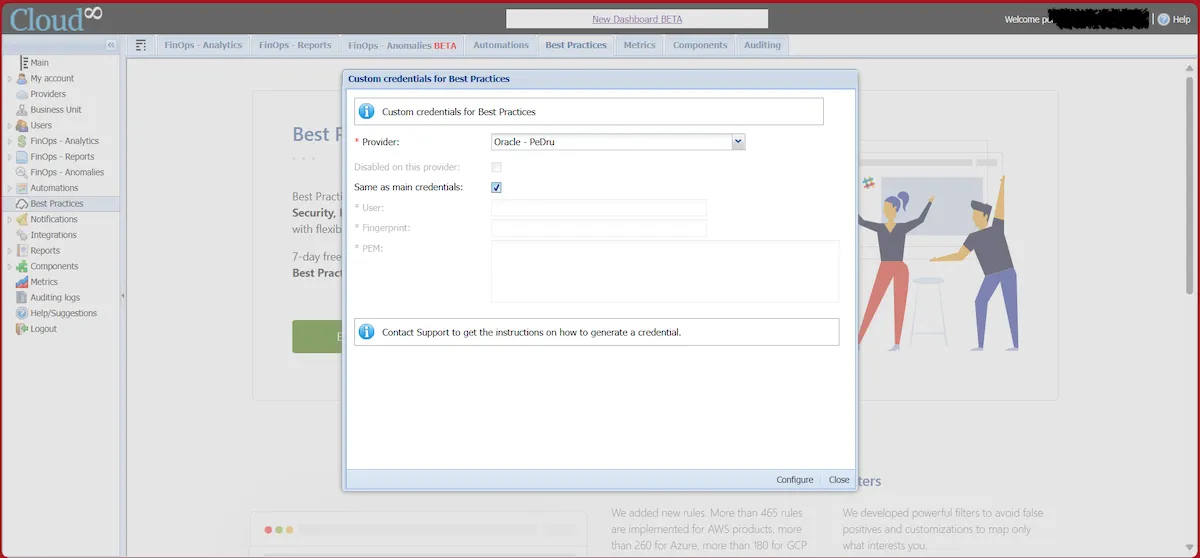
In the Cloud8 side menu, select Providers . Select the desired provider and click “ Best Practices .”
Connecting OCI Providers to Cloud8

You must select the providers on which you want to enable the functionality, and to do so, uncheck the “ Disabled on this provider ” checkbox and select the “ Same as main credentials ” option.

Then click on “ Configure ”.

IMPORTANT: After enabling FinOps Analytics , you will need to wait at least 24 hours to enable the Best Practices functionality .


You may want to check these Docs too: #

  • Connecting AWS Providers to Cloud8 - Full Tutorial
  • Onboarding: getting started on Cloud8
  • Cloud8 Users and Profiles
  • Creating a New Account on Amazon Cloud (AWS)
  • How to create an Azure credential to integrate with Cloud8
Access, Accounts, Best Practices, Cloud, Cloud Computing, Cloud Management, Cluster, Costs, Credential, Finops, FinOps Analytics, OCI, OKE, Oracle, Provider
Did this Doc help you?

Share This Article:

  • Facebook
  • X
  • LinkedIn
  • Pinterest
Table of Contents
  • Setting OCI Access Credentials
    • Step 1 – Creating a user 
    • Step 2 – Create an Access Group
    • Step 3 – Create an Access Policy
    • Step 4 – Configuring access credentials on Cloud8
  • Specific permissions for automations
    • Turn On/Off/Upgrade/Downgrade Instances
    • Backup
    • MySQL – On / Off
    • DbSystems – On / Off
    • Manage Tags
    • OKE Cluster NodePools – Power On/Off
    • Instance Pools – On / Off / Scale (zero / +1)
    • Auto Scaling Groups Policy
    • Exadata – Scaling the number of OCPUs
    • Autonomous DB – On/Off
  • Setting up FinOps Analytics on Cloud8
  • Enabling Best Practices on Cloud8
Cloud8 Logo
  • Terms of Use
  • About Us
  • FAQ / Support
  • Blog
  • Contact Us
  • Cookies (EU)
  • Terms of Use
  • About Us
  • FAQ / Support
  • Blog
  • Contact Us
  • Cookies (EU)
Globe-americas Facebook Twitter Linkedin Youtube

Disclaimer: AWS, images, and associated services are property of Amazon Web Services Inc. and its affiliates. Azure, images, and associated services are property of Microsoft Corporation. GCP, images, and associated services are property of Google Inc. Huawei, images, and associated services are property of Huawei Technologies Co Ltd. Oracle, images, and associated services are property of Oracle Corporation. Cloud8 Brasil em Português.

Manoel Netto Designer
Manage Consent
To provide the best experiences, we use technologies like cookies to store and/or access device information. Consenting to these technologies will allow us to process data such as browsing behavior or unique IDs on this site. Not consenting or withdrawing consent, may adversely affect certain features and functions.
Functional Always active
The technical storage or access is strictly necessary for the legitimate purpose of enabling the use of a specific service explicitly requested by the subscriber or user, or for the sole purpose of carrying out the transmission of a communication over an electronic communications network.
Preferences
The technical storage or access is necessary for the legitimate purpose of storing preferences that are not requested by the subscriber or user.
Statistics
The technical storage or access that is used exclusively for statistical purposes. The technical storage or access that is used exclusively for anonymous statistical purposes. Without a subpoena, voluntary compliance on the part of your Internet Service Provider, or additional records from a third party, information stored or retrieved for this purpose alone cannot usually be used to identify you.
Marketing
The technical storage or access is required to create user profiles to send advertising, or to track the user on a website or across several websites for similar marketing purposes.
  • Manage options
  • Manage services
  • Manage {vendor_count} vendors
  • Read more about these purposes
View preferences
  • {title}
  • {title}
  • {title}