
Proper cost allocation is essential for expense control, identifying business units, projects, teams, and accounts. A good cost allocation strategy uses tagging to maintain consistency in reports. However, native metadata management tools from providers have limitations, such as resource types that cannot be tagged.
Cloud8 has a synthetic tagging strategy directly in the tool that allows you to create a single tag that can be used across multiple providers (AWS, Azure, GCP, OCI), facilitating cost tracking and resource management in multi-cloud environments. Thus, it’s possible to have, for example, a “global synthetic tag” that unifies resource and cost control across different clouds, without depending on the native limitations of each provider.
Untagged – Tag Audit #
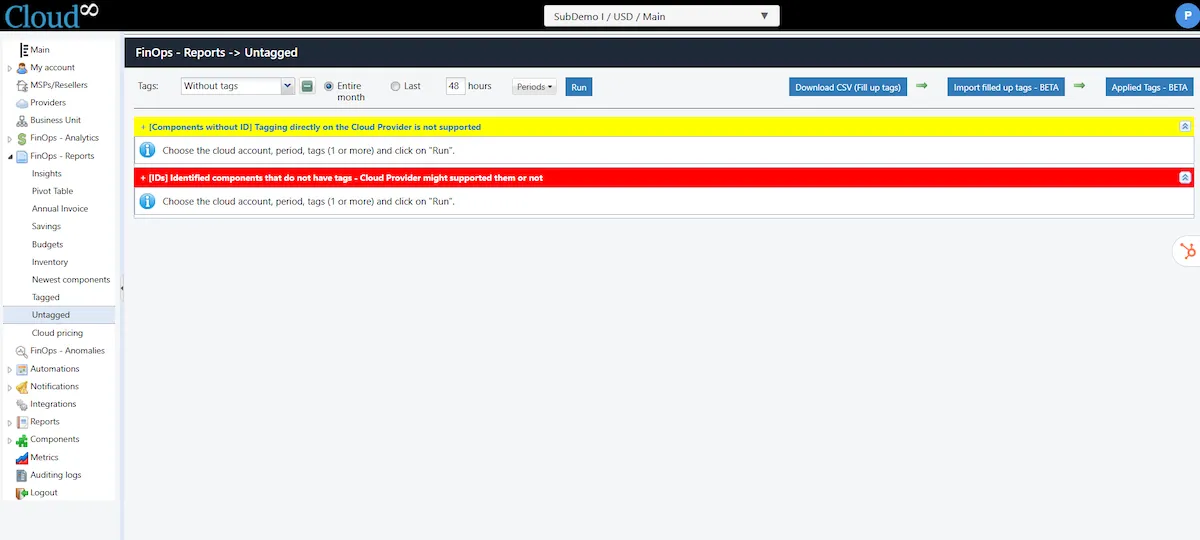
Through the Untagged functionality, the user is able to identify untagged resources, or measure the percentage of coverage of a given tag. In the left sidebar menu, click on FinOps – Reports and select Untagged.
Identifying resources without any tagging. #
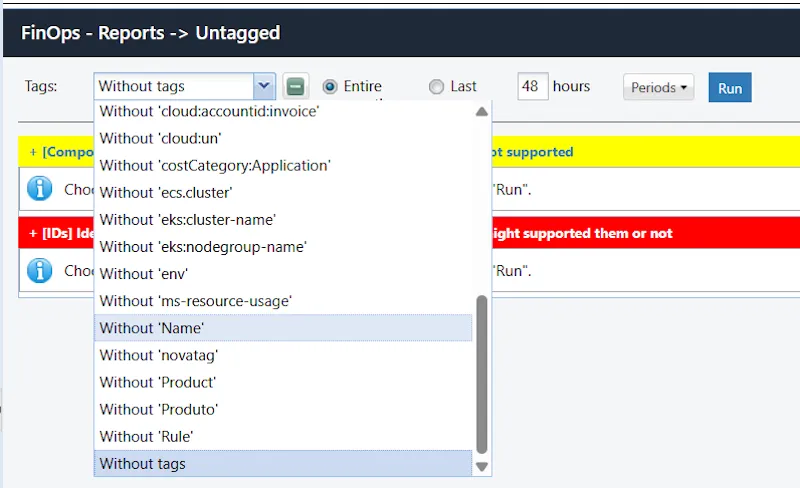
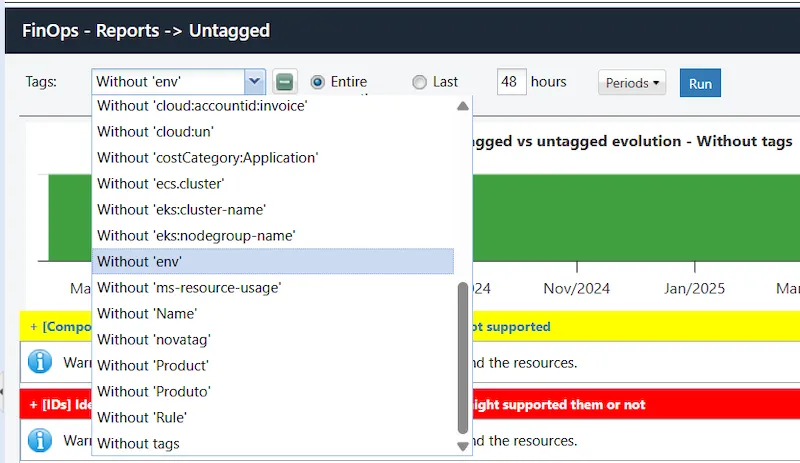
When accessing the feature, you can identify resources without any associated tags by clicking on the “Tags” field and selecting the value “Without tags”.
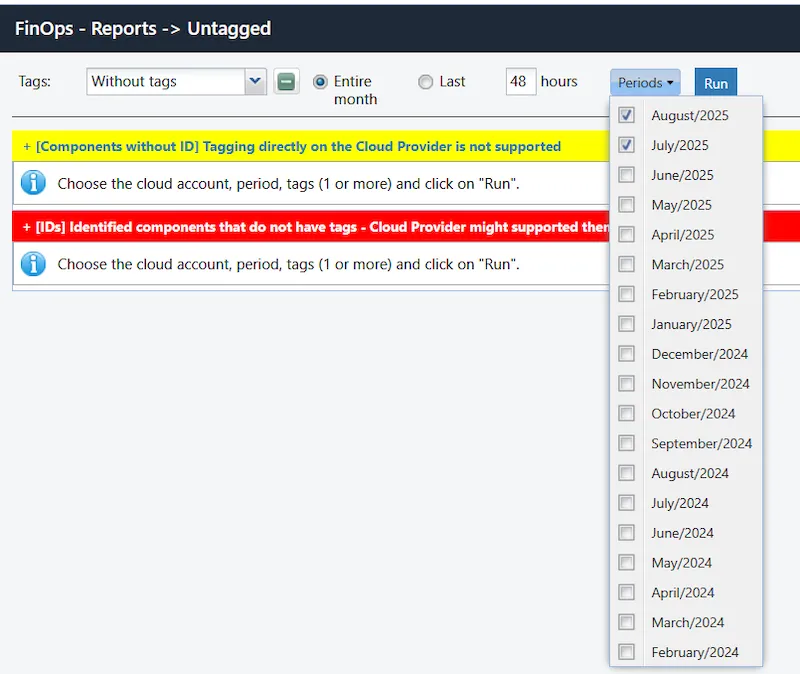
Select the verification period, which can be the default monthly view value in the “Entire month” option or a period specified in hours by selecting the “Last” option and setting a value for “hours”, as shown in the image above.
It is important to note that “Entire month” takes into account the months defined in “Periods,” which may or may not coincide with the time the function is executed.
To run the verification, click Run and wait.
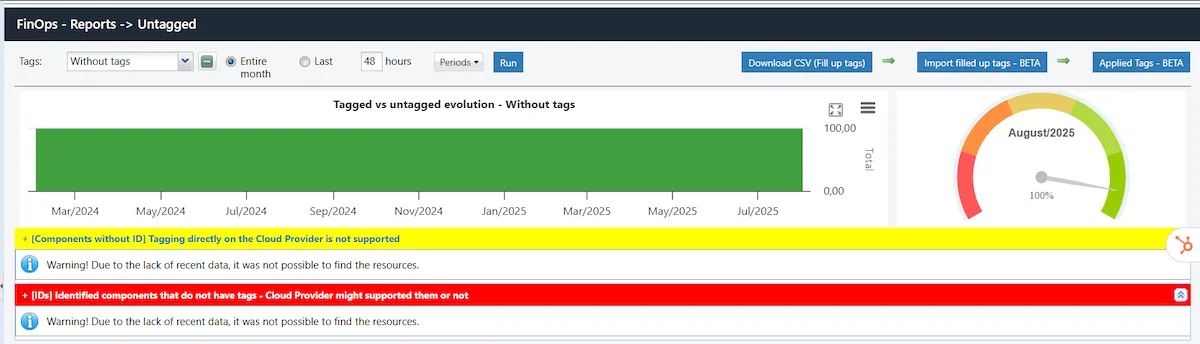
The result will generate a graph showing the total number of untagged resources.
Identifying resources with a specific tag. #
It is also possible to check the adherence level of a specific tag within the user’s infrastructure. Instead of selecting the value “Without tags”, define a tag key to be checked, as in the example below. Configure the verification period and click Run.
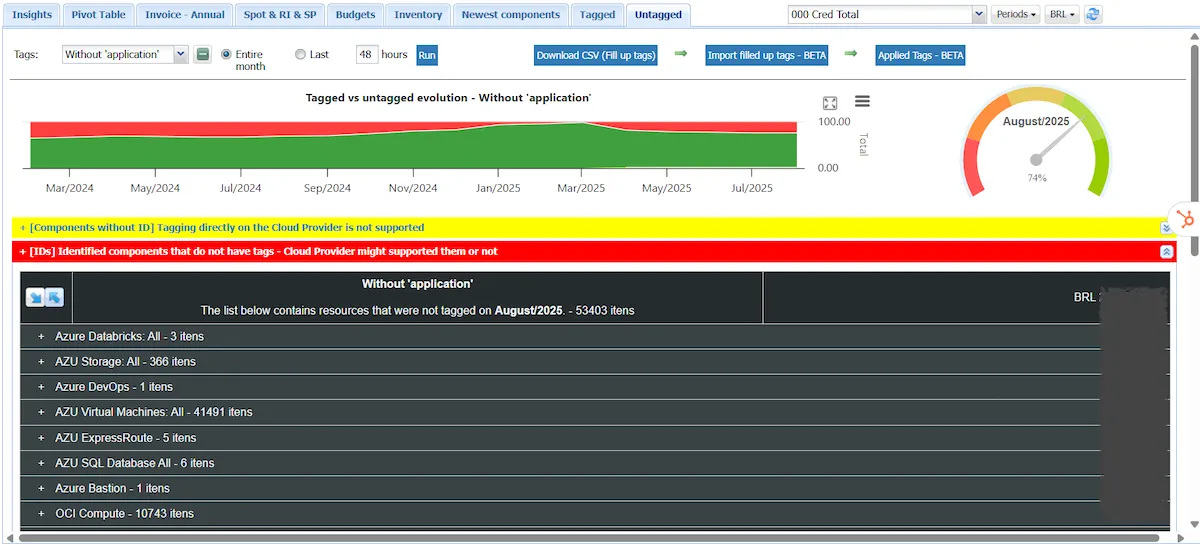
The example below illustrates important features of the functionality, such as:
Synthetic tagging and multi-cloud management : the returned result shows service categories in which there are resources without the selected tag. Note that the example demonstrates that the tool was able to identify tags in both OCI and Azure.
Historical overview of the tag : it is possible to check the tag’s adoption history over a one-year period. In the example provided, we can see that efforts were made to tag all resources between January 2025 and March 2025. It is also noticeable that in subsequent months the tag ceased to exist for all resources, which can be explained by the environment’s growth without a policy for tagging new resources.
Cost allocation : the panel displays the total cost of untagged resources, demonstrating the financial impact of the lack of identification. In the case of the “application” tag, these are resources whose classification has not been assigned to any specific application, making it impossible to correctly associate the expense with a system, project, or business unit.
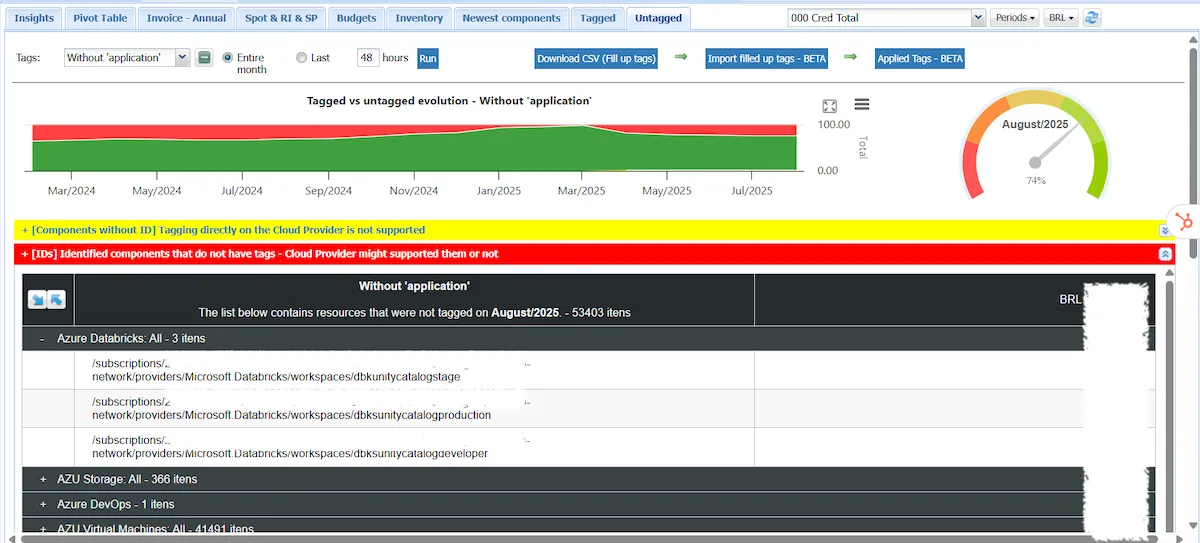
Resource detail : the tool not only shows the category of untagged resources, but also identifies exactly what they are.
Assign tags to Untagged #
Once the untagged resources have been identified, it’s possible to export a CSV file of the result. This functionality ensures not only that the user can aggregate this information as a BI dataset, but also generates a blank column in the file for the user to fill in with the missing tag value. To do this, click on Download CSV (fill up tags).

Open the file and fill in the tag column with the tag values for each identified resource.
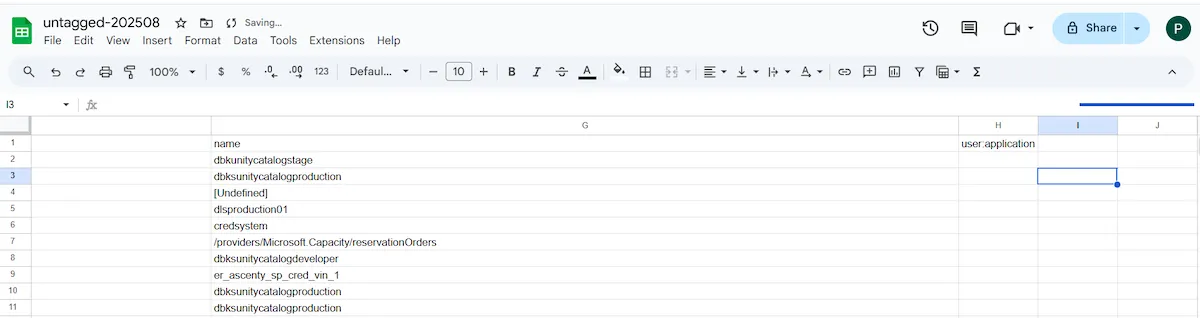
After filling in the information, click on “Import filled-up tags – BETA”. Before starting, it is important to select the provider. The Untagged functionality needs to be managed individually in each configured provider and will not work in Business Units. At the top of the screen, you can see the display provider.
Note : Although it is possible to list a tag using Business Units, importing tags is a task that needs to be performed provider by provider.

On the displayed screen, it is recommended to select the option “Apply automatically in the upcoming months”. This function will prevent the need to manually enter tag values for existing resources each time period. Therefore, the tag values adopted in the completed file will be replicated in the same resources later.
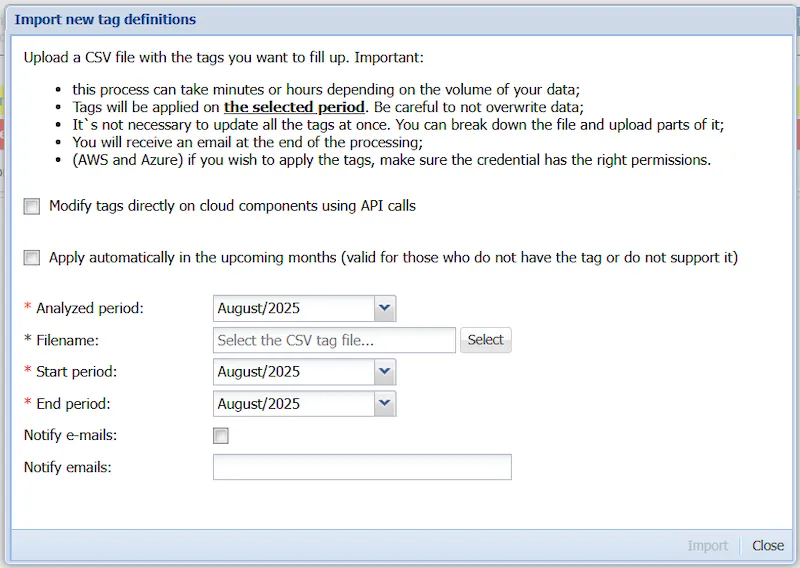
It is also possible to change the tags directly in the cloud provider by selecting the option “Modify tags directly on cloud components using API calls”. The remaining fields to be filled in are:
- Analyzed period : the period from which the filled tags were extracted.
- Filename : clicking Select allows you to select the filled-in file to be imported.
- Start period : the period from which tags need to be filled with the correct values, allowing the current tag definition to be applied to previous periods.
- End period : the last month in which the tags need to be adjusted. Generally, this is the period from which the populated tags were extracted. However, nothing prevents a scenario where a tag needs to be classified with one value until a certain month, and then adopt a different value in subsequent months.
- Notify emails : the option to be notified when the tagging process is complete.
Finally, click Import.
Note: The ability to modify tags directly in cloud components using API calls is only available for Azure and AWS providers.
If you want to perform tagging in Azure by selecting the option to call the API, the service principal needs to be a Contributor or you need to select RBAC for the ResourceManager/tagOperations API.
If you want to perform tagging on AWS by selecting the option to call the API, you will need to enable the following access credentials:
...
tag:*
ec2:CreateTags
ec2:DeleteTags
rds:AddTagsToResource
rds:RemoveTagsFromResource
elasticloadbalancing:RemoveTags
elasticloadbalancing:AddTags
route53:ChangeTags*
dynamodb:Tag*
dynamodb:Untag*
logs:Tag*
logs:Untag*
eks:Tag*
eks:Untag*
elasticache:RemoveTagsFromResource
elasticache:AddTagsToResource
s3:DeleteObjectTagging
s3:DeleteJobTagging
s3:PutBucketTagging
s3:DeleteStorageLensConfigurationTagging
s3:ReplicateTags
s3:PutStorageLensConfigurationTagging
s3:PutObjectVersionTagging
s3:PutObjectTagging
s3:PutJobTagging
s3:DeleteObjectVersionTagging
dms:RemoveTagsFromResource
dms:AddTagsToResource
...
Audit tags adjusted in Untagged #
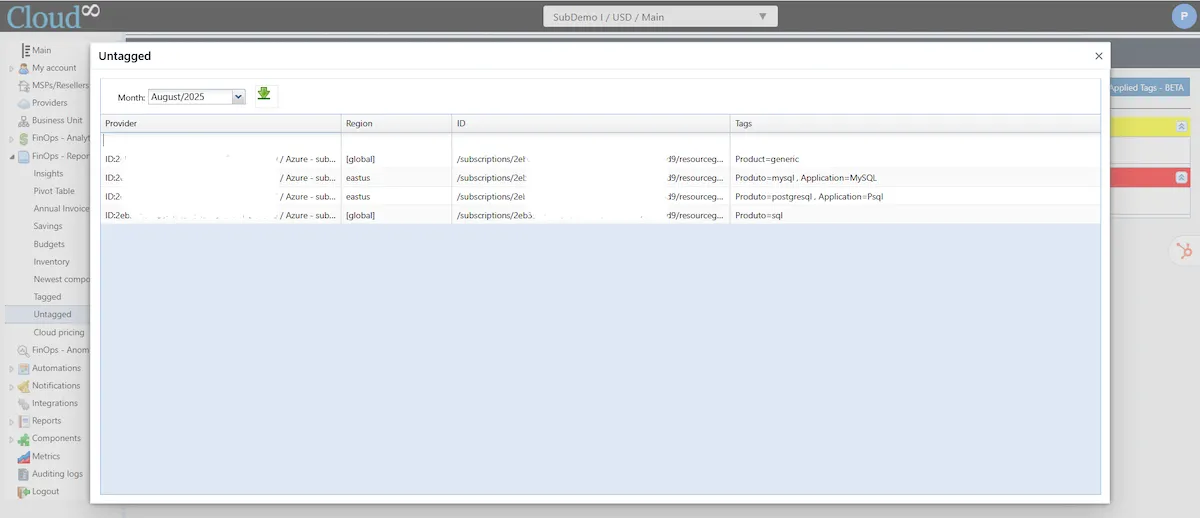
It is possible to manage the history of tag changes made in the tool through the “Applied tags – BETA” option. This feature provides even more control over tag governance and allocation, allowing you to identify changes made by provider, resource, region, and tag value changed.
Tagged – Control of adherence to a specific tag. #
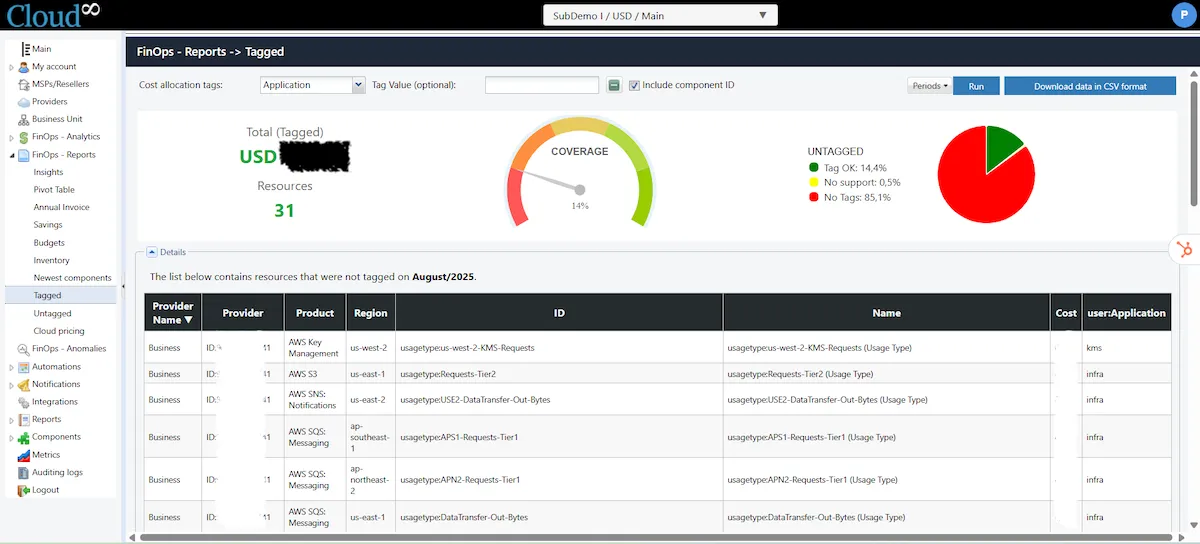
Unlike the previous functionality, Tagged aims to present adherence data for a specific tag value. In the left sidebar menu, click on FinOps – Reports and select Tagged. The coverage chart generates the following information:
- Tag OK : percentage of resources that have the selected tag.
- No support : percentage of resources that do not support tagging.
- No Tags : percentage of taggable resources that do not have the selected tag.
The feature also displays the total cost of resources that adopt the selected tag and the total number of resources. By clicking on “Download data in CSV format,” it is possible to extract a file with the list of resources that adopt the desired tag. This feature allows the user to import this data into their BI and reporting tools, in order to support tagging implementation projects.
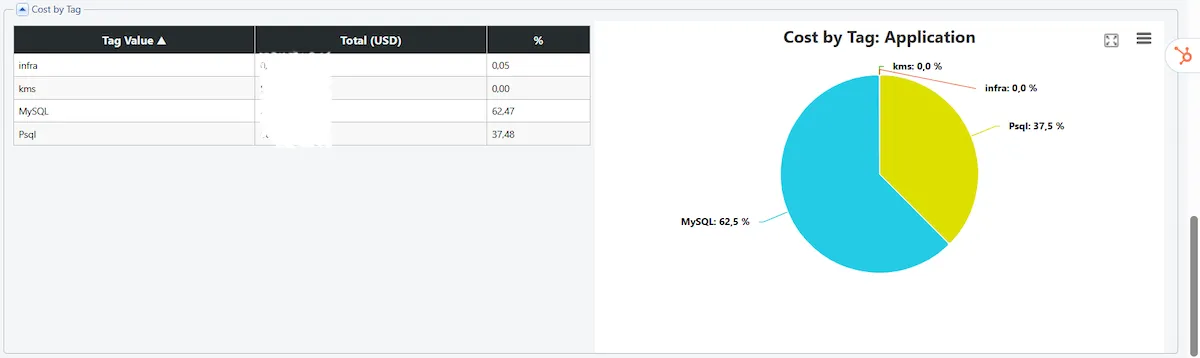
The visualization allows you to evaluate the main values of assigned tags, as well as their cost.
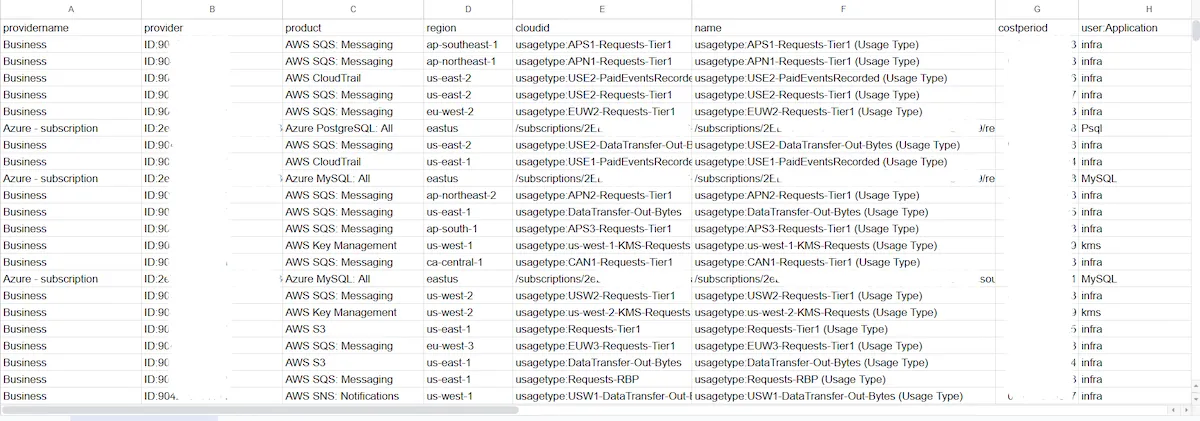
The generated file contains key information for identifying the resource, such as the provider name, the resource name, and its respective ID in the cloud.
Using Tags in Cloud8 #
Tags have several functions within the Cloud8 tool, ranging from user permissions to cost identification for specific business units. The topics below will discuss the use of tags in more detail.
Roles for data visualization and resource management in the tool. #
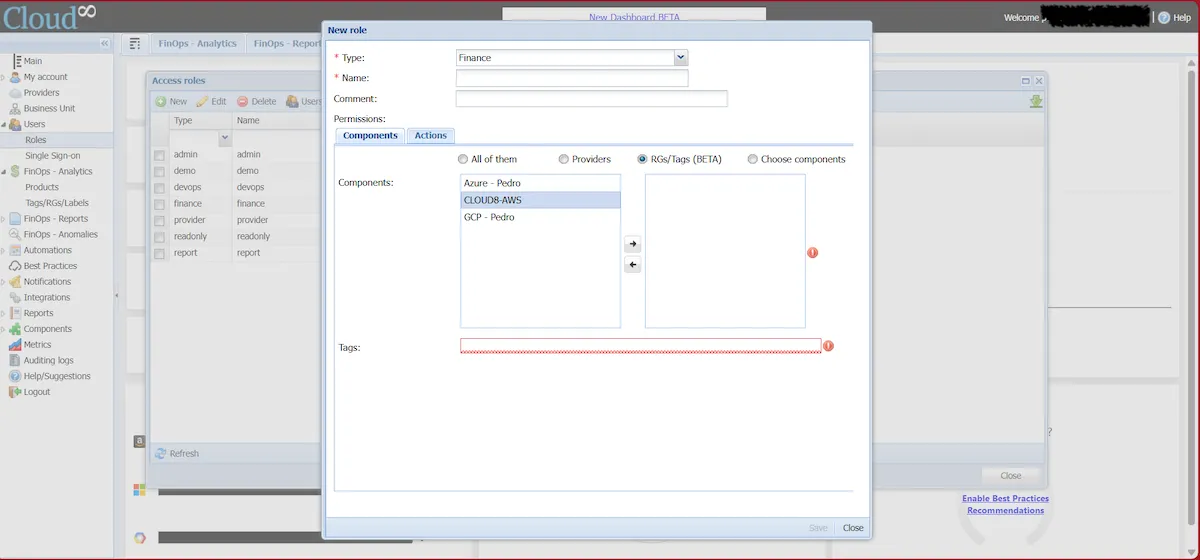
Tags can be used when creating new Cloud8 access Roles, allowing you to limit the visibility of resources based on a specific tag.
Pivot Table in FinOps – Reports #
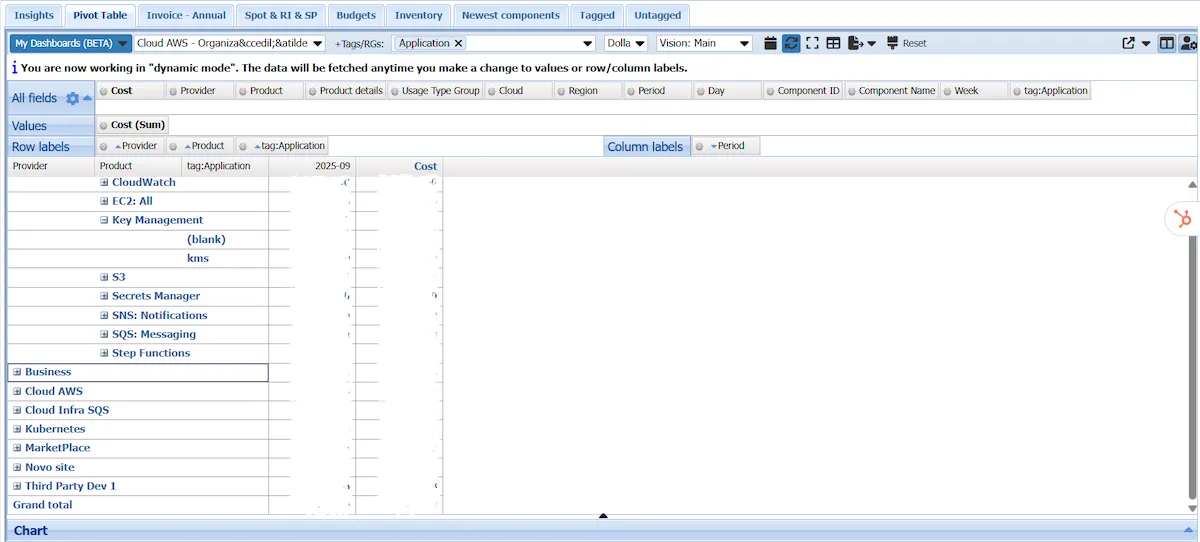
Tags can be included as an evaluation field in a Pivot Table in order to identify the costs of a product or business unit configured in the tool.
Budget Setup #
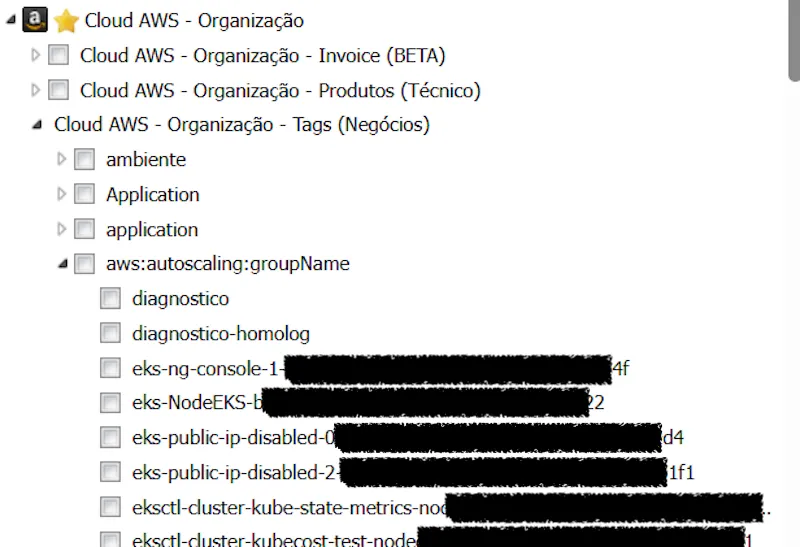
Currently there are 3 (three) Budget methods implemented in the Cloud8 tool: Organization – Invoice; Organization – Products; Organization – Tags.
Organization – Tags (Business) is the budget configuration that monitors the budget through metadata and its respective values, allowing for greater control of budgets at the business level.
FinOps – Analytics #
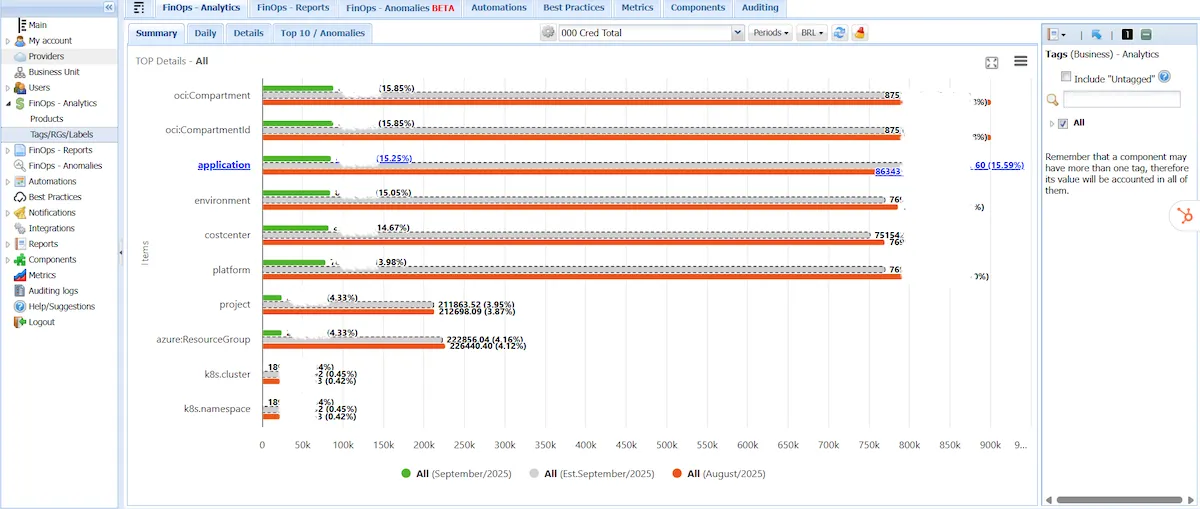
It is possible to use the FinOps – Analytics feature based on tags to detail costs per tag, allowing for a thorough evaluation of cloud spending for specific resources.
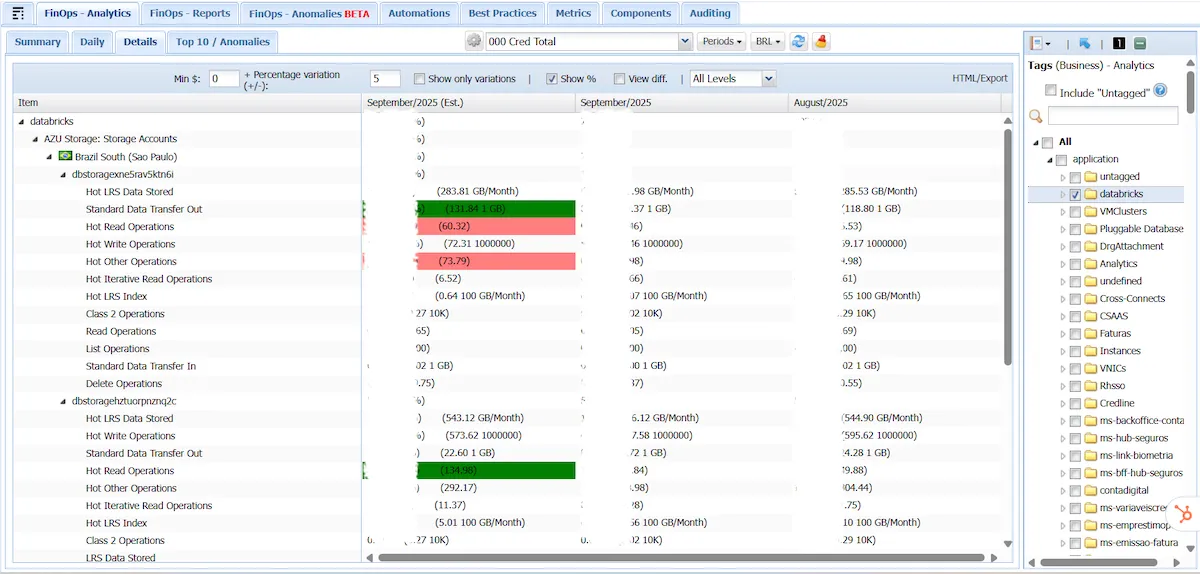
The Details Panel allows for a detailed identification of costs, making it possible to select the desired tags in the analysis, the resources that use them, and the detailed costs for operating their workload.
Conclusion #
Proper tag management is one of the cornerstones of FinOps. With the Tagged and Untagged functionalities , Cloud8 allows multicloud companies not only to have visibility into their costs, but also to standardize, correct, and automate resource governance, strengthening financial efficiency and accountability across business areas.


