Skip to content
Cloud8 Logo
  • PRODUCT
  • PRICING
  • SUPPORT
  • CONTACT US
  • LOGIN
  • PRODUCT
  • PRICING
  • SUPPORT
  • CONTACT US
  • LOGIN

Avançado

  • Creation of unified annual budgets

Best Practices

  • How to integrate Slack into Best Practices
  • How to monitor memory and swap with SSM
  • AWS Bucket S3 Topic Notification
  • Best Practices: Password and Credential Monitoring
  • Best Practices: Custom Rule Notifications via AWS S3
  • Best Practices: Microsoft Teams Support

Charging

  • AWS account suspension: tips and what to do

Cloud8 Academy

  • Configuring Budgets on Cloud8
  • Best Practices for Using Tags (Playbook)

Concepts

  • Security groups
  • Access key
  • Cloud Computing
  • Cloud Control Panel – AWS, Azure, GCP, Huawei and Oracle
  • Cost model: pay per use
  • Additional disks
  • Snapshot
  • Cloud server image or template
  • Comparison: Automation via Cloud8 vs “homemade” automation
  • FINOPS: Data Integration and Enhancement Flow (Infographic)
  • Difference between RI Applied vs RI in Cloud8 Panel

Credentials

  • How to use IAM Role to integrate your security with Cloud8
  • Security credentials for public clouds
  • Connecting OCI Providers to Cloud8 – Full Tutorial
  • Credential for Huawei Cloud
  • Best Practices: Enabling user monitoring in Azure

Features

  • Monitoring the creation of new resources in Cloud8
  • Cost analysis dashboards
  • Creating and managing Cost Management Exports
  • Configuring GCP SSO and SAML
  • Backup with “Lock/Unlock” governance
  • Cost Analysis with FinOps Analytics
  • Tracking Consumption Patterns with Invoice – Annual from Cloud8
  • How to integrate and export data from Cloud8 to Cloud Storages
  • Monitoring the creation of new resources in Cloud8
  • Configuring GCP SSO and SAML
  • Using Cloud Pricing on Cloud8

First Steps

  • Connecting GCP Providers to Cloud8 – Full tutorial
  • Connecting AWS Providers to Cloud8 – Full Tutorial
  • How to manage more than one AWS account
  • Hot to enable cloud cost estimates monitoring
  • Connecting Azure Enterprise Agreement providers to Cloud8 – Full tutorial
  • Creating a New Account on Amazon Cloud (AWS)
  • Connecting OCI Providers to Cloud8 – Full Tutorial
  • Cloud8 Users and Profiles
  • Onboarding: getting started on Cloud8

MSP / Reseller

  • White label at no additional cost
  • MSP: Configuring costs
  • MSP: Configuring markup

Primeiros Passos

  • Security credentials for public clouds
  • Connecting Azure providers to Cloud8 – Complete tutorial
  • Connecting MongoDB providers in Cloud8

Services

  • FinOps: Tags and Usage
  • Using Cloud8 Insights
  • Audit logs
  • Cloud usage statistics
  • Managers on Cloud8 – Resource management on AWS, Azure and GCP
  • Alerts
  • Using Automations in Cloud8
  • Multiple Users – Multiuser Panel
  • Cloud aggregator control panel
  • Automated backup of cloud servers
  • Cloud cost control, alerts and reports
  • ECS / Fargate support on Workflow
  • Detailed Costs Report
  • Enabling Azure AD SSO in the Cloud8 Dashboard
  • Workflow: How to reset tasks periodically
  • Add TAGs with CSV file
  • How to install Metricbeat component on AKS
  • RDS reports with grouping by ID
  • Kubernetes Cost Support
  • How to install Metricbeat component on GKE clusters
  • Enabling MFA in the Cloud8 Dashboard
  • FinOps: Cost Anomaly Reports and Charts
  • How to install the Metricbeat component in OKE
  • How to install Metricbeat component on EKS
  • FinOps: Reverse API
  • FinOps: Tag Sharing and Prorating
  • FinOps: Tag Sanitization, Compliance and MultiCloud
  • FinOps: Tagged / Untagged
  • FinOps: Tags / Labels / Resource Groups
  • FinOps: Reports, Alerts and Budgets
  • S3 Lambda Notification Processor (deploy via CLI)

Troubleshooting

  • I subscribed Amazon and I still can’t access Cloud8
  • How is the cloud cost estimate calculated?
  • I created a security group through the AWS console and it still doesn’t appear in Cloud8
  • I exported the cloud server usage report. What do the fields mean?
  • Cloud8 and Amazon don’t monitor my cloud server’s memory?

Tutoriais / FAQ

  • FAQ – Enable cost monitoring per pipeline in Data Factory
  • FAQ – How to test the SSO configuration?
  • Creation of unified annual budgets
  • Backup, DR, and Vault Copy with KMS

Tutorials

  • How to access a Windows server in the Amazon AWS cloud
  • How to access a Linux server
  • How to create a cloud server
  • How to integrate Slack into Best Practices
  • How to configure scheduling for script execution in AWS
  • How to configure scheduling by Tags / Labels
  • Configure vault copy at AWS (cross account) with KMS
  • How to configure the Scheduler for script execution on OCI
  • Workflow: How to reset tasks periodically
  • How to install Metricbeat component on AKS
  • How to install Metricbeat component on GKE clusters
  • How to install Metricbeat component on EKS
  • How to install the Metricbeat component in OKE
  • FinOps: Cost Anomaly Reports and Charts
  • Group data in Pivot Table
  • FinOps: Tag Sanitization, Compliance and MultiCloud
  • S3 Lambda Notification Processor (deploy via CLI)
  • Best Practices: Microsoft Teams Support
View Categories
  • Home
  • Docs
  • Cloud8 Academy

Configuring Budgets on Cloud8

5 min read

The Cloud8 tool allows users to unify and simplify corporate budget management by bringing together various providers into a single simplified view. Although cloud service providers offer native Budget functionalities, they can become inefficient in multicloud contexts, given the need to create distinct budgets across different portals, resulting in a growing number of rules to administer.

Step 1 – Accessing Cloud8 Budget Management #

In the left sidebar menu, select FinOps Reports, and then Budgets. Click New, and a blank budget template will be created for editing. Each field represented by a column must be selected and filled out.

Step 2 – Configuring the Budget #

Name #

The name to be given to the budget. A good practice to adopt is to give names that clearly state the function of the budget it represents, the configured providers, business units, and the defined grouping method (Tags, Invoice, or Product).
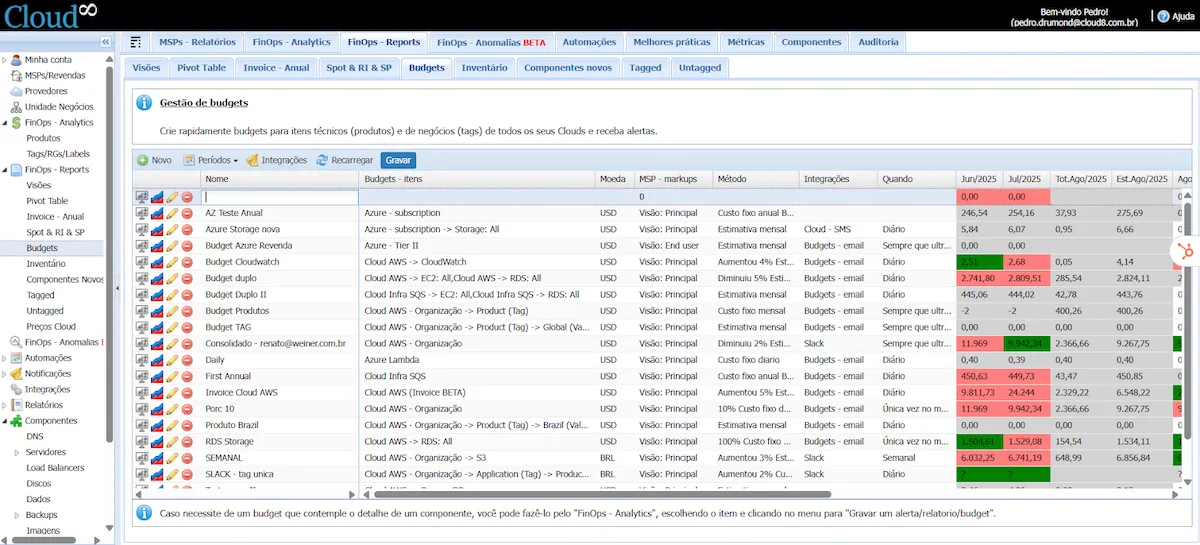
Configurando Budgets no Cloud8

Budgets – Items #

Configuration of the providers assigned to the budget. Clicking on the field will display all registered providers.
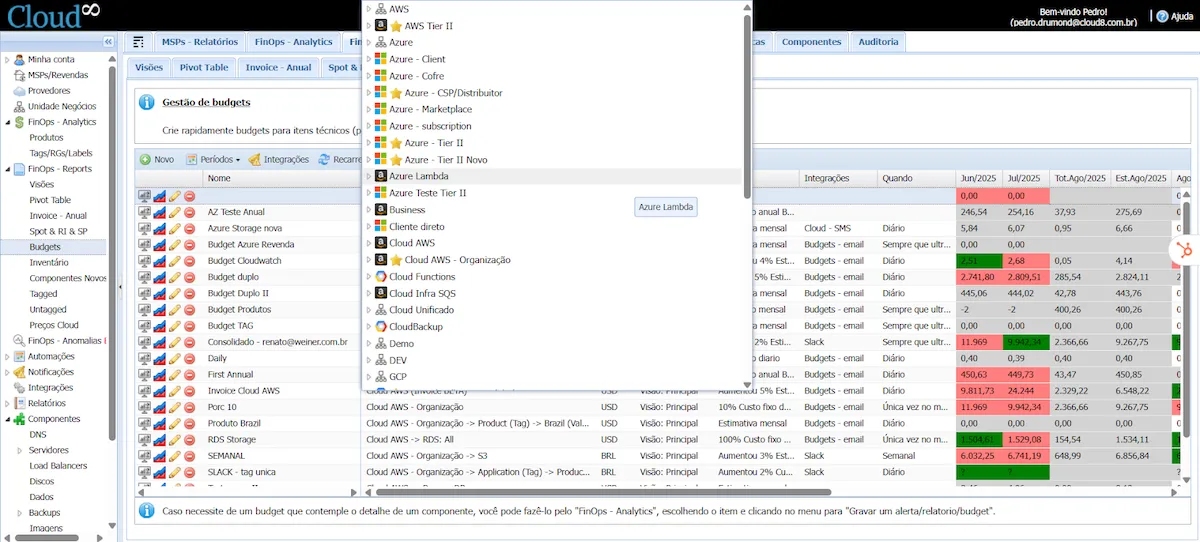
Configurando Budgets no Cloud8

There are currently 3 (three) Budget methods implemented in the Cloud8 tool: Organization – Invoice; Organization – Products; Organization – Tags.
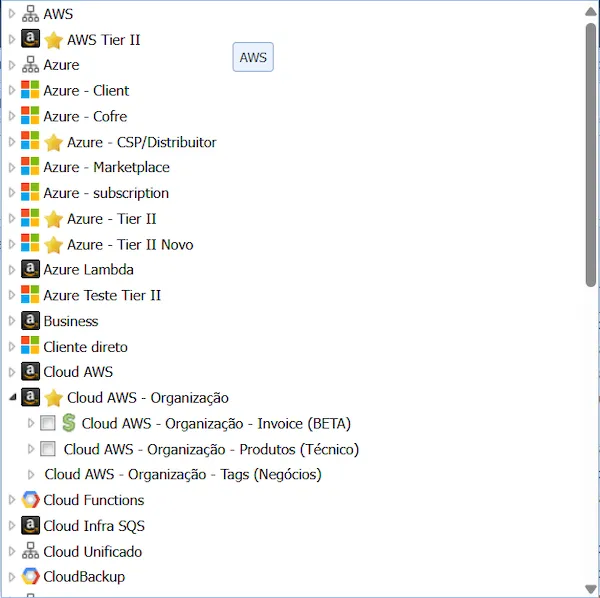
Configurando Budgets no Cloud8
  1. Organization – Invoice (BETA) – This budget configuration monitors the budget through the Invoice generated by the providers. In scenarios where business units, applications, and products are properly separated by Billing Profile (Azure), Billing Account (AWS), Payer Account (GCP and Huawei).
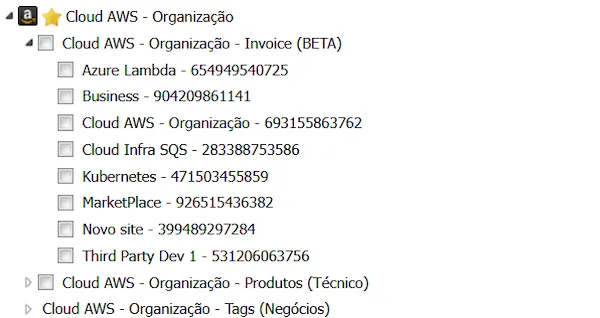
Configurando Budgets no Cloud8
  1. Organization – Products (Technical) – This budget configuration monitors the budget through service categories offered by the provider. It allows you to specify which products you want to monitor within the defined budget, and is recommended for scenarios such as new implementations and products (e.g., an Artificial Intelligence resource usage PoC, where you can set a budget to prevent costs from exceeding reasonable values).
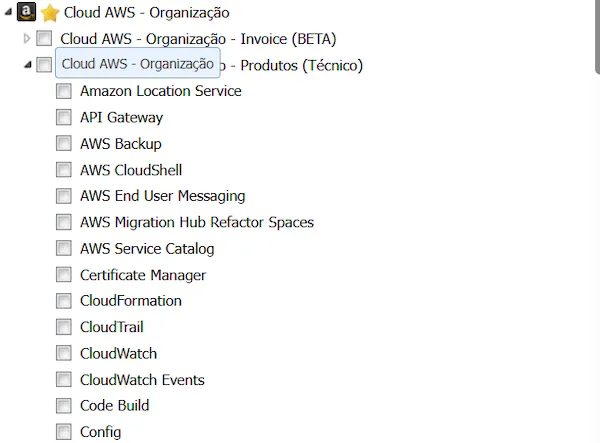
Configurando Budgets no Cloud8
  1. Organization – Tags (Business) – This budget configuration monitors the budget through metadata and their respective values, allowing for greater budget control at the business level.
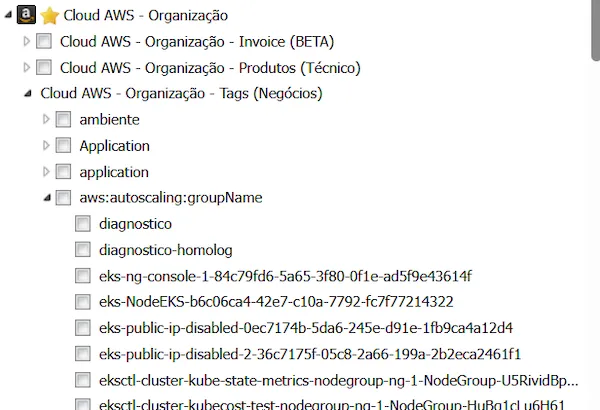
Configurando Budgets no Cloud8

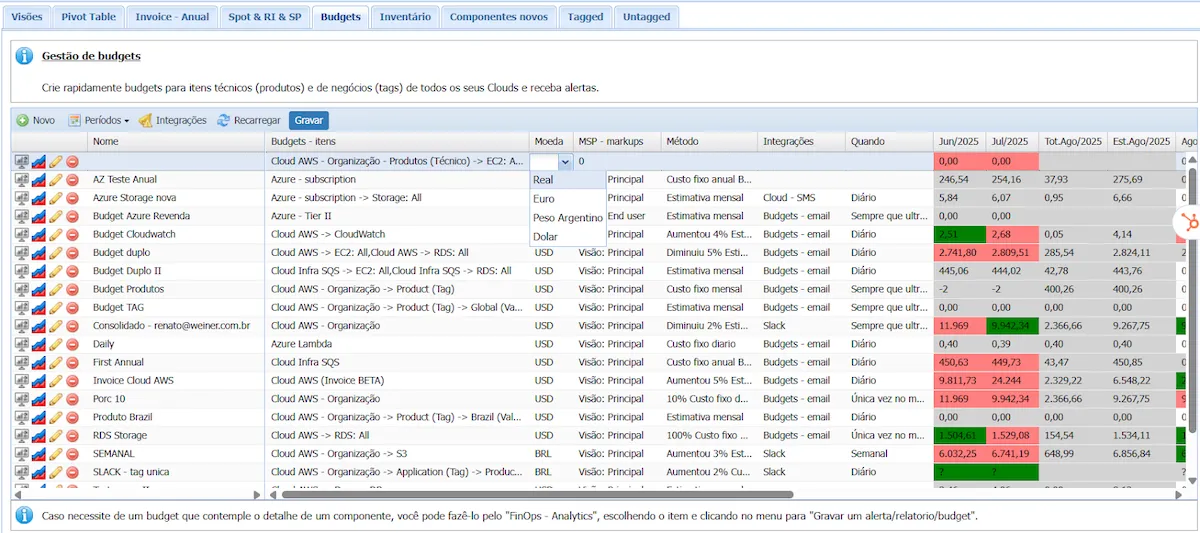
Currency #

Define the currency to be considered when triggering alerts, which directly impacts scenarios where the provider bills in a specific currency (such as AWS, which bills in USD), or contracts that do not have a fixed exchange rate.
Configurando Budgets no Cloud8

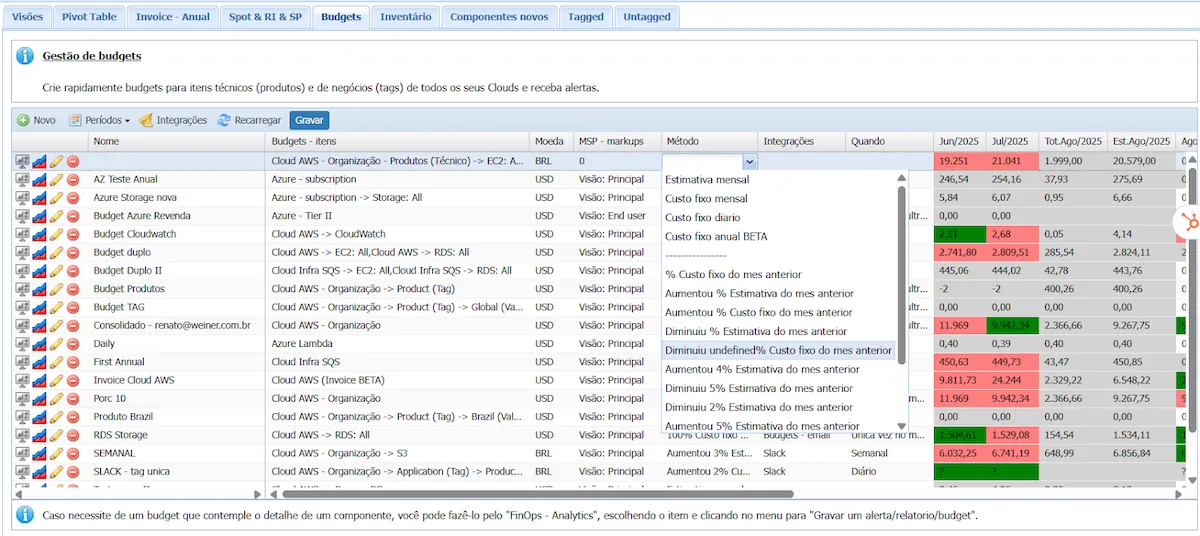
Method #

The Cloud8 tool features several trigger methods to monitor budget overruns.

Monthly estimate and Monthly fixed cost: 

In case there are pre-defined and/or estimated costs, select Monthly Estimate or Monthly Fixed Cost. Then, fill in each month of the Budget period with the specific budget value for that month. Values are entered manually, given the possibility of assigning different budgets to different months.

Configurando Budgets no Cloud8

Daily fixed cost: 

For an even higher level of control, you can assign a daily budget by selecting Daily Fixed Cost. Then, fill in each month of the Budget period with the specific budget value for that month. Values are entered manually, given the possibility of assigning different budgets to different months.

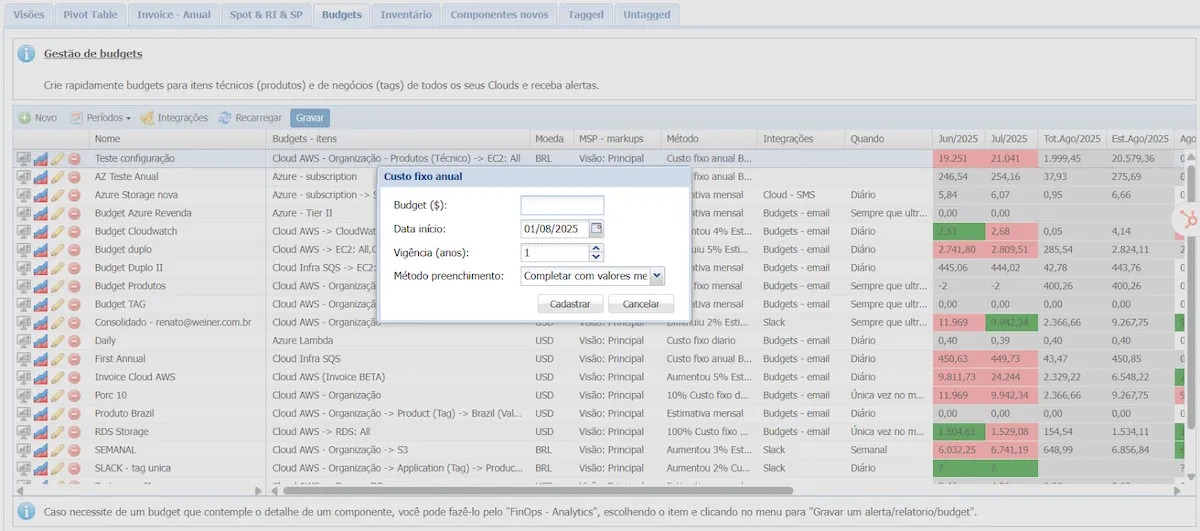
Annual fixed cost BETA: 

For annual budgets, select Annual Fixed Cost BETA. Then, fill in the Budget with the total cost for the period, budget start date, duration in years, and the filling method, which can be:

  1. Complete with consumed monthly values and split remainder: for scenarios where monthly costs may vary, but the budget for the entire period is defined, and the project scope must be adjusted to the remaining balance.
  1. Proportional – divide by the number of months: for scenarios where there is a defined average cost, and monthly variations allow for the identification of consumption anomalies and insights into cost and environment growth.
Configurando Budgets no Cloud8

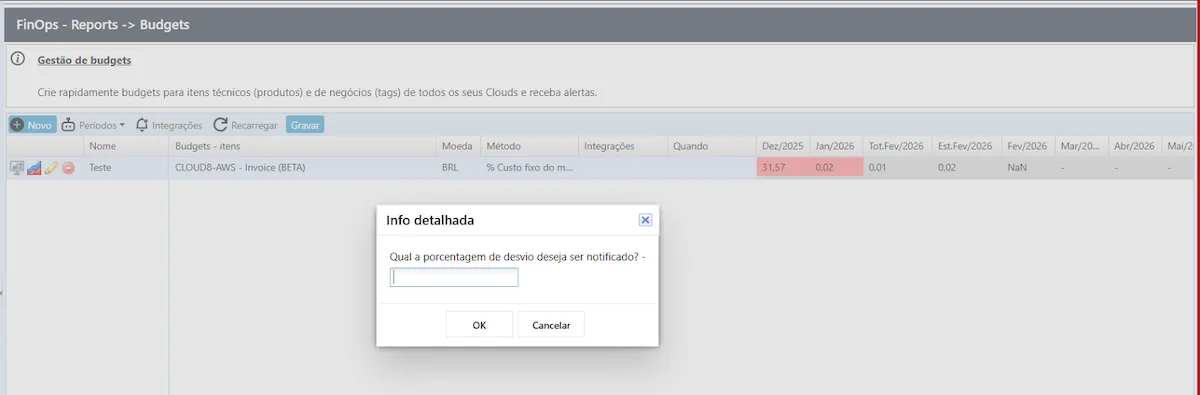
% Previous month’s fixed cost

If there is a tolerance margin for cost variation compared to the previous monthly period, select % Previous month’s fixed cost. Then, enter the valid cost variation percentage—that is, if the Cost Variance is 12%, set the notification percentage to 13%.
Configurando Budgets no Cloud8

This type of Budget does not require defining specific values, as it uses the previous month’s costs as a comparison parameter, generating an ideal scenario of planned growth and automated monitoring.

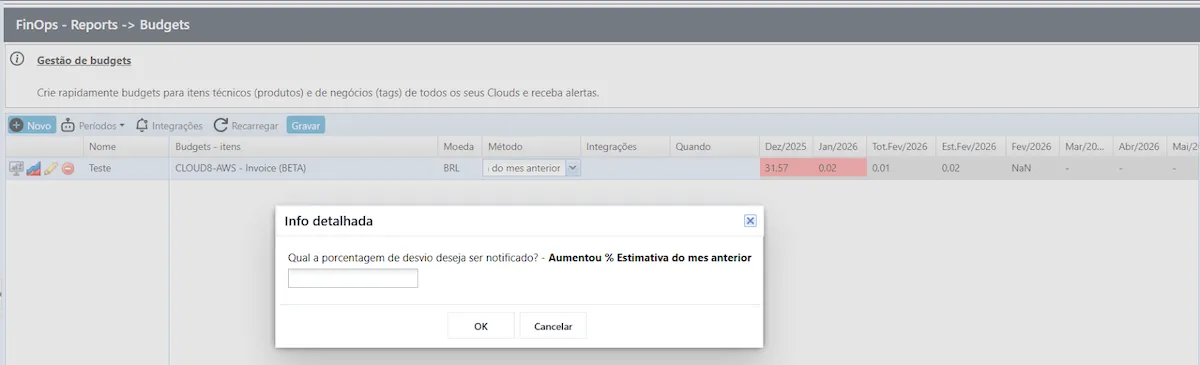
Increased % Previous month’s estimate and Increased % Previous month’s fixed cost

If there is a tolerance margin for cost increases compared to the previous monthly period, select Increased % Previous month’s estimate or Increased % Previous month’s fixed cost. Then, enter the valid cost variation percentage — that is, if the Cost Variance is 12%, set the notification percentage to 13%.
Configurando Budgets no Cloud8

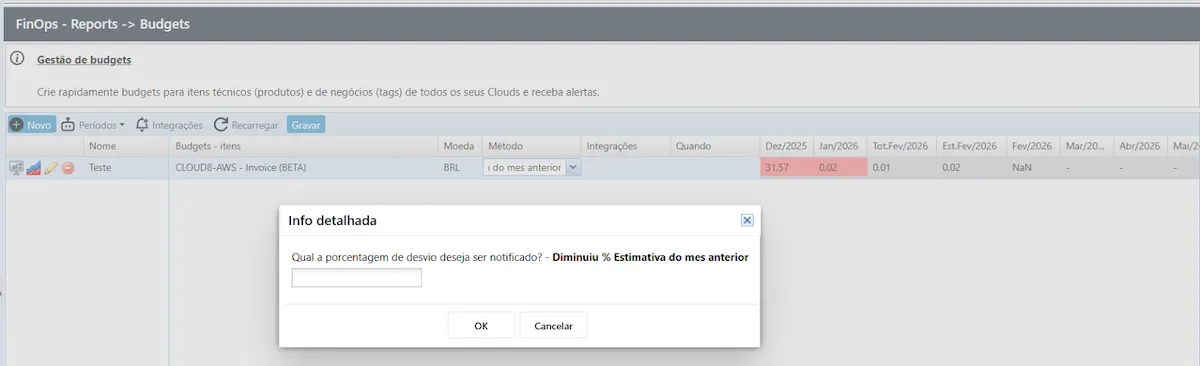
Decreased % Previous month’s estimate

Cloud8 allows you to configure a cost reduction budget compared to the previous monthly period by simply selecting Decreased % Previous month’s estimate. Then, enter the valid cost variation percentage—that is, if the Cost Variance is 12%, set the notification percentage to 13%.
Configurando Budgets no Cloud8

This type of Budget does not require defining specific values, as it uses the previous month’s costs as a comparison parameter, making it an ideal scenario for identifying seasonality periods and evaluating the impact of deactivating features and systems.

Integrations #

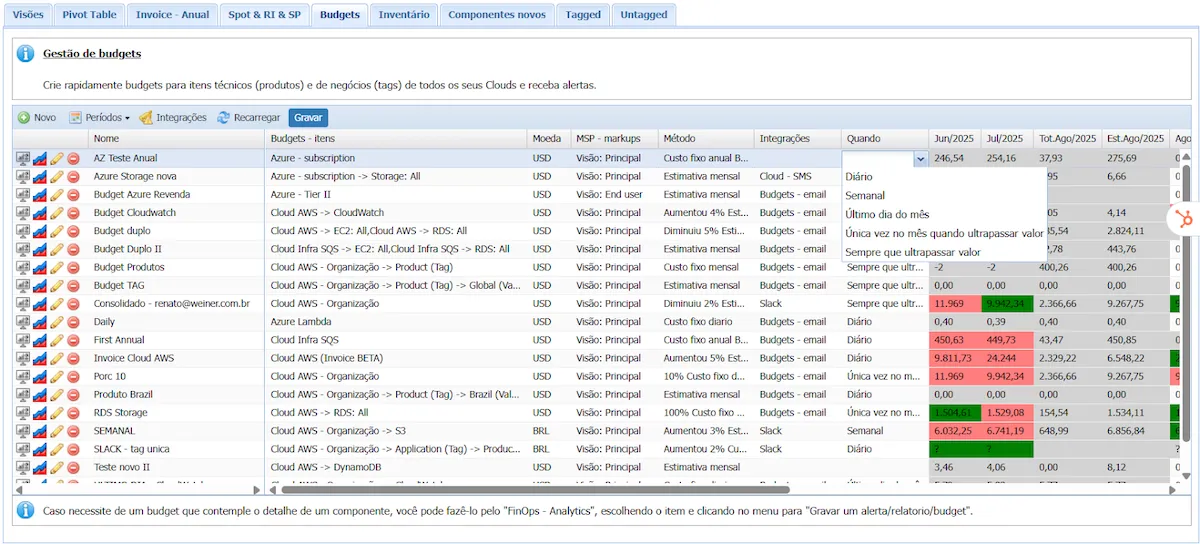
When configuring a budget, it is possible to integrate with a messaging system or email dispatch to notify those responsible for managing the budget.

When: Defines the frequency with which alerts are triggered.

  • Daily
  • Weekly
  • Last day of the month
  • Once a month when the value is exceeded
  • Whenever the value is exceeded
Configurando Budgets no Cloud8

Step 3 – Saving Changes #

Once you have finished configuring all fields, remember to click Save, or all settings will be lost. 

Configurando Budgets no Cloud8

Viewing Budget Data #

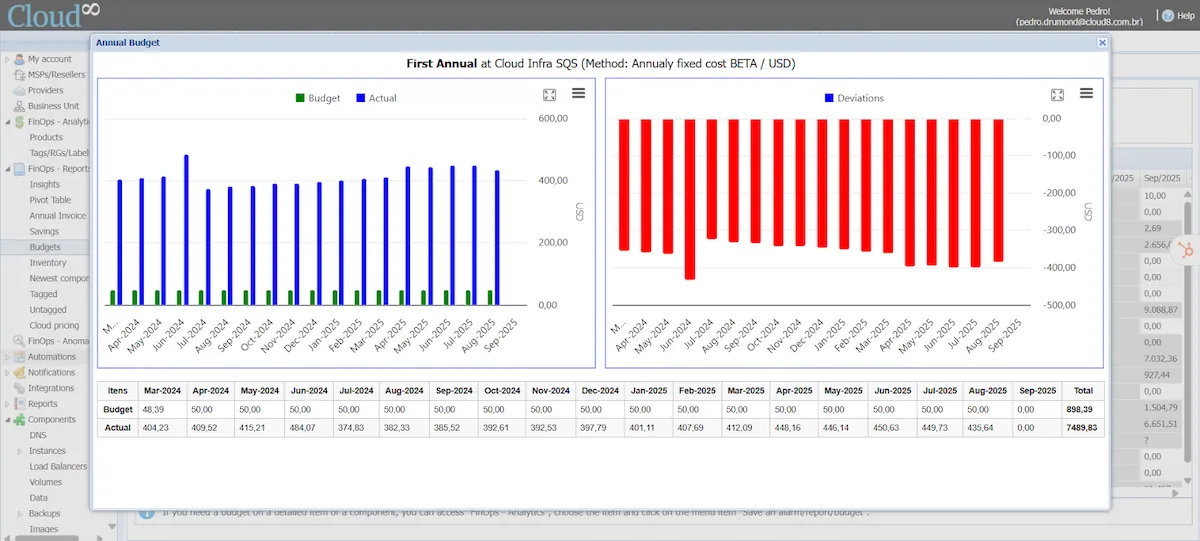
After configuring the Budget, you can monitor the budget by clicking the blue and red icon representing a chart. This feature allows for a comparative evaluation between the actual cost and the projected cost for the selected period.
Configurando Budgets no Cloud8

Final Considerations #

Budgets must be configured individually for each provider. If you want to create a Budget that encompasses more than one provider, you need to create a Business Unit.


You may want to check these Docs too: #

  • Best Practices for Using Tags (Playbook)
Budgets, Custos, dashboard, Finops, Relatórios
Did this Doc help you?

Share This Article:

  • Facebook
  • X
  • LinkedIn
  • Pinterest
Table of Contents
  • Step 1 - Accessing Cloud8 Budget Management
  • Step 2 - Configuring the Budget
    • Name
    • Budgets - Items
    • Currency
    • Method
    • Integrations
  • Step 3 - Saving Changes
  • Viewing Budget Data
  • Final Considerations
Cloud8 Logo
  • Terms of Use
  • About Us
  • FAQ / Support
  • Blog
  • Contact Us
  • Cookies (EU)
  • Terms of Use
  • About Us
  • FAQ / Support
  • Blog
  • Contact Us
  • Cookies (EU)
Globe-americas Facebook Twitter Linkedin Youtube

Disclaimer: AWS, images, and associated services are property of Amazon Web Services Inc. and its affiliates. Azure, images, and associated services are property of Microsoft Corporation. GCP, images, and associated services are property of Google Inc. Huawei, images, and associated services are property of Huawei Technologies Co Ltd. Oracle, images, and associated services are property of Oracle Corporation. Cloud8 Brasil em Português.

Manoel Netto Designer
Manage Consent
To provide the best experiences, we use technologies like cookies to store and/or access device information. Consenting to these technologies will allow us to process data such as browsing behavior or unique IDs on this site. Not consenting or withdrawing consent, may adversely affect certain features and functions.
Functional Always active
The technical storage or access is strictly necessary for the legitimate purpose of enabling the use of a specific service explicitly requested by the subscriber or user, or for the sole purpose of carrying out the transmission of a communication over an electronic communications network.
Preferences
The technical storage or access is necessary for the legitimate purpose of storing preferences that are not requested by the subscriber or user.
Statistics
The technical storage or access that is used exclusively for statistical purposes. The technical storage or access that is used exclusively for anonymous statistical purposes. Without a subpoena, voluntary compliance on the part of your Internet Service Provider, or additional records from a third party, information stored or retrieved for this purpose alone cannot usually be used to identify you.
Marketing
The technical storage or access is required to create user profiles to send advertising, or to track the user on a website or across several websites for similar marketing purposes.
  • Manage options
  • Manage services
  • Manage {vendor_count} vendors
  • Read more about these purposes
View preferences
  • {title}
  • {title}
  • {title}