
The Cloud8 tool allows users to unify and simplify corporate budget management by bringing together various providers into a single simplified view. Although cloud service providers offer native Budget functionalities, they can become inefficient in multicloud contexts, given the need to create distinct budgets across different portals, resulting in a growing number of rules to administer.
Step 1 – Accessing Cloud8 Budget Management #
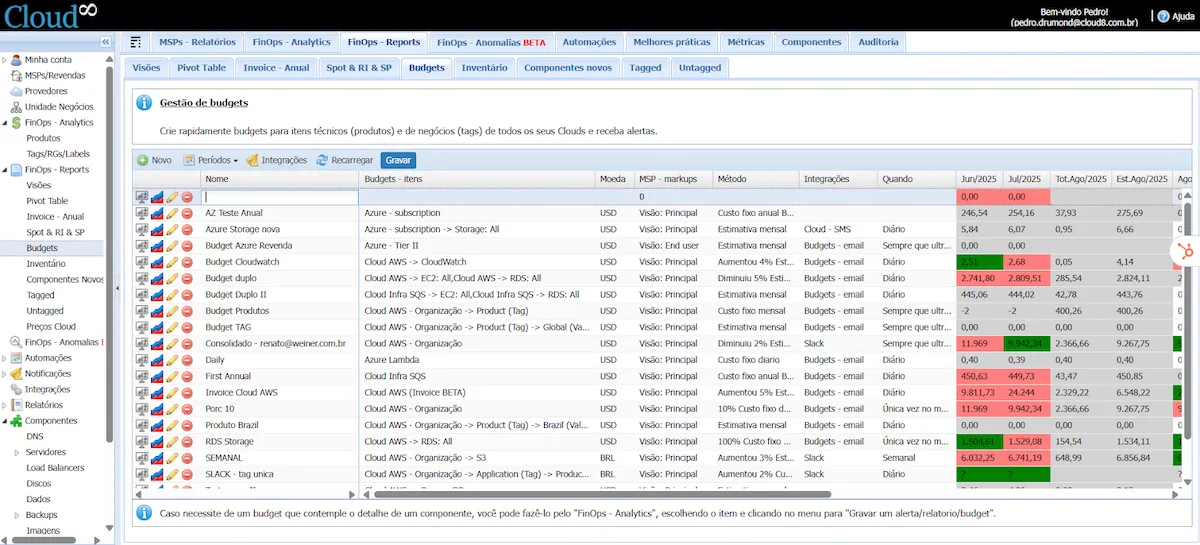
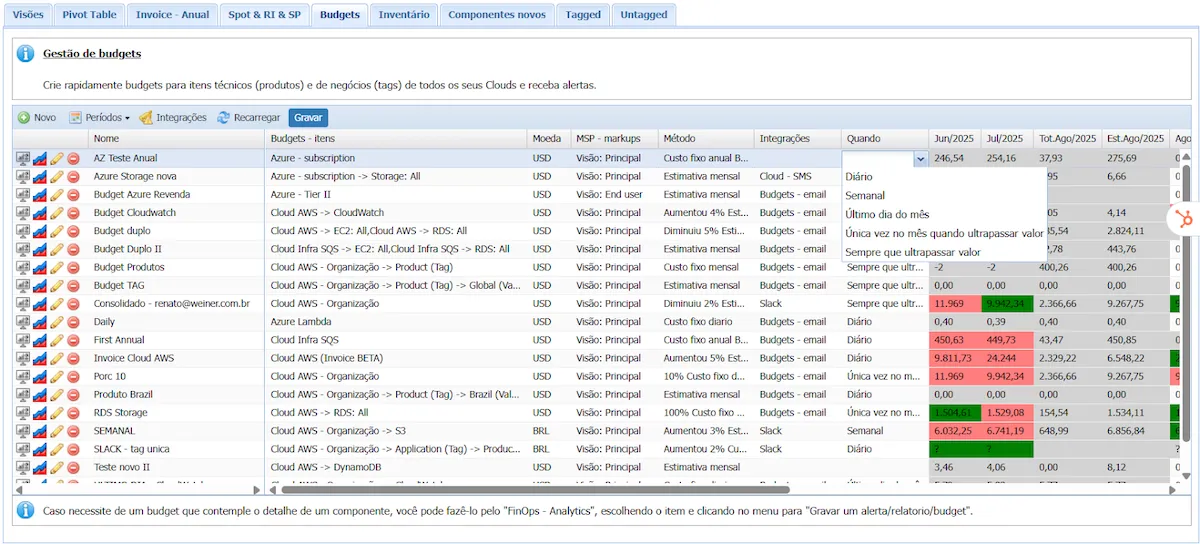
In the left sidebar menu, select FinOps Reports, and then Budgets. Click New, and a blank budget template will be created for editing. Each field represented by a column must be selected and filled out.
Step 2 – Configuring the Budget #
Name #
The name to be given to the budget. A good practice to adopt is to give names that clearly state the function of the budget it represents, the configured providers, business units, and the defined grouping method (Tags, Invoice, or Product).
Budgets – Items #
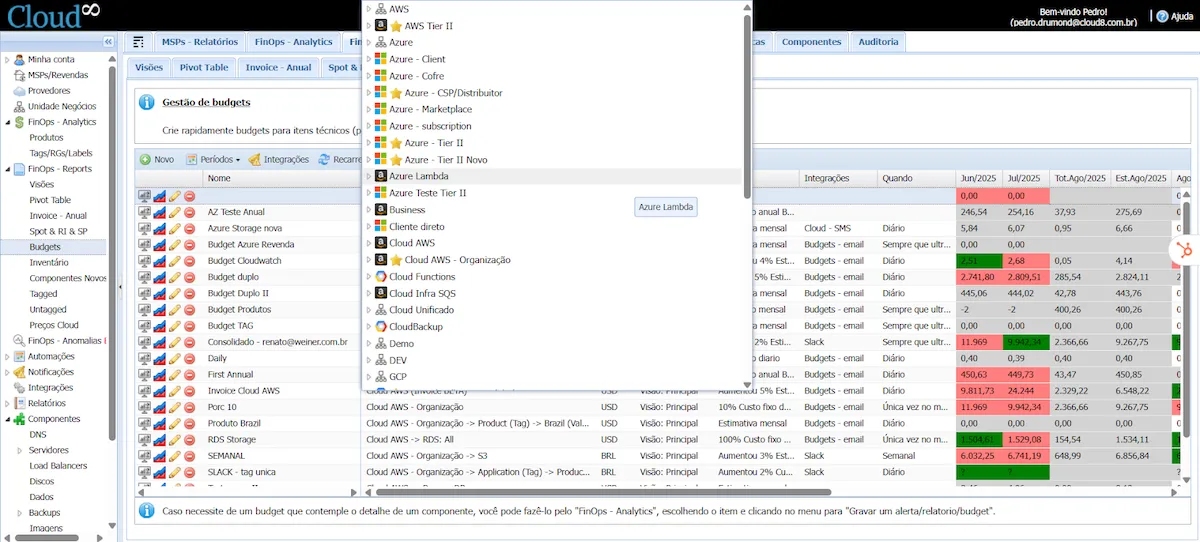
Configuration of the providers assigned to the budget. Clicking on the field will display all registered providers.
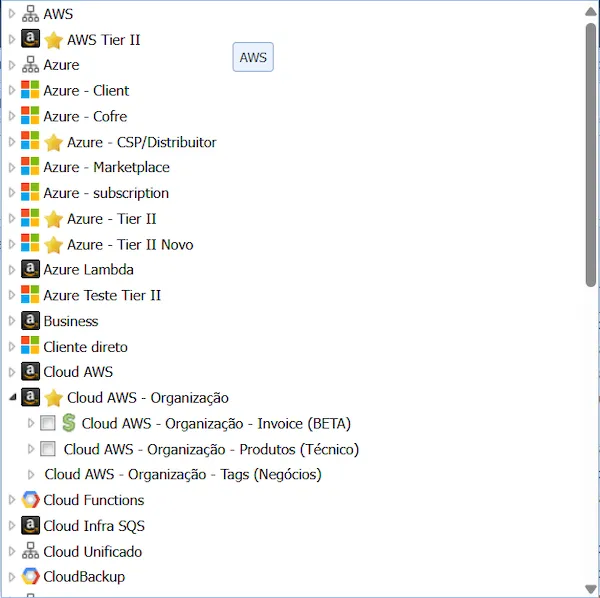
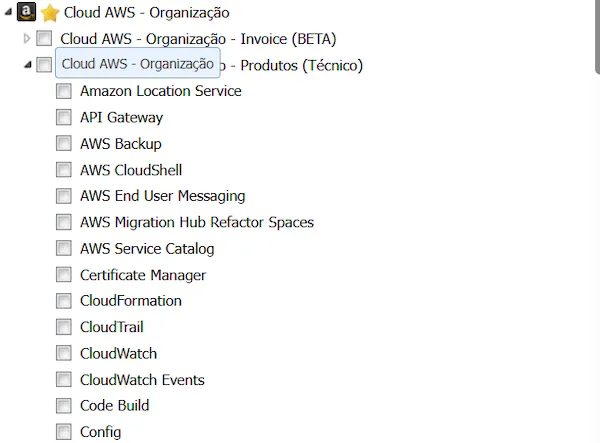
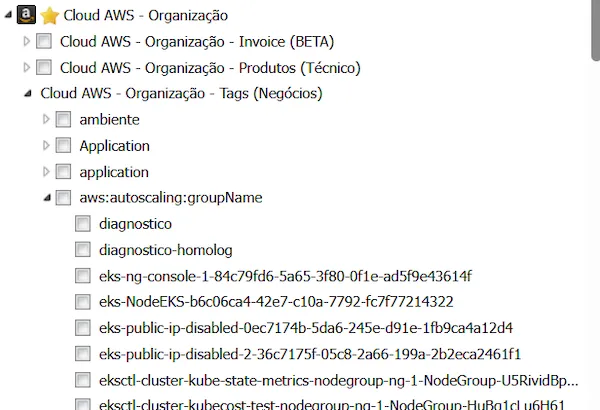
There are currently 3 (three) Budget methods implemented in the Cloud8 tool: Organization – Invoice; Organization – Products; Organization – Tags.
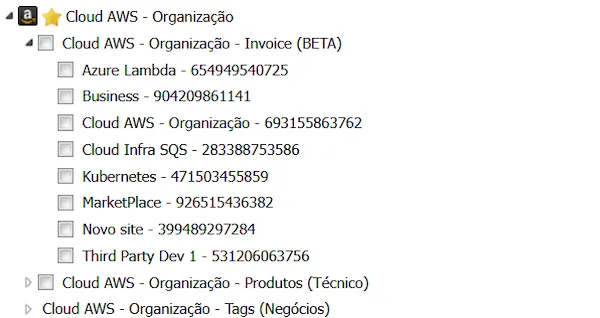
- Organization – Invoice (BETA) – This budget configuration monitors the budget through the Invoice generated by the providers. In scenarios where business units, applications, and products are properly separated by Billing Profile (Azure), Billing Account (AWS), Payer Account (GCP and Huawei).
- Organization – Products (Technical) – This budget configuration monitors the budget through service categories offered by the provider. It allows you to specify which products you want to monitor within the defined budget, and is recommended for scenarios such as new implementations and products (e.g., an Artificial Intelligence resource usage PoC, where you can set a budget to prevent costs from exceeding reasonable values).
- Organization – Tags (Business) – This budget configuration monitors the budget through metadata and their respective values, allowing for greater budget control at the business level.
Currency #
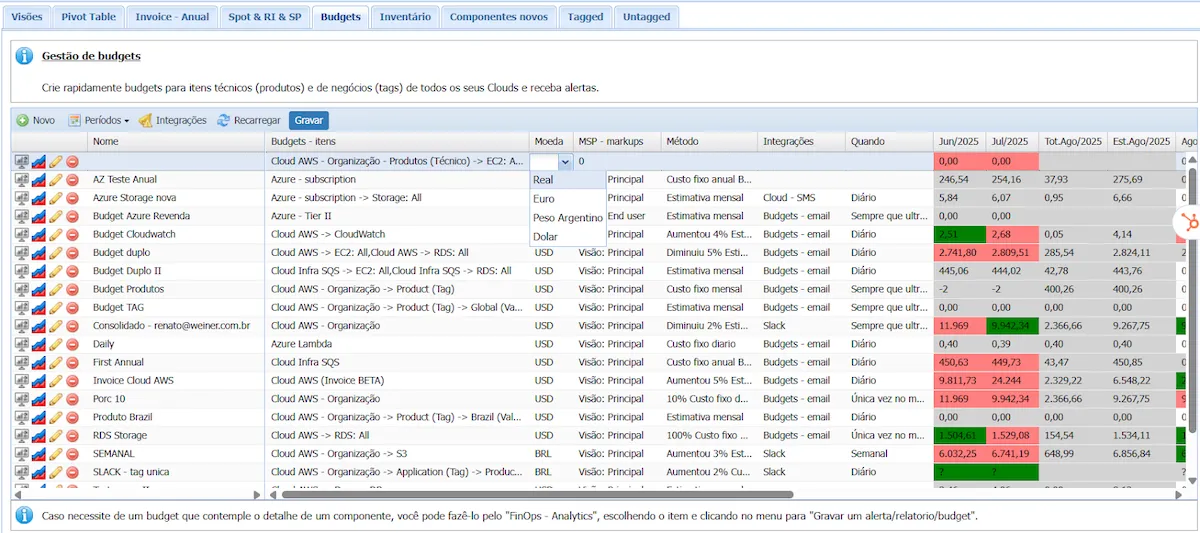
Define the currency to be considered when triggering alerts, which directly impacts scenarios where the provider bills in a specific currency (such as AWS, which bills in USD), or contracts that do not have a fixed exchange rate.
Method #
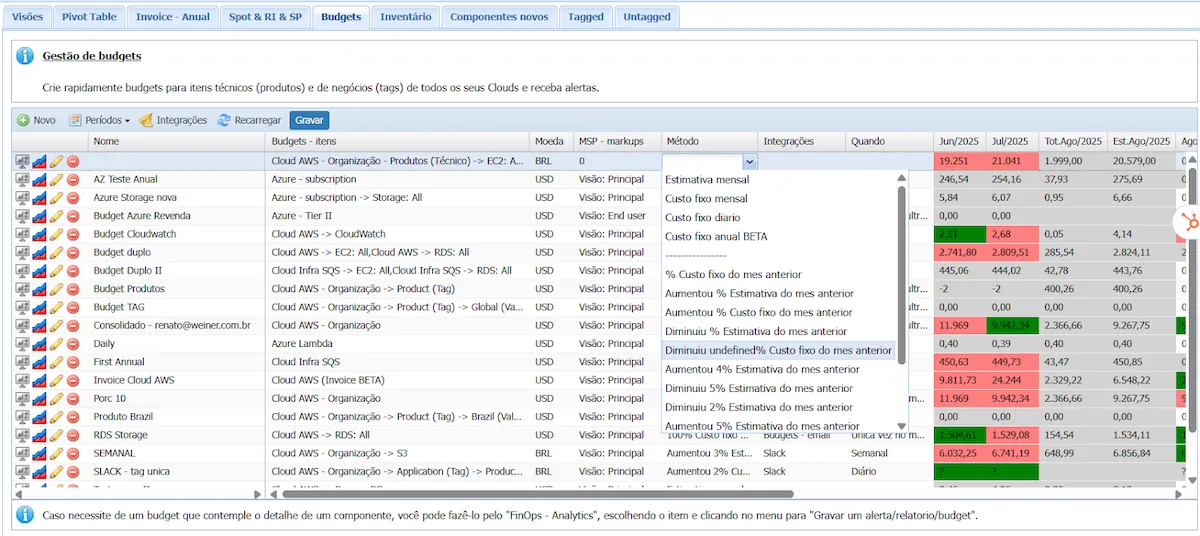
The Cloud8 tool features several trigger methods to monitor budget overruns.
Monthly estimate and Monthly fixed cost:
In case there are pre-defined and/or estimated costs, select Monthly Estimate or Monthly Fixed Cost. Then, fill in each month of the Budget period with the specific budget value for that month. Values are entered manually, given the possibility of assigning different budgets to different months.

Daily fixed cost:
For an even higher level of control, you can assign a daily budget by selecting Daily Fixed Cost. Then, fill in each month of the Budget period with the specific budget value for that month. Values are entered manually, given the possibility of assigning different budgets to different months.
Annual fixed cost BETA:
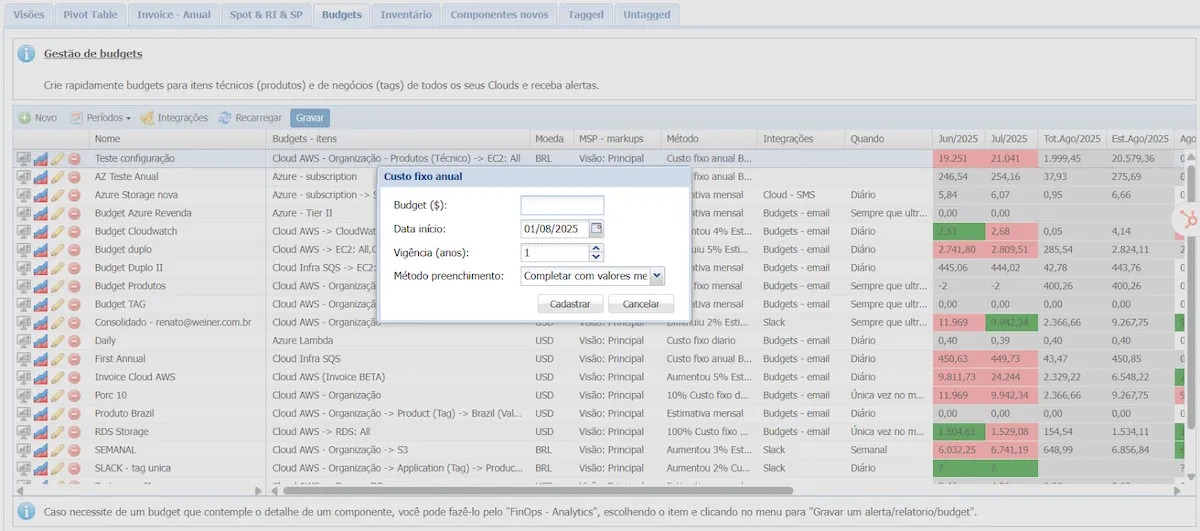
For annual budgets, select Annual Fixed Cost BETA. Then, fill in the Budget with the total cost for the period, budget start date, duration in years, and the filling method, which can be:
- Complete with consumed monthly values and split remainder: for scenarios where monthly costs may vary, but the budget for the entire period is defined, and the project scope must be adjusted to the remaining balance.
- Proportional – divide by the number of months: for scenarios where there is a defined average cost, and monthly variations allow for the identification of consumption anomalies and insights into cost and environment growth.
% Previous month’s fixed cost
If there is a tolerance margin for cost variation compared to the previous monthly period, select % Previous month’s fixed cost. Then, enter the valid cost variation percentage—that is, if the Cost Variance is 12%, set the notification percentage to 13%.
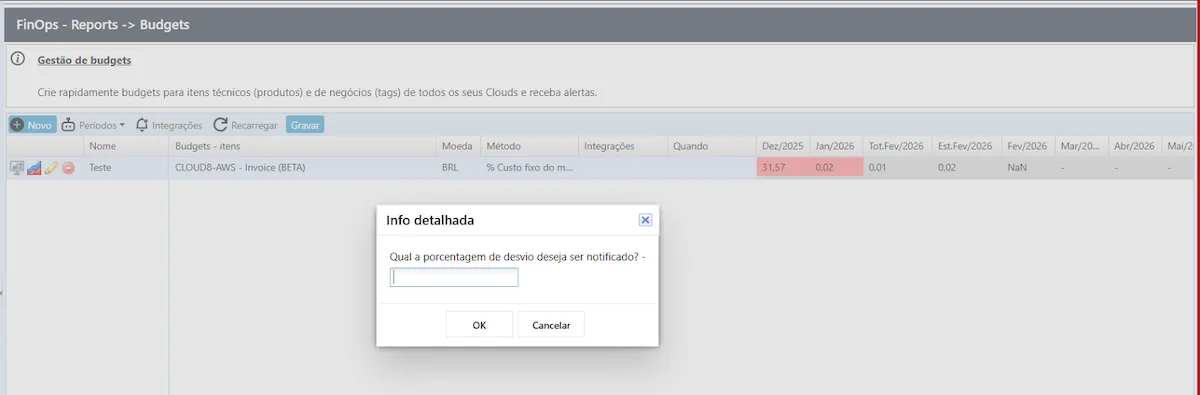
This type of Budget does not require defining specific values, as it uses the previous month’s costs as a comparison parameter, generating an ideal scenario of planned growth and automated monitoring.
Increased % Previous month’s estimate and Increased % Previous month’s fixed cost
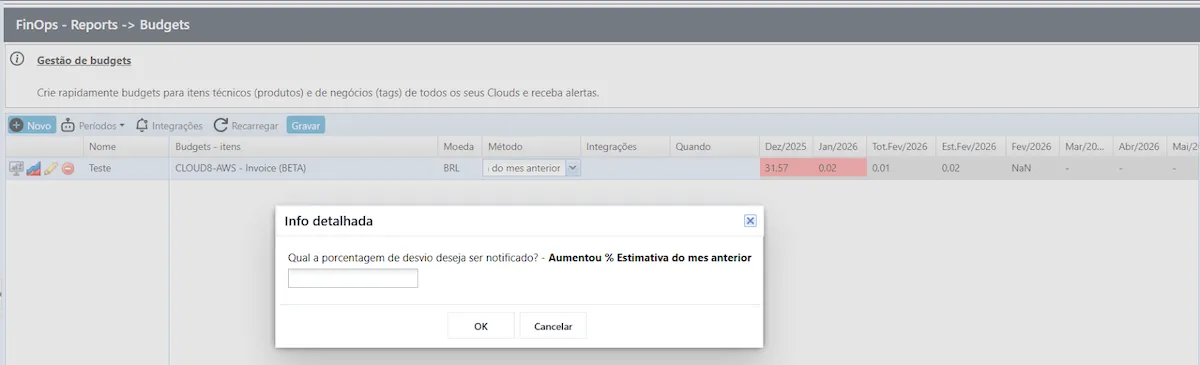
If there is a tolerance margin for cost increases compared to the previous monthly period, select Increased % Previous month’s estimate or Increased % Previous month’s fixed cost. Then, enter the valid cost variation percentage — that is, if the Cost Variance is 12%, set the notification percentage to 13%.
Decreased % Previous month’s estimate
Cloud8 allows you to configure a cost reduction budget compared to the previous monthly period by simply selecting Decreased % Previous month’s estimate. Then, enter the valid cost variation percentage—that is, if the Cost Variance is 12%, set the notification percentage to 13%.
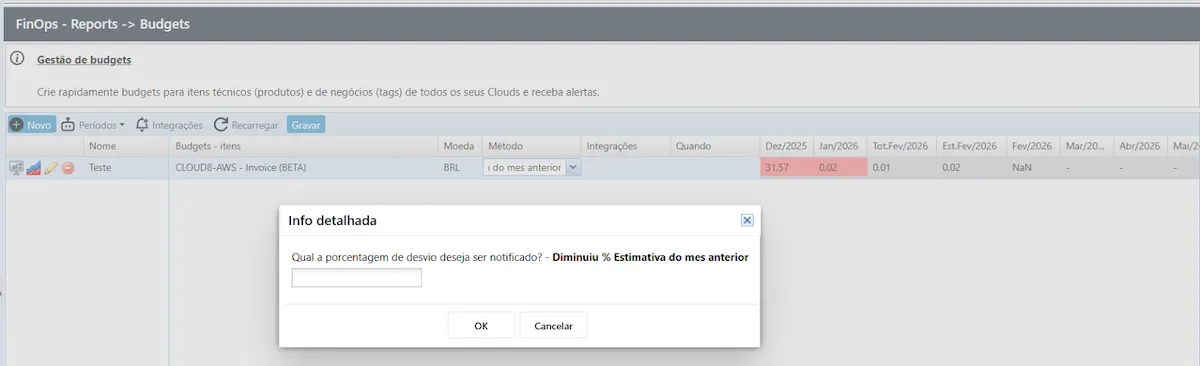
This type of Budget does not require defining specific values, as it uses the previous month’s costs as a comparison parameter, making it an ideal scenario for identifying seasonality periods and evaluating the impact of deactivating features and systems.
Integrations #
When configuring a budget, it is possible to integrate with a messaging system or email dispatch to notify those responsible for managing the budget.
When: Defines the frequency with which alerts are triggered.
- Daily
- Weekly
- Last day of the month
- Once a month when the value is exceeded
- Whenever the value is exceeded
Step 3 – Saving Changes #
Once you have finished configuring all fields, remember to click Save, or all settings will be lost.

Viewing Budget Data #
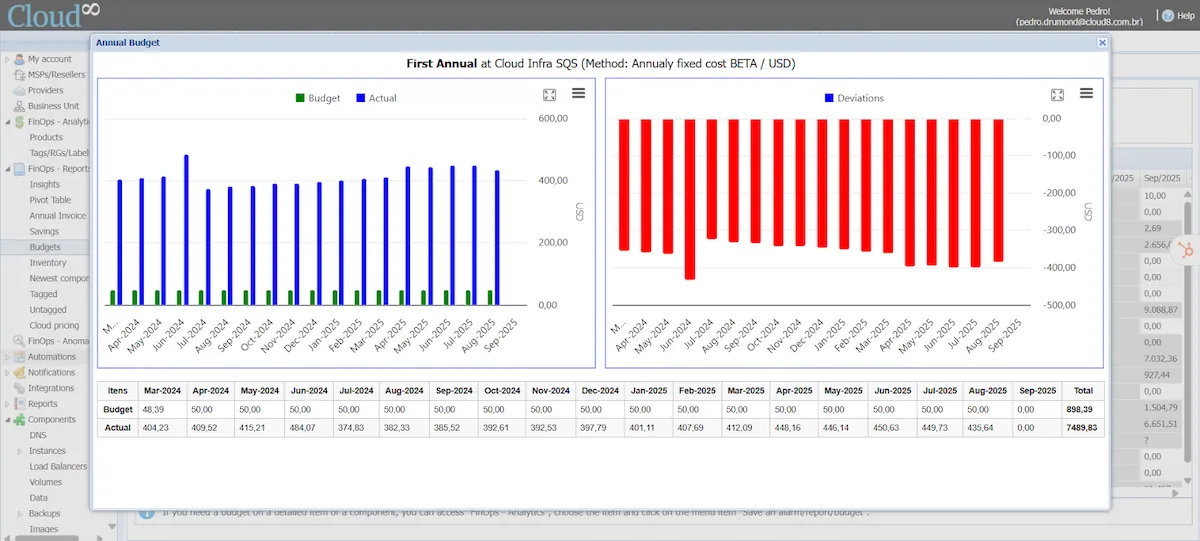
After configuring the Budget, you can monitor the budget by clicking the blue and red icon representing a chart. This feature allows for a comparative evaluation between the actual cost and the projected cost for the selected period.
Final Considerations #
Budgets must be configured individually for each provider. If you want to create a Budget that encompasses more than one provider, you need to create a Business Unit.


