
MongoDB is a document-oriented NoSQL database widely used in modern applications that require scalability, high performance, and flexibility in data modeling. Unlike traditional relational databases, it stores information in documents using the JSON / BSON format, making schema evolution easier as well as integration with distributed architectures and cloud-native environments.
Below, you will find the complete step-by-step guide to securely and structurally integrate a MongoDB account into the Cloud8 Platform.
Passo 1: Acesse o Portal do MongoDB #
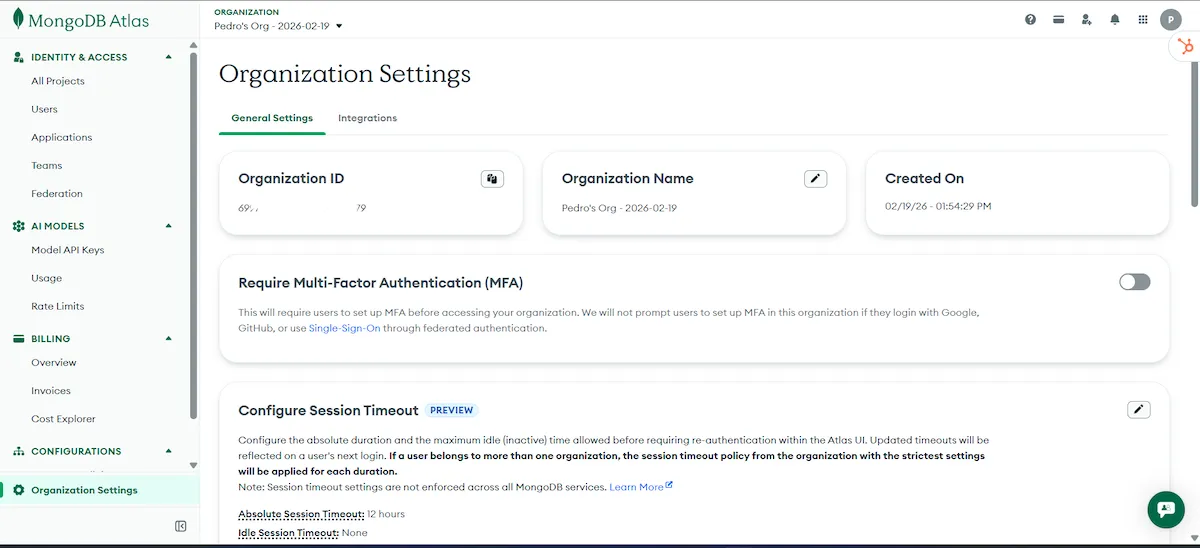
To collect the necessary data, access MongoDB Atlas. In the left-hand sidebar, click on Organization Settings. Take note of the Organization ID.
Passo 2: Gere uma API Key de acesso #
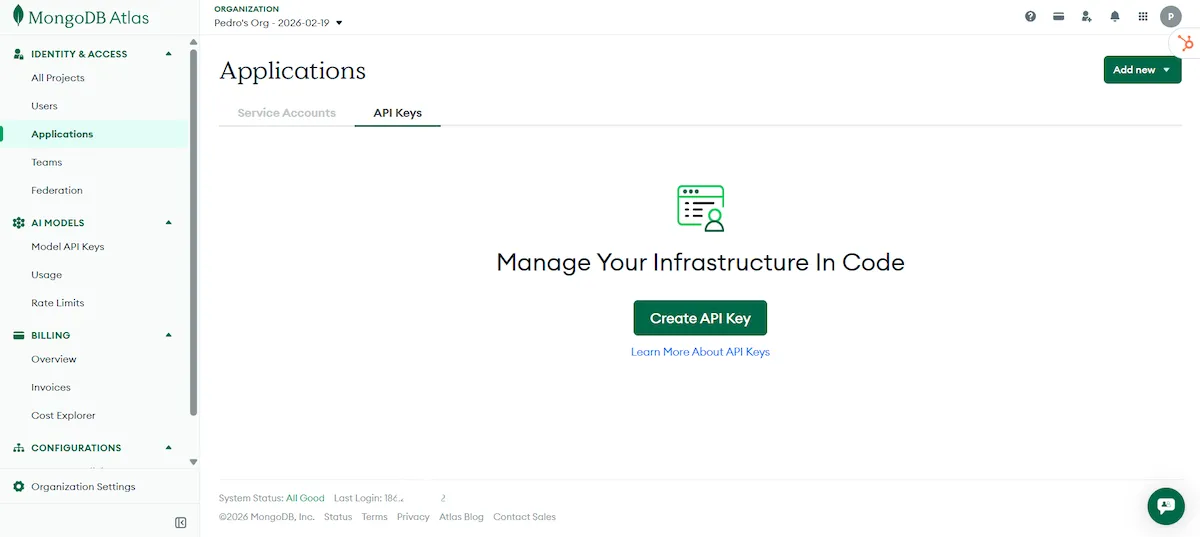
The configuration of MongoDB costs is performed using a restricted-permission API Key. In the left-hand sidebar, click on Applications, and under the API Keys tab, click on Create API Key.
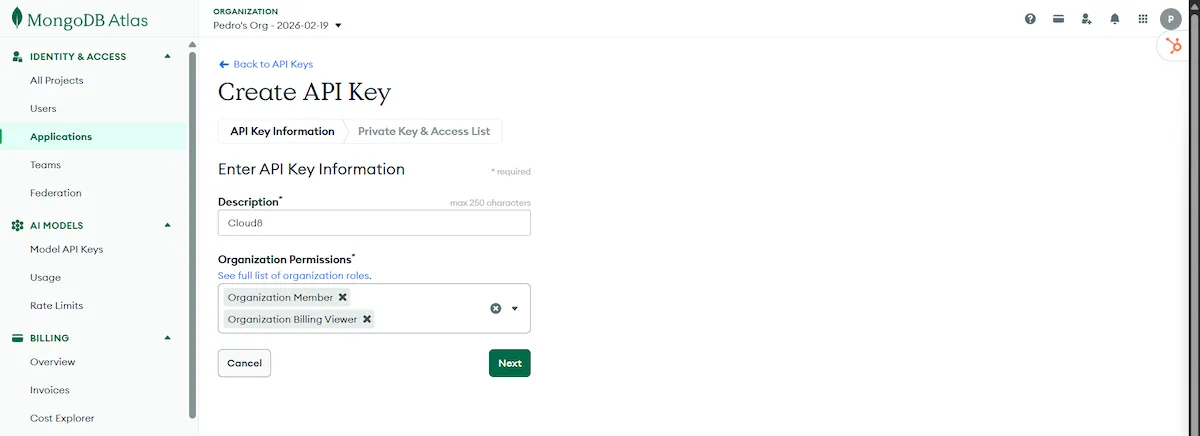
Name the API Key (we suggest Cloud8) and under Organization Permissions select Organization Member and Organization Billing Viewer.
On the next screen, note down the generated public key and private key. Save them in a secure place. It is worth noting that you will not be able to view them again after clicking Done.
Passo 3: Configure o provedor na Cloud8 #
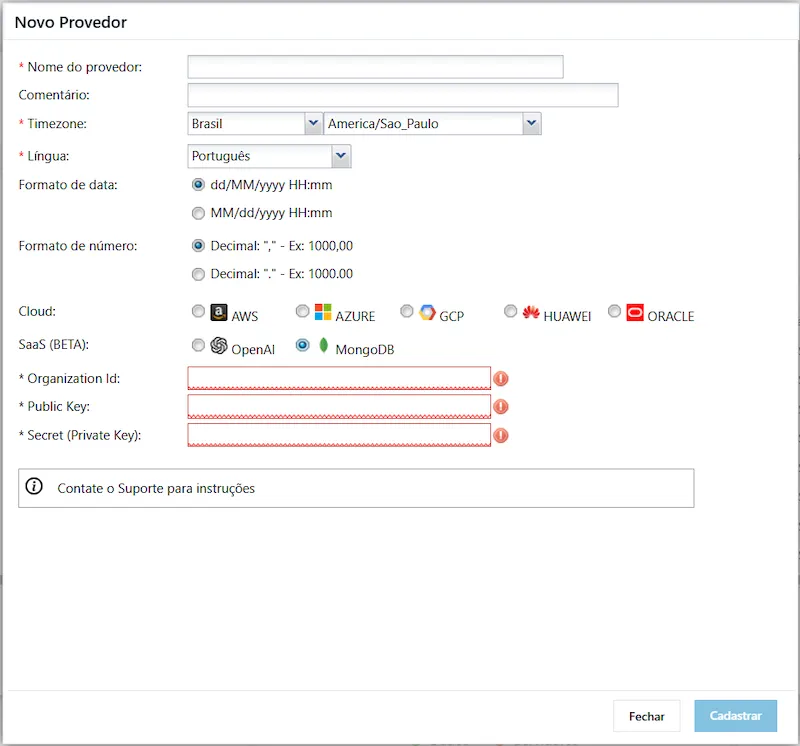
With the created API Keys in hand, access the Cloud8 platform. In the left-hand sidebar, select “Providers”. Click on “New” and fill in the required fields with the data generated in the previous steps.
- Provider name: The name that will be used to identify the provider in Cloud8.
- Timezone: the local time standard to be used.
- Language: default language.
- Public Key
- Private Key
Complete the process by clicking Cadastrar.
INFO: The FinOps Analytics configuration is performed through the API Key connection, which receives usage and cost data via API calls.


