Skip to content
Cloud8 Logo
  • PRODUCT
  • PRICING
  • SUPPORT
  • CONTACT US
  • LOGIN
  • PRODUCT
  • PRICING
  • SUPPORT
  • CONTACT US
  • LOGIN

Best Practices

  • How to integrate Slack into Best Practices
  • How to monitor memory and swap with SSM
  • AWS Bucket S3 Topic Notification
  • Best Practices: Password and Credential Monitoring
  • Best Practices: Custom Rule Notifications via AWS S3
  • Best Practices: Microsoft Teams Support

Charging

  • AWS account suspension: tips and what to do

Cloud8 Academy

  • Best Practices for Using Tags (Playbook)

Concepts

  • Security groups
  • Access key
  • Cloud Computing
  • Cloud Control Panel – AWS, Azure, GCP, Huawei and Oracle
  • Cost model: pay per use
  • Additional disks
  • Snapshot
  • Cloud server image or template
  • Comparison: Automation via Cloud8 vs โ€œhomemadeโ€ automation
  • FINOPS: Data Integration and Enhancement Flow (Infographic)
  • Difference between RI Applied vs RI in Cloud8 Panel

Credentials

  • How to use IAM Role to integrate your security with Cloud8
  • Security credentials for public clouds
  • Connecting OCI Providers to Cloud8 – Full Tutorial
  • Credential for Huawei Cloud
  • Best Practices: Enabling user monitoring in Azure

Features

  • Backup with “Lock/Unlock” governance
  • Cost Analysis with FinOps Analytics
  • Tracking Consumption Patterns with Invoice – Annual from Cloud8
  • How to integrate and export data from Cloud8 to Cloud Storages
  • Monitoring the creation of new resources in Cloud8
  • Configuring GCP SSO and SAML
  • Using Cloud Pricing on Cloud8

First Steps

  • Connecting GCP Providers to Cloud8 – Full tutorial
  • Connecting AWS Providers to Cloud8 – Full Tutorial
  • How to manage more than one AWS account
  • Hot to enable cloud cost estimates monitoring
  • Connecting Azure Enterprise Agreement providers to Cloud8 – Full tutorial
  • Creating a New Account on Amazon Cloud (AWS)
  • Connecting OCI Providers to Cloud8 – Full Tutorial
  • Cloud8 Users and Profiles
  • Onboarding: getting started on Cloud8

MSP / Reseller

  • White label at no additional cost
  • MSP: Configuring costs
  • MSP: Configuring markup

Services

  • FinOps: Tags and Usage
  • Using Cloud8 Insights
  • Audit logs
  • Cloud usage statistics
  • Managers on Cloud8 โ€“ Resource management on AWS, Azure and GCP
  • Alerts
  • Using Automations in Cloud8
  • Multiple Users โ€“ Multiuser Panel
  • Cloud aggregator control panel
  • Automated backup of cloud servers
  • Cloud cost control, alerts and reports
  • ECS / Fargate support on Workflow
  • Detailed Costs Report
  • Enabling Azure AD SSO in the Cloud8 Dashboard
  • Workflow: How to reset tasks periodically
  • Add TAGs with CSV file
  • How to install Metricbeat component on AKS
  • RDS reports with grouping by ID
  • Kubernetes Cost Support
  • How to install Metricbeat component on GKE clusters
  • Enabling MFA in the Cloud8 Dashboard
  • FinOps: Cost Anomaly Reports and Charts
  • How to install the Metricbeat component in OKE
  • How to install Metricbeat component on EKS
  • FinOps: Reverse API
  • FinOps: Tag Sharing and Prorating
  • FinOps: Tag Sanitization, Compliance and MultiCloud
  • FinOps: Tagged / Untagged
  • FinOps: Tags / Labels / Resource Groups
  • FinOps: Reports, Alerts and Budgets
  • S3 Lambda Notification Processor (deploy via CLI)

Troubleshooting

  • I subscribed Amazon and I still can’t access Cloud8
  • How is the cloud cost estimate calculated?
  • I created a security group through the AWS console and it still doesn’t appear in Cloud8
  • I exported the cloud server usage report.ย What do the fields mean?
  • Cloud8 and Amazon don’t monitor my cloud server’s memory?

Tutorials

  • How to access a Windows server in the Amazon AWS cloud
  • How to access a Linux server
  • How to create a cloud server
  • How to integrate Slack into Best Practices
  • How to configure scheduling for script execution in AWS
  • How to configure scheduling by Tags / Labels
  • Configure vault copy at AWS (cross account) with KMS
  • How to configure the Scheduler for script execution on OCI
  • Workflow: How to reset tasks periodically
  • How to install Metricbeat component on AKS
  • How to install Metricbeat component on GKE clusters
  • How to install Metricbeat component on EKS
  • How to install the Metricbeat component in OKE
  • FinOps: Cost Anomaly Reports and Charts
  • Group data in Pivot Table
  • FinOps: Tag Sanitization, Compliance and MultiCloud
  • S3 Lambda Notification Processor (deploy via CLI)
  • Best Practices: Microsoft Teams Support
View Categories
  • Home
  • Docs
  • Features

How to integrate and export data from Cloud8 to Cloud Storages

6 min read

Cloud8 is a platform that centralizes and enriches data from multiple accounts and multiple cloud providers, making it easier to analyze and visualize data both separately and in a unified way. To help our customers integrate this data into their own BI systems, custom reports, or dashboards, we offer the ability to export data to storage accounts of the main cloud providers.

Below you will find the necessary steps to create this integration with Amazon AWS, Google GCP, and Microsoft Azure. Jump directly to:


Cloud8 Integration with AWS S3 Bucket

Cloud8 Integration with Azure Storage Account

Cloud8 Integration with GCP Cloud Storage

Exporting data from Cloud8 to a Cloud Storage Account (all supported providers)


How to integrate with an AWS S3 Bucket? #

Below is the step-by-step guide to integrating an S3 Bucket with your Cloud8 account.

  • Find the โ€œIntegrationsโ€ option in the side menu;
  • Create a new integration of Type โ€œS3 Bucketโ€;
  • Specify the name of the S3 Bucket defined in AWS in the โ€œBucketโ€ field;
  • Configure the access pair, IAM Role ARN, and External ID provided by AWS. This credential must have permissions to create and update files in your Bucket;
  • Fill in the remaining information and finalize by clicking Save
  • This integration also works in Best Practices and in โ€œReportsโ€ โ€“ you can create the report to be exported
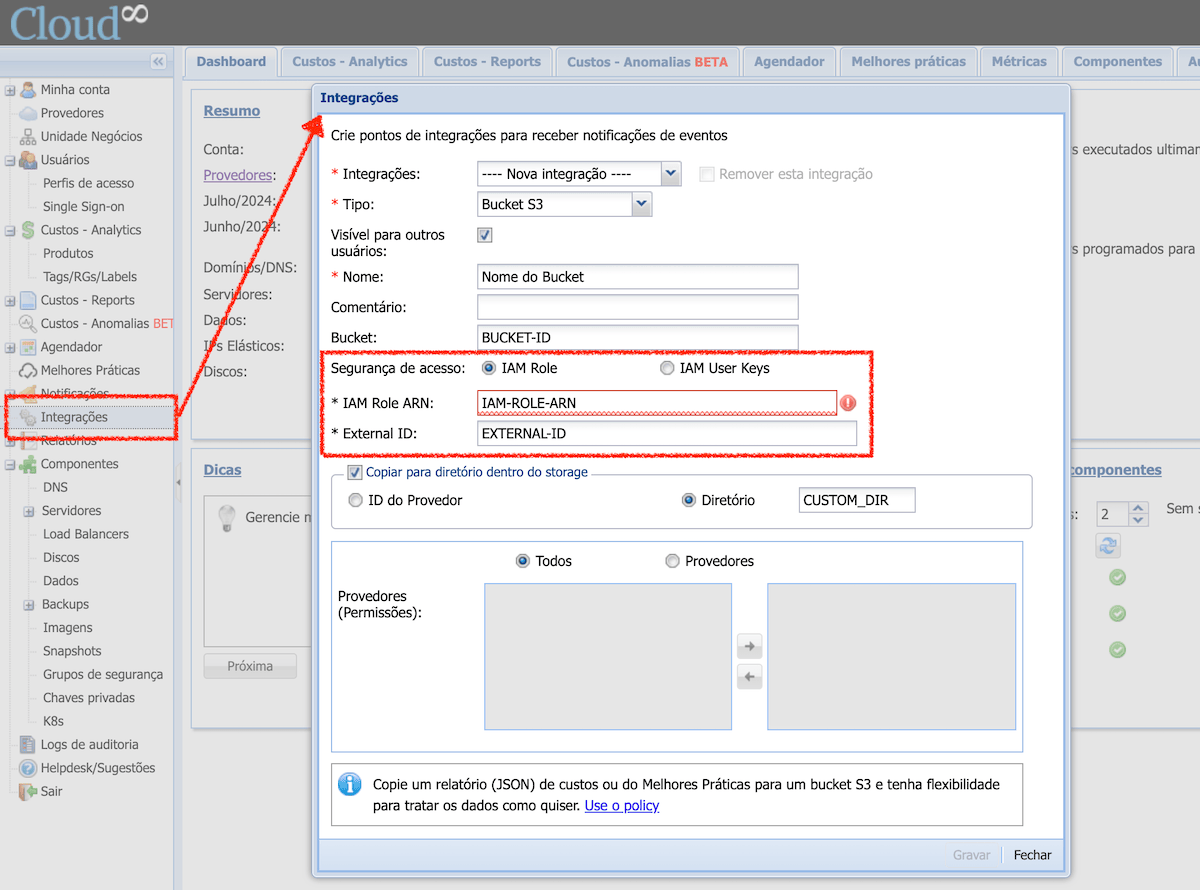
AWS S3 Integration (Bucket)

IAM Role #

An IAM Role is an entity in AWS IAM that defines a set of permissions for making requests to AWS services. Unlike an IAM user, which is associated with a specific person, an IAM role is intended to be assumed by any trusted entity, such as an AWS service, an application, or an IAM user. Roles are useful for granting temporary permissions and can be assumed by different entities as needed.

ARN (Amazon Resource Name) #

The ARN is an identifier that follows a standard, unique format to identify resources within AWS. It is used to specify the role uniquely in policies and permissions.

Example of Role ARN #

arn:aws:iam::ID-NUMERICO-AWS:role/NOME-DO-ROLE

Using IAM Role ARN in S3 #

When you use an IAM Role with S3, you can grant specific permissions to access S3 buckets and objects. For example, you can create an IAM role with permissions to access a specific S3 bucket and then configure an AWS service (such as EC2) or an IAM user to assume that role. This is useful for managing and controlling access to S3 resources securely and scalably.

Why use an IAM Role ARN? #

  • Security: Allows granting temporary permissions, minimizing risks.
  • Flexibility: Can be assumed by multiple entities, making permissions management easier.
  • Scalability: Ideal for large environments where different services and users need controlled access.

How to integrate with an Azure Storage Account? #

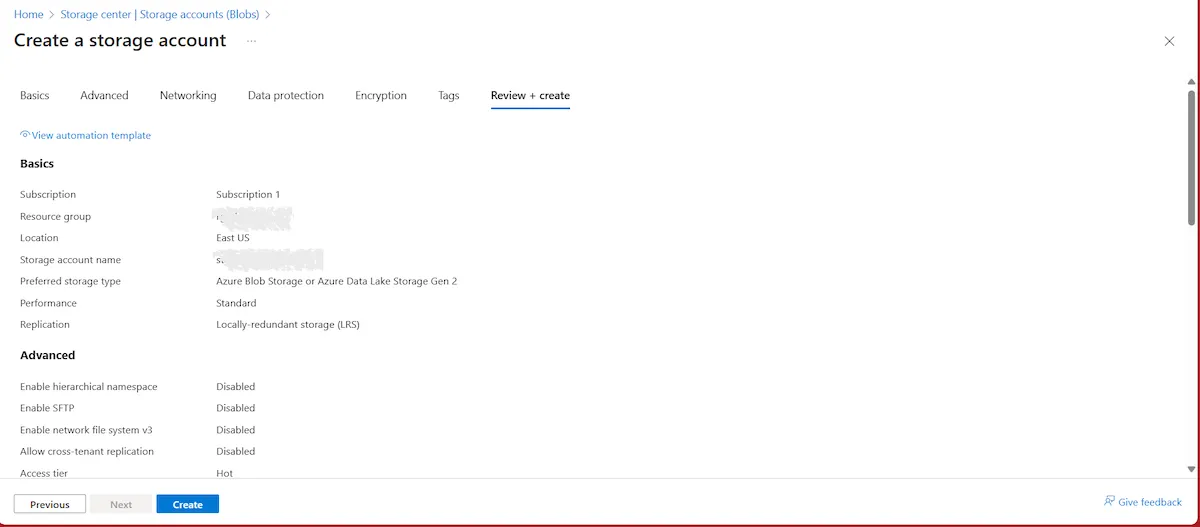
If you haven’t already, the first step is to create a Storage Account in Azure. To do this, in the search bar of the Azure portal, search for โ€œStorage accountsโ€. Click โ€œCreateโ€. In the Basics tab, fill in the information, and define the Subscription and Resource Group where the storage account will be created.

Define a name and region for creating the resource, and under โ€œPreferred storage typeโ€ choose โ€œAzure Blob Storage or Azure Data Lake Storage Gen 2โ€.

Under Performance, select โ€œStandardโ€, and under Redundancy select โ€œLocally-redundant storage (LRS)โ€. However, this is just a suggestion, and the redundancy definition should always follow the user’s business rules.
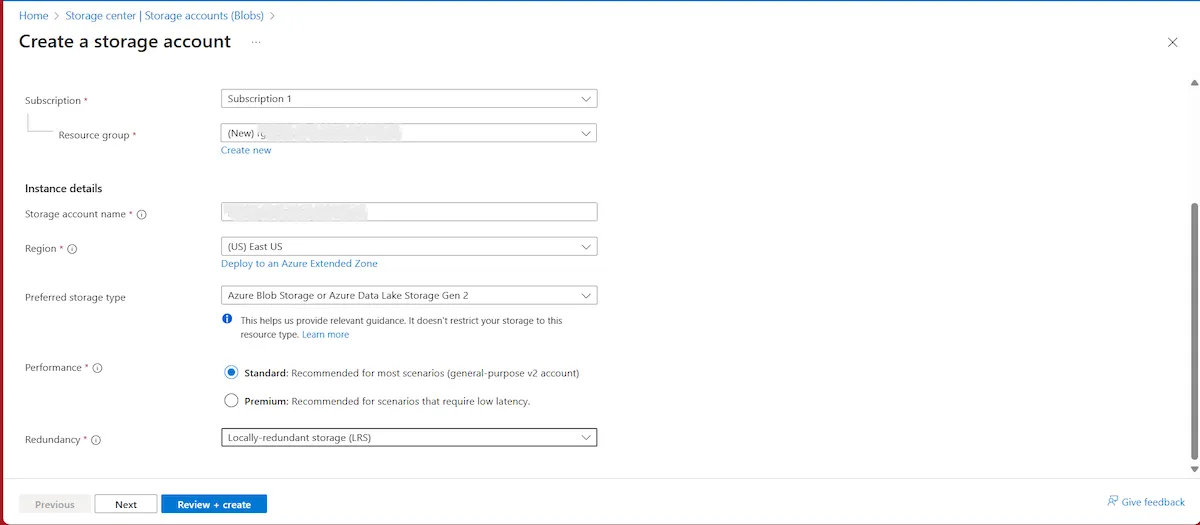
Integrating Azure Storage

Finish by clicking โ€œReview + createโ€. Validate the data and click โ€œCreateโ€.

Integrating Azure Storage

Search for the created storage account. In the left side menu, look for โ€œContainersโ€. Click โ€œAdd containerโ€, define a name, and click โ€œCreateโ€. Note down the name of the created container.
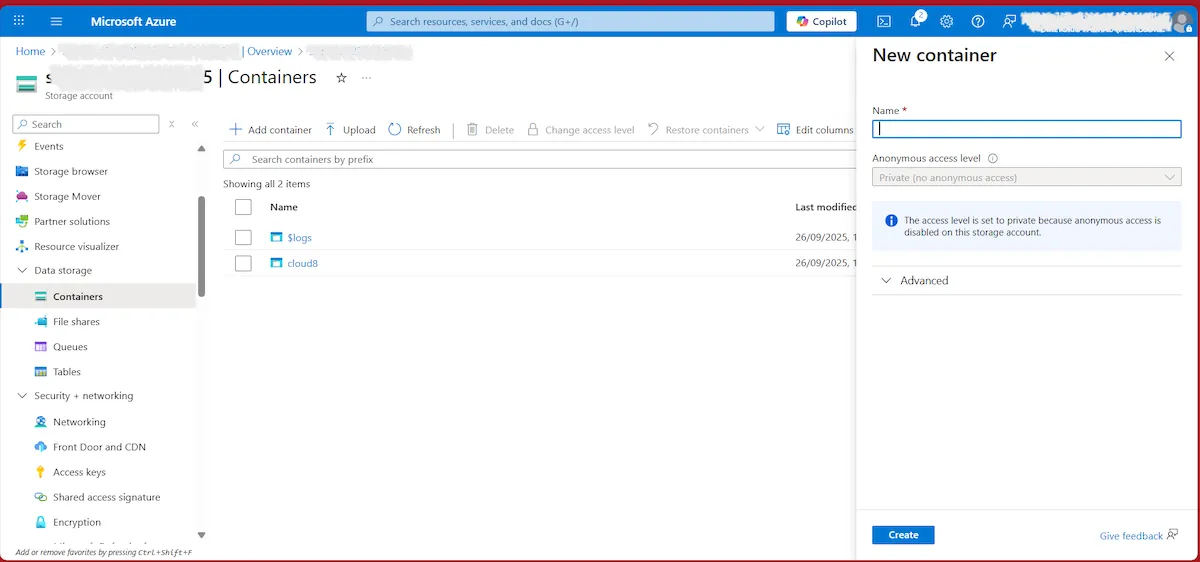
Integrating Azure Storage

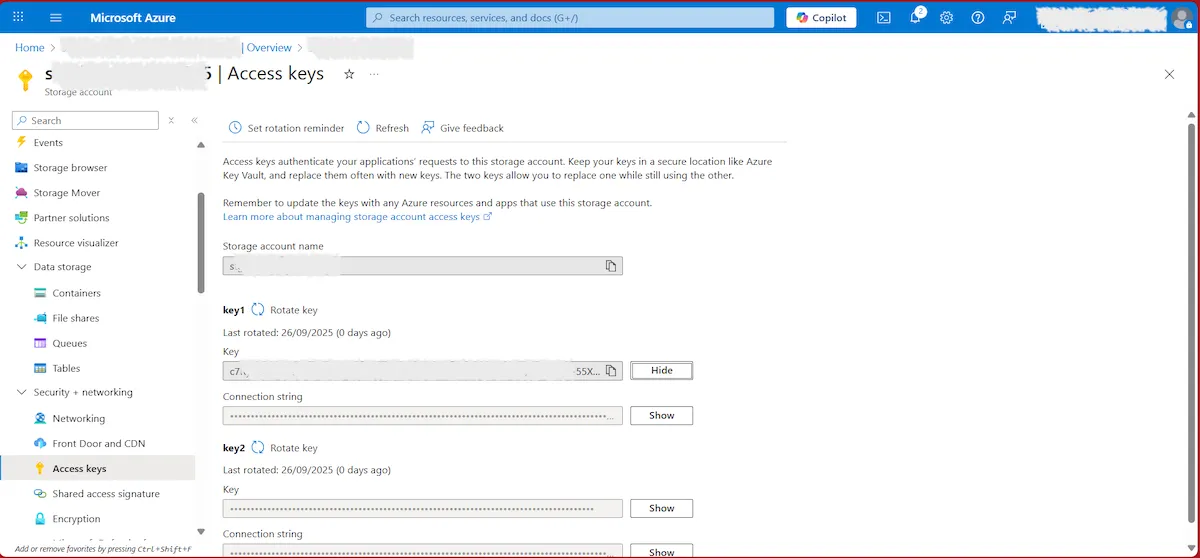
In the left side menu, locate โ€œAccess keysโ€. Copy the following information to a notepad:

  • Storage account name
  • Key
Integrating Azure Storage

Integrating the Storage Account with the Cloud8 Platform #

Follow the steps below to create an integration with the Azure Storage Account within our MultiCloud Dashboard.

  • Find the “Integrations” option in the side menu
  • Select “New Integration” from the first option
  • Click on “Type” and select the “Azure Storage Account” option
  • Give this integration a name
  • Fill in the required data: Storage Account Name, Storage Account Key, and Container
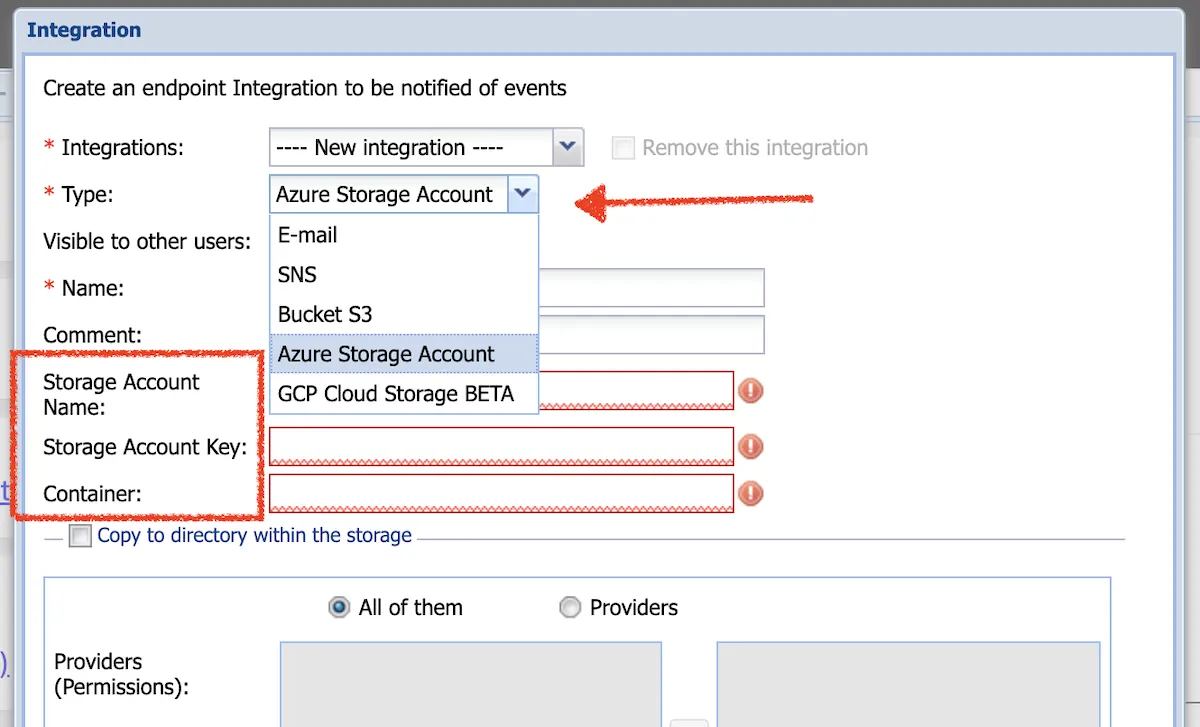
Cloud8 new integration

How to integrate with GCP Cloud Storage? #

If you haven’t already, you first need to create the GCP JSON in the Service Account. To do this, access the GCP Console and search for IAM & Admin. Select Service Accounts in the left side menu.
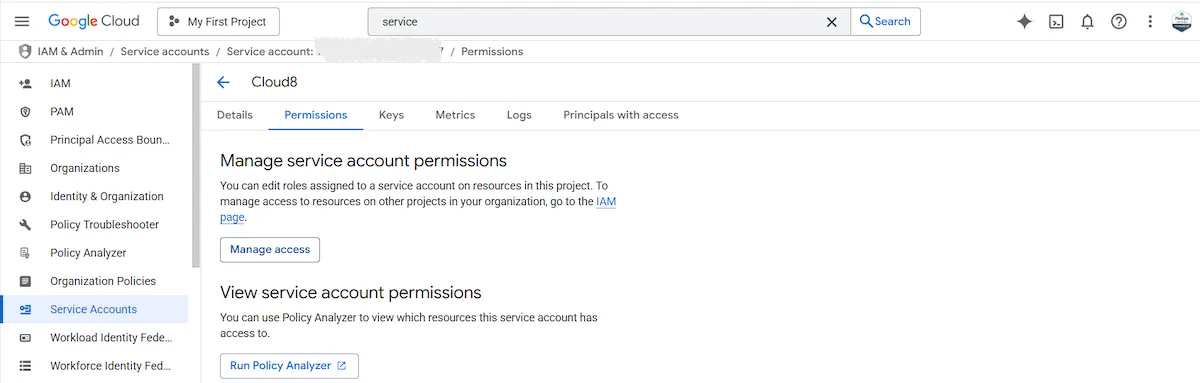
Integrating GCP Storage

In the Permissions tab, select Manage access | Add another role and choose Storage Object Admin.
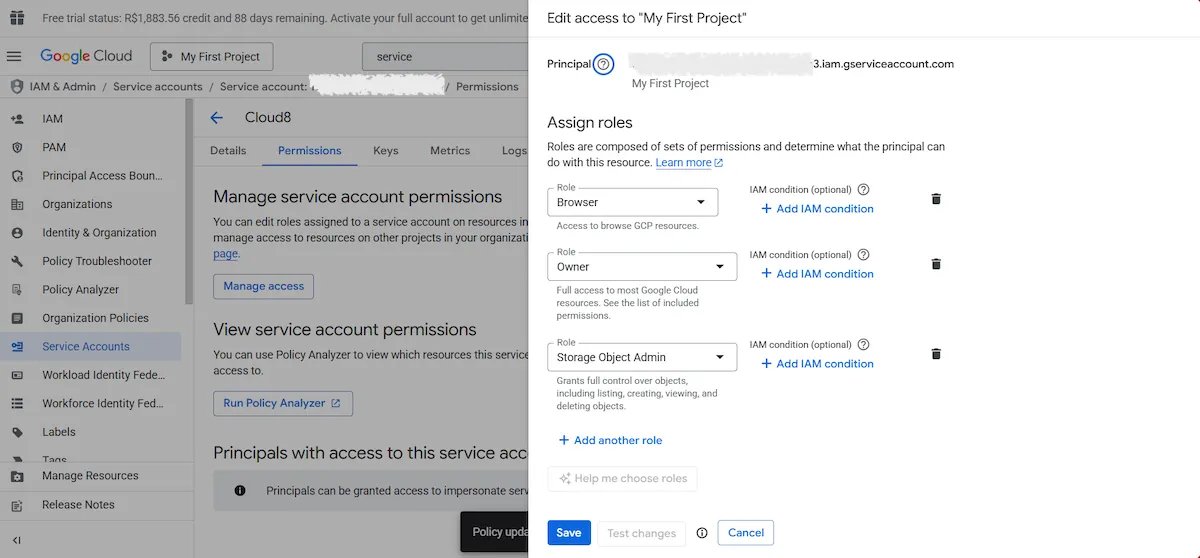
Integrating GCP Storage

Return to Service Accounts, click on the three-dot icon, and select the Manage Keys option. Click Add key | Create new key to create a new access key if you haven’t created one yet. Otherwise, granting the necessary accesses in the previous step is sufficient.
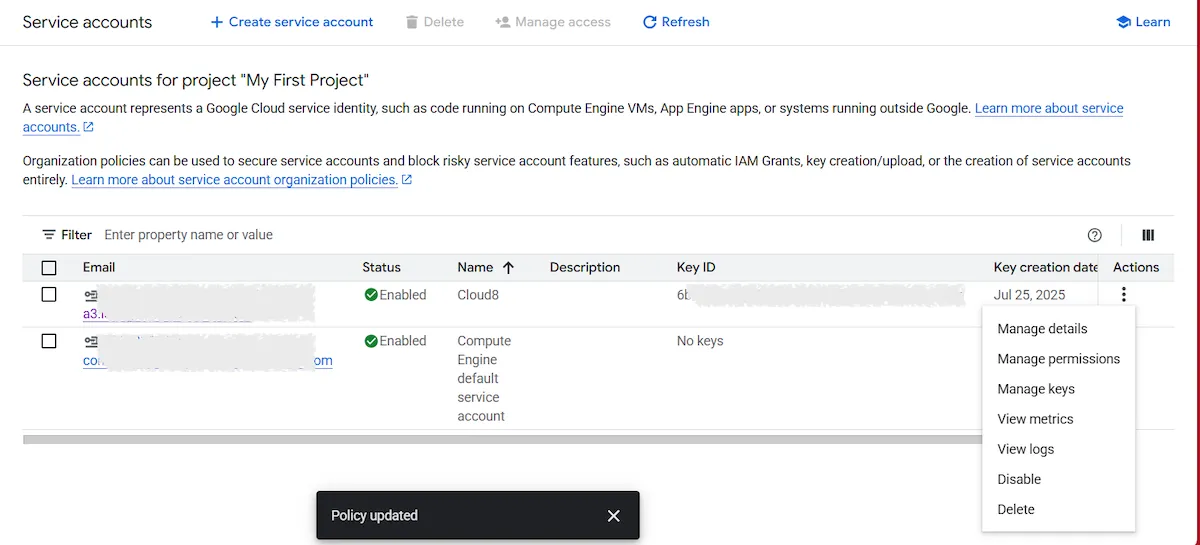
Integrating GCP Storage

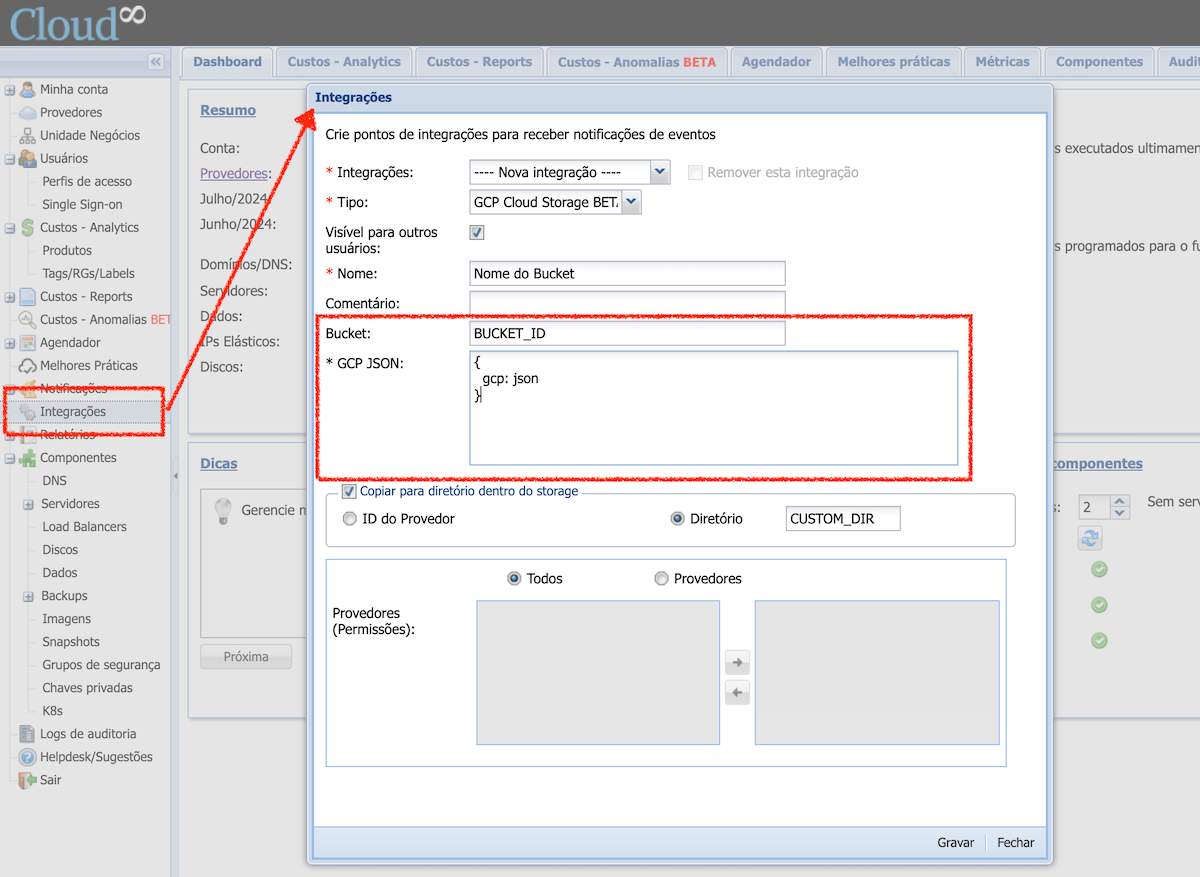
See below how to integrate GCP Cloud Storage with your Cloud8 account.

  • Find the โ€œIntegrationsโ€ option in the side menu;
  • Create a new integration of Type โ€œGCP Cloud Storageโ€
  • Add a credential (JSON file of a Service Account) generated in Access Key;
  • Click โ€œSaveโ€ and you’re all set.
Cloud8 GCP Storage integration

How to export data from Cloud8 to Cloud Storage #

Cloud8 customers often have reports in different formats that need to be fed with the data available in our reports. The simplest way to do this is through an integration with Cloud Storage. See below how to perform this extraction in a few quick steps.

NOTE: An AWS S3 bucket was used in the example, but the process is the same for all supported providers.
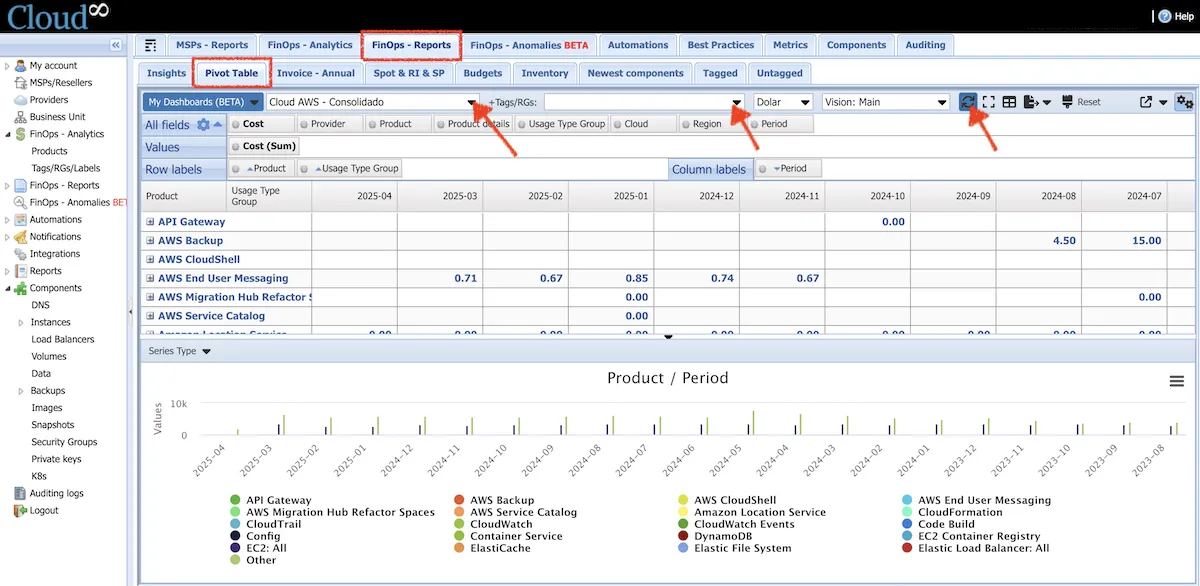
Cloud8 pivot table
  • Click on “FinOps – Reports“, then on “Pivot Table” 
  • Select the “Provider“, “Tags“, currency, and markup
  • Click “Refresh” to load the report with the selected filters
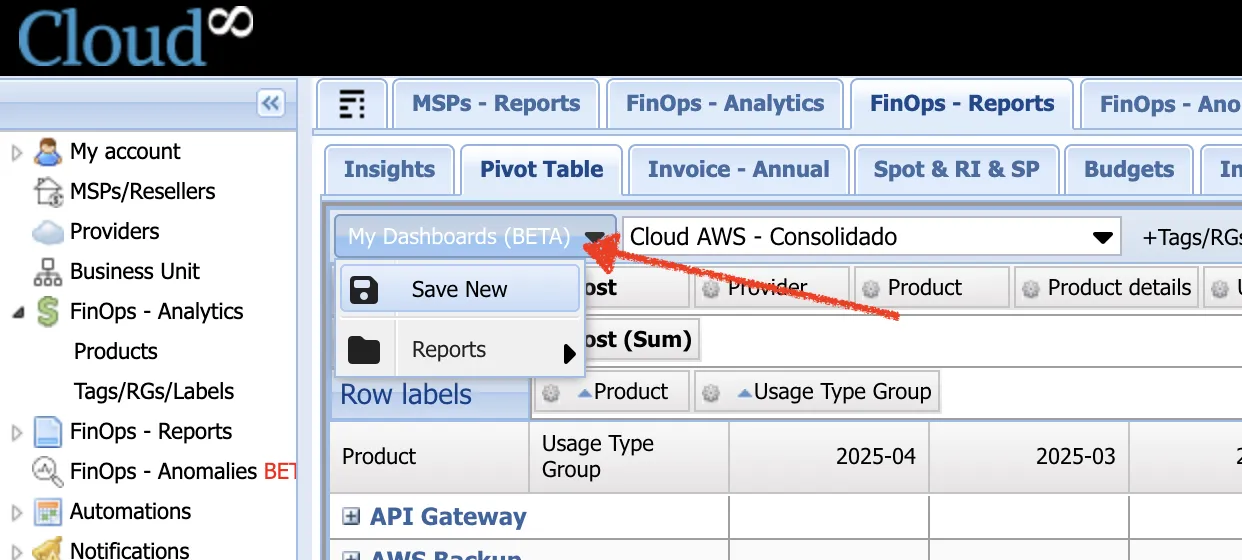
  • Use the โ€œMy Dashboardsโ€ button and select โ€œSave Newโ€
  • Among the options displayed, select the integration created in the previous step for the chosen provider
  • Don’t forget to save
Cloud8 Save new dashboard

After these two simple steps, the customer will receive a complete and consistent CSV file, with the markup defined by them, 2 to 3 times a day containing all data. 

This way, no API integration, credential generation, scripts, error handling, etc., are required.

Best Practices #

Under “Reports” you can export all data in JSON format. If you choose “Immediately“, we will export whenever a new item enters or leaves the rule. Inside the JSON, there is an “identifier” that can be used to reconcile an item that opened and was later closed (whether because the rule changed or the customer/partner fixed it, and thus it can be used to close automatically).

Inventory #

To export Inventory data, contact Support so we can configure it internally.


You may want to check these Docs too: #

  • Monitoring the creation of new resources in Cloud8
  • Configuring GCP SSO and SAML
  • Using Cloud Pricing on Cloud8
Amazon, AWS, Azure, bucket, bucket s3, Cloud, GCP, google, Integration, json, Microsoft, storage, Tutorial
Did this Doc help you?

Share This Article:

  • Facebook
  • X
  • LinkedIn
  • Pinterest
Table of Contents
  • How to integrate with an AWS S3 Bucket?
    • IAM Role
    • ARN (Amazon Resource Name)
      • Example of Role ARN
      • Using IAM Role ARN in S3
      • Why use an IAM Role ARN?
  • How to integrate with an Azure Storage Account?
    • Integrating the Storage Account with the Cloud8 Platform
  • How to integrate with GCP Cloud Storage?
  • How to export data from Cloud8 to Cloud Storage
    • Best Practices
    • Inventory
Cloud8 Logo
  • Terms of Use
  • About Us
  • FAQ / Support
  • Blog
  • Contact Us
  • Cookies (EU)
  • Terms of Use
  • About Us
  • FAQ / Support
  • Blog
  • Contact Us
  • Cookies (EU)
Globe-americas Facebook Twitter Linkedin Youtube

Disclaimer: AWS, images, and associated services are property of Amazon Web Services Inc. and its affiliates. Azure, images, and associated services are property of Microsoft Corporation. GCP, images, and associated services are property of Google Inc. Huawei, images, and associated services are property of Huawei Technologies Co Ltd. Oracle, images, and associated services are property of Oracle Corporation. Cloud8 Brasil em Portuguรชs.

Manoel Netto Designer
Manage Consent
To provide the best experiences, we use technologies like cookies to store and/or access device information. Consenting to these technologies will allow us to process data such as browsing behavior or unique IDs on this site. Not consenting or withdrawing consent, may adversely affect certain features and functions.
Functional Always active
The technical storage or access is strictly necessary for the legitimate purpose of enabling the use of a specific service explicitly requested by the subscriber or user, or for the sole purpose of carrying out the transmission of a communication over an electronic communications network.
Preferences
The technical storage or access is necessary for the legitimate purpose of storing preferences that are not requested by the subscriber or user.
Statistics
The technical storage or access that is used exclusively for statistical purposes. The technical storage or access that is used exclusively for anonymous statistical purposes. Without a subpoena, voluntary compliance on the part of your Internet Service Provider, or additional records from a third party, information stored or retrieved for this purpose alone cannot usually be used to identify you.
Marketing
The technical storage or access is required to create user profiles to send advertising, or to track the user on a website or across several websites for similar marketing purposes.
  • Manage options
  • Manage services
  • Manage {vendor_count} vendors
  • Read more about these purposes
View preferences
  • {title}
  • {title}
  • {title}