
Microsoft offers different cost dataset export models, allowing greater flexibility in creating custom dashboards and advanced cloud financial analysis reports. With Cost Management Exports, you can extract detailed data for integration with BI tools, data lakes, and financial governance solutions.
The datasets include essential information for cost control, such as:
- Reserved Instances details
- Savings Plans data, with the option for amortized treatment or full recognition on the purchase date
- Granular consumption and billing information
- Structured data for historical analyses and cost forecasting
With the growing adoption of the FinOps Framework, it is also possible to export data in the FOCUS (FinOps Open Cost and Usage Specification) format, an open-source standard from the FinOps Foundation, facilitating platform interoperability and greater standardization in multi-cloud cost management.
Prerequisites for configuring Cost Management Exports #
To create and manage exports, the following permissions are required:
- Cost Management Contributor on the Subscription
- Storage Account Contributor on the Resource Group containing the Storage Account
- In an Enterprise Agreement environment, the Billing Account Role – Enterprise Admin role is required
These permissions ensure adequate access to configure data exports, store generated files, and maintain process security and governance.
Creating the Export #
For the Cloud8 platform to function correctly, we ask the user to configure two cost files: Cost and Usage (actual) and Cost and Usage (amortized).
- Log in to the Azure Portal;
- In the search bar, search for Cost Management;
- Select the Billing Scope;
- In the left sidebar menu, select “Exports”;
- At the top of the page, click “+ Create”;
- Under “Basics”, select Cost and Usage (actual) or Cost and Usage (amortized);
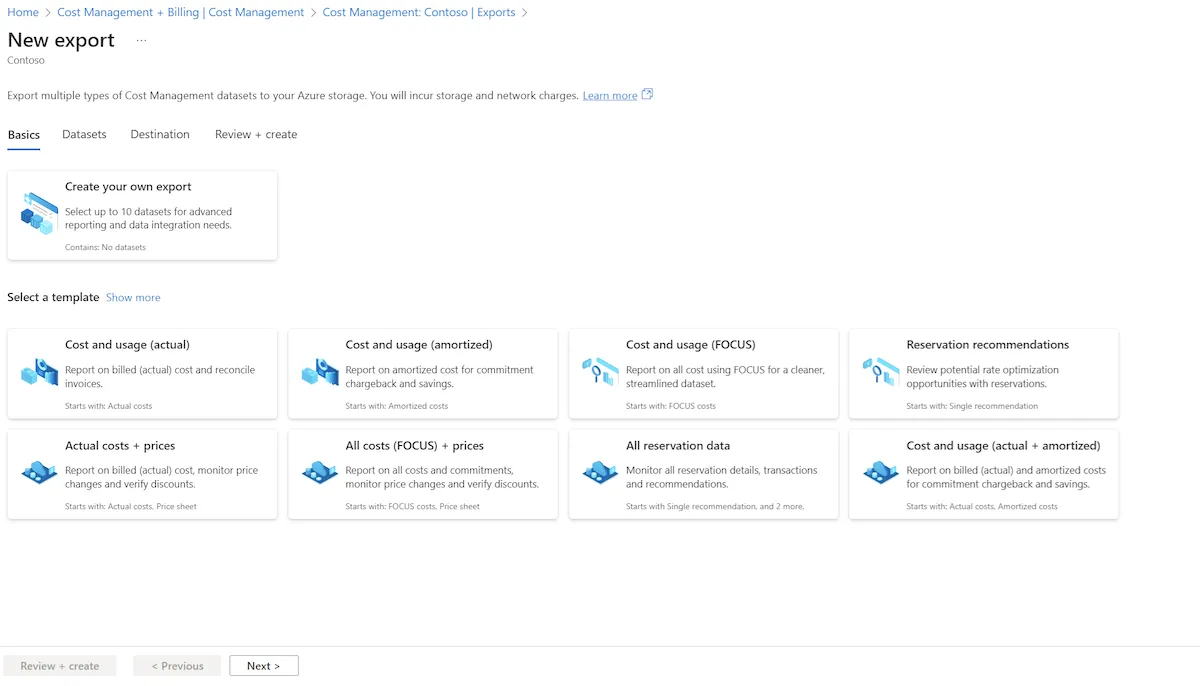
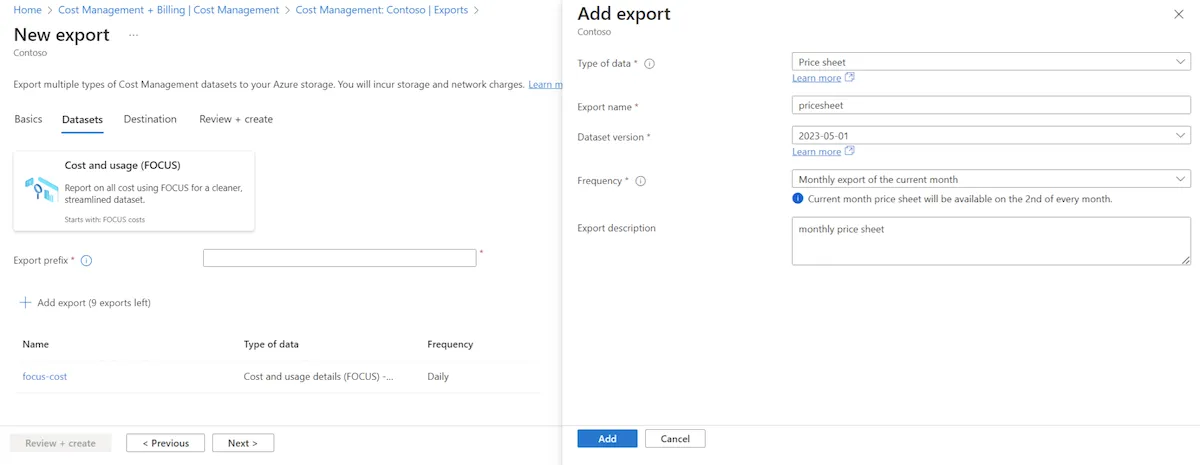
- On the Datasets tab, define an export name using an “Export prefix”. We suggest using “cloud8-exports”
- On the Datasets tab, you can configure both Datasets at the same time by clicking “+ Add export”;
- On the Destination tab, select the “Storage type”, which defaults to Azure Blob Storage;
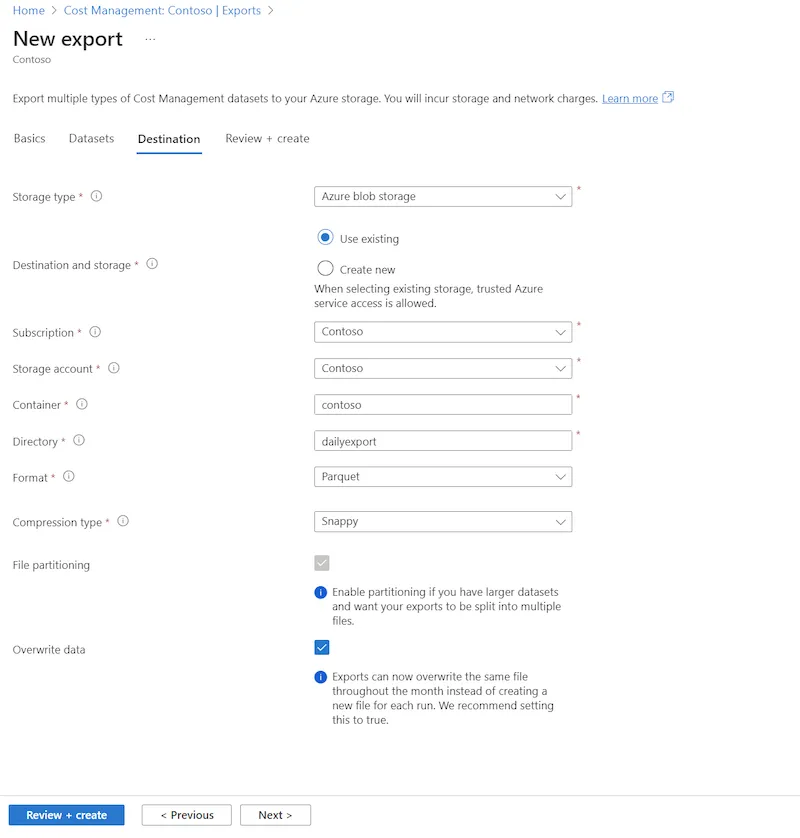
- Select the format as “CSV” and “Compression” as Gzip;
- Keep “File partitioning” and “Overwrite data” at their default values;
- Click “Next” and then “Review + create”.
After creation, it may take up to 24 hours for the data to become available.
IMPORTANT: A Partner must configure the export in the client’s Tenant billing account, but the data can be exported to a Storage Account in the Partner’s Tenant, which requires having an active Subscription in the CSP Tenant.
Integrating data into the Cloud8 platform #
After configuring the Export, contact Technical Support with the following information:
- SAS Token or Service Principal with Storage Account read permissions
- Storage Account Name
- Storage Account URL
- Container Name
- Name of the configured Exports
References


