
Cloud8 features a central Notifications module that allows you to configure, per cloud provider, which events and reports should trigger automated alerts via email or integrations (such as Slack, Teams, or webhooks). The settings are organized into six categories: Costs, Savings Plans/RIs, Infrastructure – Servers, Infrastructure – Databases, Synchronization, and Security. This article describes each of these categories and the available fields within them.
In the left sidebar menu, click on Notifications.
Selecting the Provider #
All notification settings are managed per cloud provider (AWS, Azure, GCP, or OCI, according to the providers registered in the customer’s environment). The Provider field at the top of the screen is mandatory and defines which account/environment the rules below will apply to. When switching the selected provider, the settings displayed in each tab are reloaded according to the chosen provider.
Costs Tab #
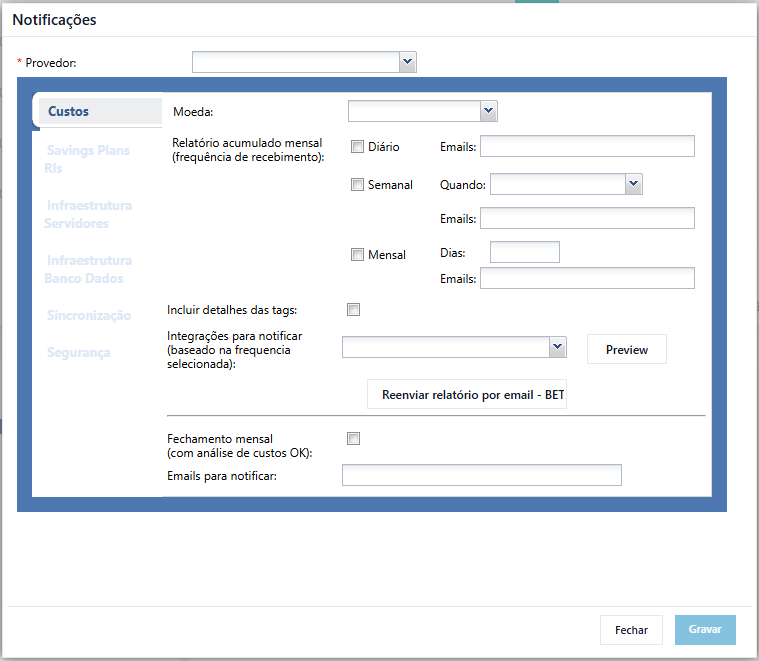
The Costs tab concentrates notifications related to cloud spending reports.
- Currency: defines the currency used for the values displayed in the cost reports sent via email.
- Monthly accumulated report (receiving frequency): allows you to choose one or more sending frequencies for the accumulated cost report:
- Daily — sends the report every day to the specified email list.
- Weekly — sends the report on a specific day of the week, selected in the When field, to the specified email list.
- Monthly — sends the report on one or more days of the month, entered in the Days field, to the specified email list.
- Include tag details: when checked, adds resource tags to the report.
- Integrations to notify (based on selected frequency): allows you to select additional channels (e.g., Slack/Teams) to receive the same report configured above. The Preview button displays a preview of the report before sending.
- Resend report by email: manually triggers the resending of the last generated cost report without waiting for the next scheduled execution.
- Monthly closing (with OK cost analysis): when checked, sends a monthly closing notification informing that the period’s cost analysis has been completed, to the emails entered in the Emails to notify field.
Savings Plans / RIs Tab #
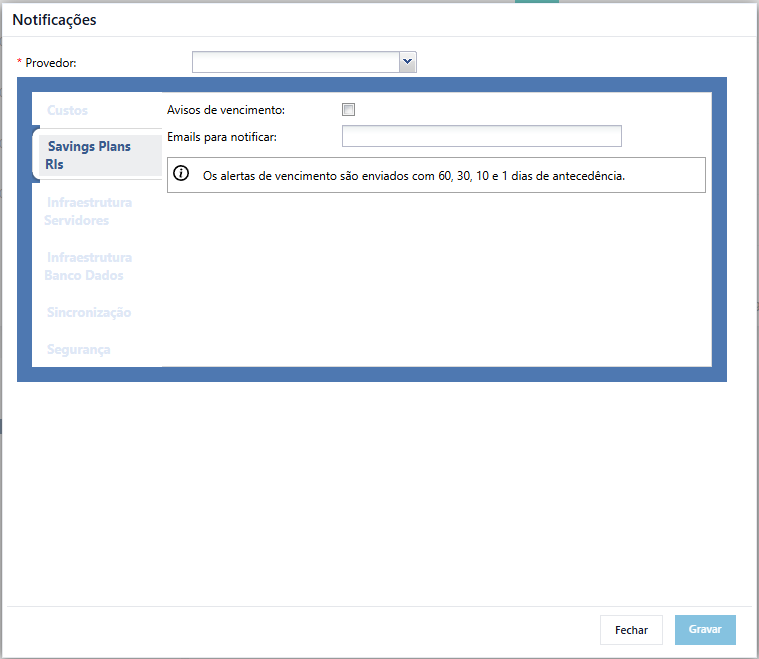
This tab controls expiration alerts for Savings Plans and Reserved Instances (RIs).
- Expiration warnings: when checked, enables sending alerts as RI/Savings Plan commitments approach expiration.
- Emails to notify: list of recipients who will receive the warnings.
Expiration alerts are sent automatically 60, 30, 10, and 1 day prior to the expiration date of each Savings Plan or Reserved Instance, as indicated on the screen itself.
Infrastructure – Servers Tab #
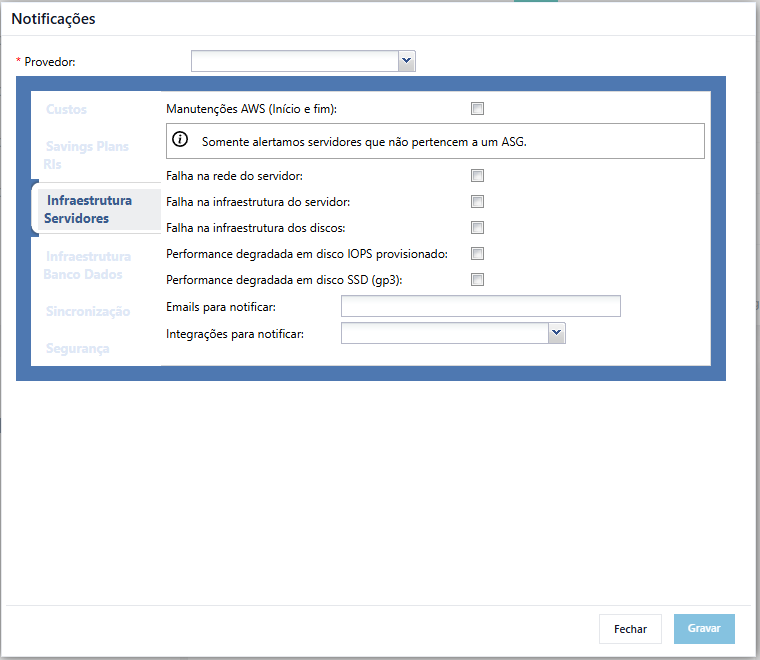
Gathers alerts related to the health and lifecycle of servers (compute instances).
- AWS Maintenances (start and end): notifies about maintenance windows scheduled by AWS. Only servers that do not belong to an Auto Scaling Group (ASG) trigger these alerts.
- Server network failure: alerts in case of server network downtime.
- Server infrastructure failure: alerts in case of underlying server hardware/infrastructure failure.
- Disk infrastructure failure: alerts in case of storage infrastructure failure associated with the server.
- Degraded performance on provisioned IOPS disk: alerts when a disk with provisioned IOPS shows performance degradation.
- Degraded performance on SSD disk (gp3): alerts when a gp3-type SSD disk shows performance degradation.
- Emails to notify and Integrations to notify: email recipients and/or integration channels that should receive the above alerts.
Infrastructure – Databases Tab #
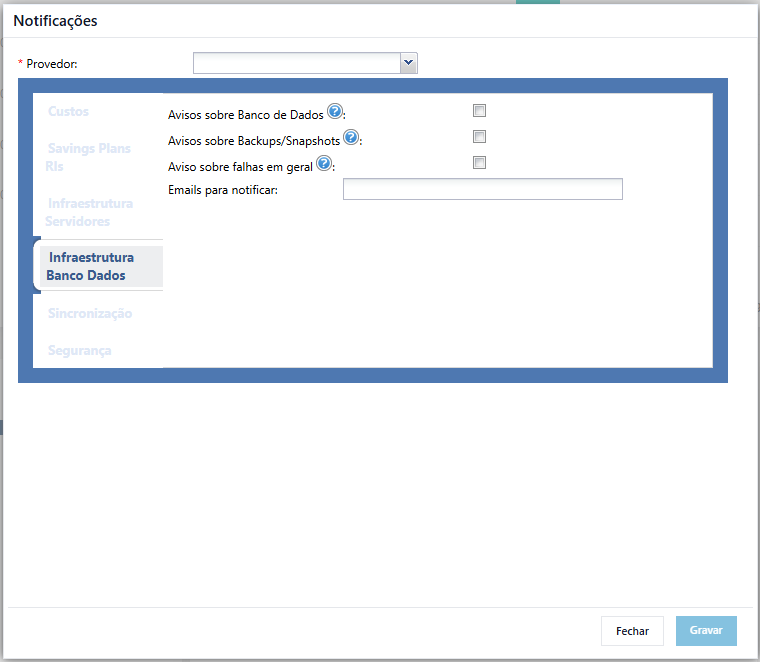
Focuses on alerts specific to managed database instances.
- Database warnings: notifies about relevant database events, including:
- Creation
- Destruction
- Configuration changes
- Upgrades
- Endpoint changes
- Reboot
- Backup/Snapshot warnings: notifies about the execution (success or failure) of database backups and snapshots.
- General failure warnings: notifies about general failures not covered by the previous items.
- Emails to notify: list of recipients for this tab’s alerts.
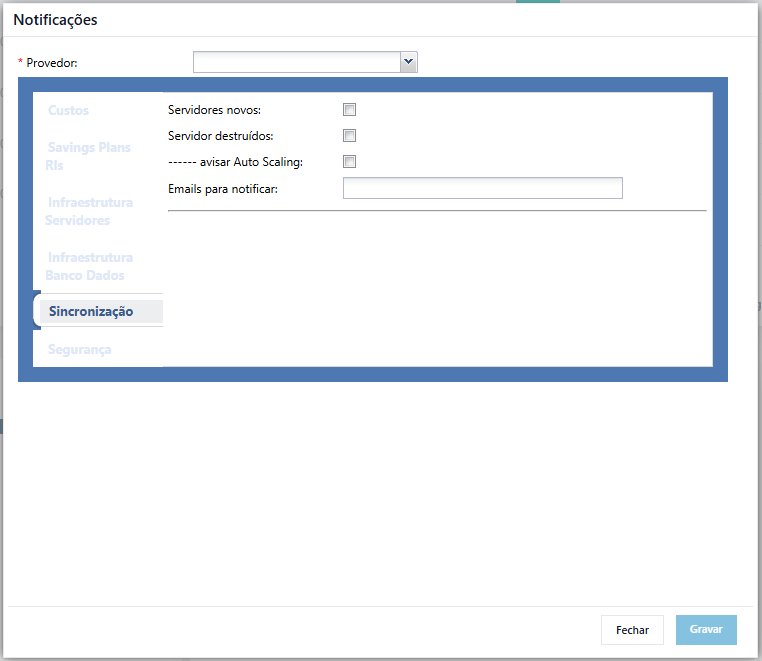
Synchronization Tab #
Handles alerts related to the creation and removal of resources identified during environment synchronization.
- New servers: notifies when a new server is identified in the environment.
- Destroyed servers: notifies when a previously existing server is removed/destroyed.
- Notify Auto Scaling: notifies about Auto Scaling events (joining/leaving instances managed by an Auto Scaling Group).
- Emails to notify: list of recipients for this tab’s alerts.
Security Tab #
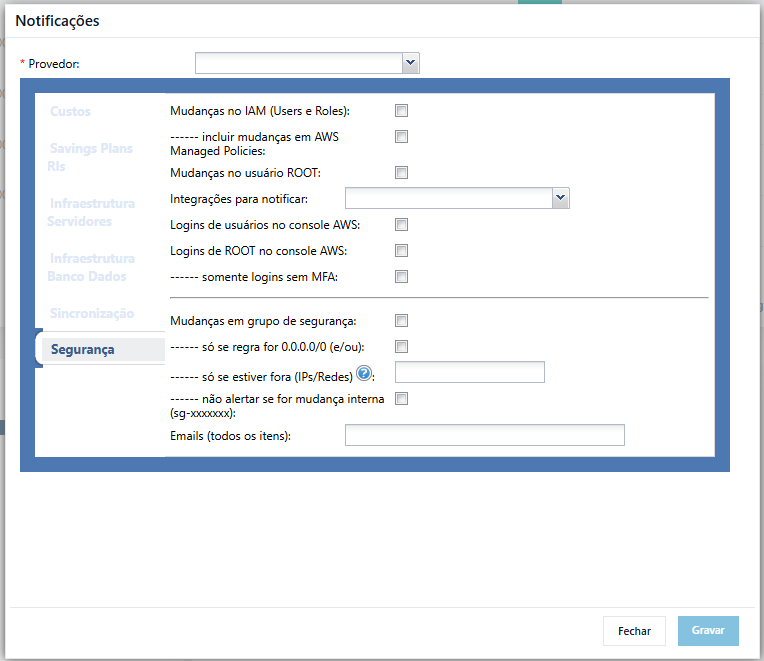
Gathers alerts focused on cloud account governance and security.
- IAM changes (Users and Roles): notifies about the creation, modification, or removal of IAM users and roles.
- Include AWS Managed Policies changes — extends the above alert to also cover changes to AWS-managed policies.
- ROOT user changes: notifies about any changes made to the account’s root user.
- Integrations to notify: additional channels (besides email) to receive security alerts.
- AWS console user logins: notifies on every user login made to the AWS console.
- ROOT logins in AWS console: specifically notifies logins made with the root user.
- Only logins without MFA — restricts root (and/or user) login alerts exclusively to accesses made without multi-factor authentication.
- Security group changes: notifies about changes to security groups. This alert can be refined with the following filters:
- Only if the rule is 0.0.0.0/0 (and/or) — restricts the alert to changes involving rules open to the entire internet.
- Only if outside of (IPs/Networks) — restricts the alert to changes whose IPs/networks are outside the list provided as trusted.
- Do not alert if internal change (sg-xxxxxxx) — allows excluding changes originating from a specific internal security group from the alert.
- Emails (all items): single list of recipients for all security alerts configured in this tab.
Saving Settings #
After configuring the desired tabs for the selected provider, click on Save to save changes. The Close button discards the screen without applying pending changes. It is recommended to review the email lists entered in each tab before saving to ensure that the correct recipients receive each type of alert.


