
Cloud8 is a platform that centralizes and enriches data from multiple accounts and multiple cloud providers, facilitating data analysis and visualization both in isolation and in a unified way. To help our clients integrate this data into their own BI systems, custom reports, or dashboards, we offer the ability to export data to storage accounts of major cloud providers.
Below you will find the necessary steps to create this integration with Amazon AWS, Google GCP, and Microsoft Azure. Skip directly to:
 Cloud8 Integration with AWS S3 Bucket |  Cloud8 Integration with Azure Storage Account |  Cloud8 Integration with GCP Cloud Storage |
Exporting data from Cloud8 to a Cloud Storage Account (all supported providers)
How to integrate with an AWS S3 Bucket? #
Below is the step-by-step guide to integrating an S3 Bucket into your Cloud8 account.
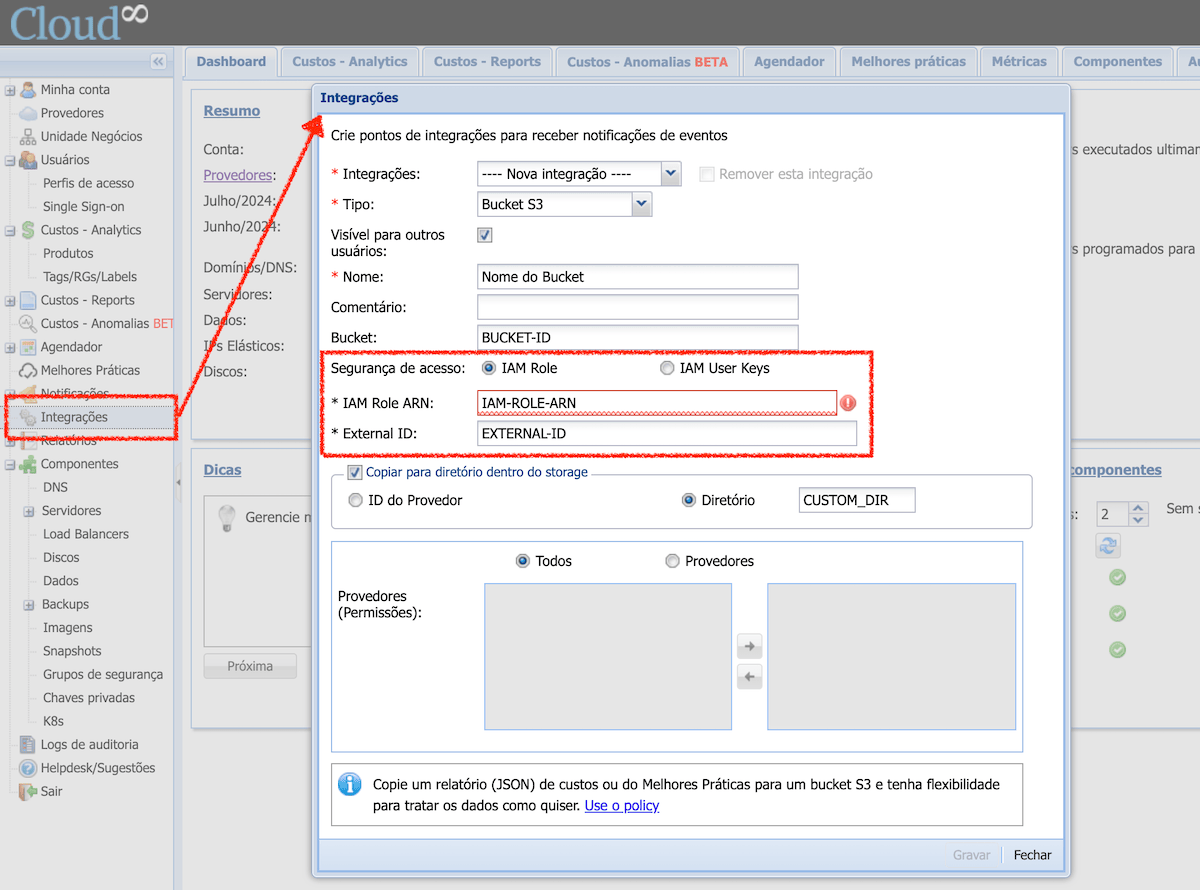
- Find the “Integrations” option in the side menu;
- Create a new integration of Type “S3 Bucket“;
- Indicate the AWS-defined S3 Bucket name in the “Bucket” field;
- Configure the access pair, IAM Role ARN, and External ID provided by AWS. This credential must have permissions to write, read, list, and remove files in the Bucket, according to the policy described in Required permissions on the S3 Bucket below;
- Fill in the remaining information and finish by clicking Save
- This integration also works in Best Practices and in “Reports” – you can create the report to be exported
Required permissions on the S3 Bucket #
The IAM Role informed in the integration needs permission to write, read, list, and remove files in the destination Bucket. The permission is granted on the IAM Role, not on the Bucket: it is the same role used in the connection of the AWS provider with Cloud8.
To attach the policy to the role in the AWS Console:
- Go to IAM → Roles and locate the role used by Cloud8;
- Under the Permissions tab, click Add permissions → Create inline policy;
- Select the JSON editor, delete the existing content, and paste the policy below, replacing
BUCKET-NAMEwith your S3 Bucket name; - Click Next, give the policy a name (e.g.,
cloud8-export-s3), and finish by clicking Create policy.
If you prefer to reuse the same policy across other roles, create it under IAM → Policies → Create policy and then attach it to the role.
{
  "Version": "2012-10-17",
  "Statement": [
    {
      "Effect": "Allow",
      "Action": [
        "s3:DeleteObjectVersion",
        "s3:PutObject",
        "s3:DeleteObject",
        "s3:GetObject"
      ],
      "Resource": [
        "arn:aws:s3:::BUCKET-NAME/*"
      ]
    },
    {
      "Effect": "Allow",
      "Action": [
        "s3:ListBucket"
      ],
      "Resource": [
        "arn:aws:s3:::BUCKET-NAME"
      ]
    }
  ]
}
Caution: the two blocks have different Resources on purpose. File actions (PutObject, GetObject, DeleteObject, DeleteObjectVersion) apply to objects inside the Bucket, hence the /* at the end. Meanwhile, ListBucket applies to the Bucket itself, without /*.
When you click Save, Cloud8 writes a test file to the Bucket to validate access. If the policy is not attached to the role, the integration will not be saved and the error “is not authorized to perform: s3:PutObject […] because no identity-based policy allows the s3:PutObject action” will appear.
Optional template: read-only for all Buckets #
If you already want to grant Cloud8 read access to all Buckets in the account, reusing the same role for other platform features and configurations, use the template below instead of the previous policy. It keeps file writing and removal restricted to the export Bucket and allows read-only access to the rest. Replace BUCKET-NAME with the name of your export Bucket:
{
  "Version": "2012-10-17",
  "Statement": [
    {
      "Sid": "ListarBuckets",
      "Effect": "Allow",
      "Action": [
        "s3:ListAllMyBuckets"
      ],
      "Resource": "*"
    },
    {
      "Sid": "LerTodosOsBuckets",
      "Effect": "Allow",
      "Action": [
        "s3:ListBucket",
        "s3:GetBucketLocation"
      ],
      "Resource": "arn:aws:s3:::*"
    },
    {
      "Sid": "LerArquivosDeTodosOsBuckets",
      "Effect": "Allow",
      "Action": [
        "s3:GetObject"
      ],
      "Resource": "arn:aws:s3:::*/*"
    },
    {
      "Sid": "GravarNoBucketDeExportacao",
      "Effect": "Allow",
      "Action": [
        "s3:PutObject",
        "s3:DeleteObject",
        "s3:DeleteObjectVersion"
      ],
      "Resource": "arn:aws:s3:::BUCKET-NAME/*"
    }
  ]
}
Caution: with this template, the role will read the contents of all Buckets in the account, including those unrelated to Cloud8. Evaluate whether this complies with your company’s security policy before applying it. If your goal is strictly data export, the previous policy is sufficient.
IAM Role #
An IAM Role is an entity in AWS IAM that defines a set of permissions for making requests to AWS services. Unlike an IAM user, which is associated with a specific person, an IAM role is intended to be assumed by any trusted entity, such as an AWS service, an application, or an IAM user. Roles are useful for granting temporary permissions and can be assumed by different entities as needed.
ARN (Amazon Resource Name) #
The ARN is an identifier that follows a standard, unique format to identify resources within AWS. It is used to specify the role uniquely in policies and permissions.
Role ARN Example #
arn:aws:iam::AWS-NUMERIC-ID:role/ROLE-NAMEUsing IAM Role ARN in S3 #
When you use an IAM Role with S3, you can grant specific permissions to access S3 buckets and objects. For example, you can create an IAM role with permissions to access a specific S3 bucket and then configure an AWS service (such as EC2) or an IAM user to assume that role. This is useful for managing and controlling access to S3 resources securely and scalably.
Why use IAM Role ARN? #
- Security: Allows granting temporary permissions, minimizing risks.
- Flexibility: Can be assumed by multiple entities, facilitating permission management.
- Scalability: Ideal for large environments where different services and users need controlled access.
How to integrate with an Azure Storage Account? #
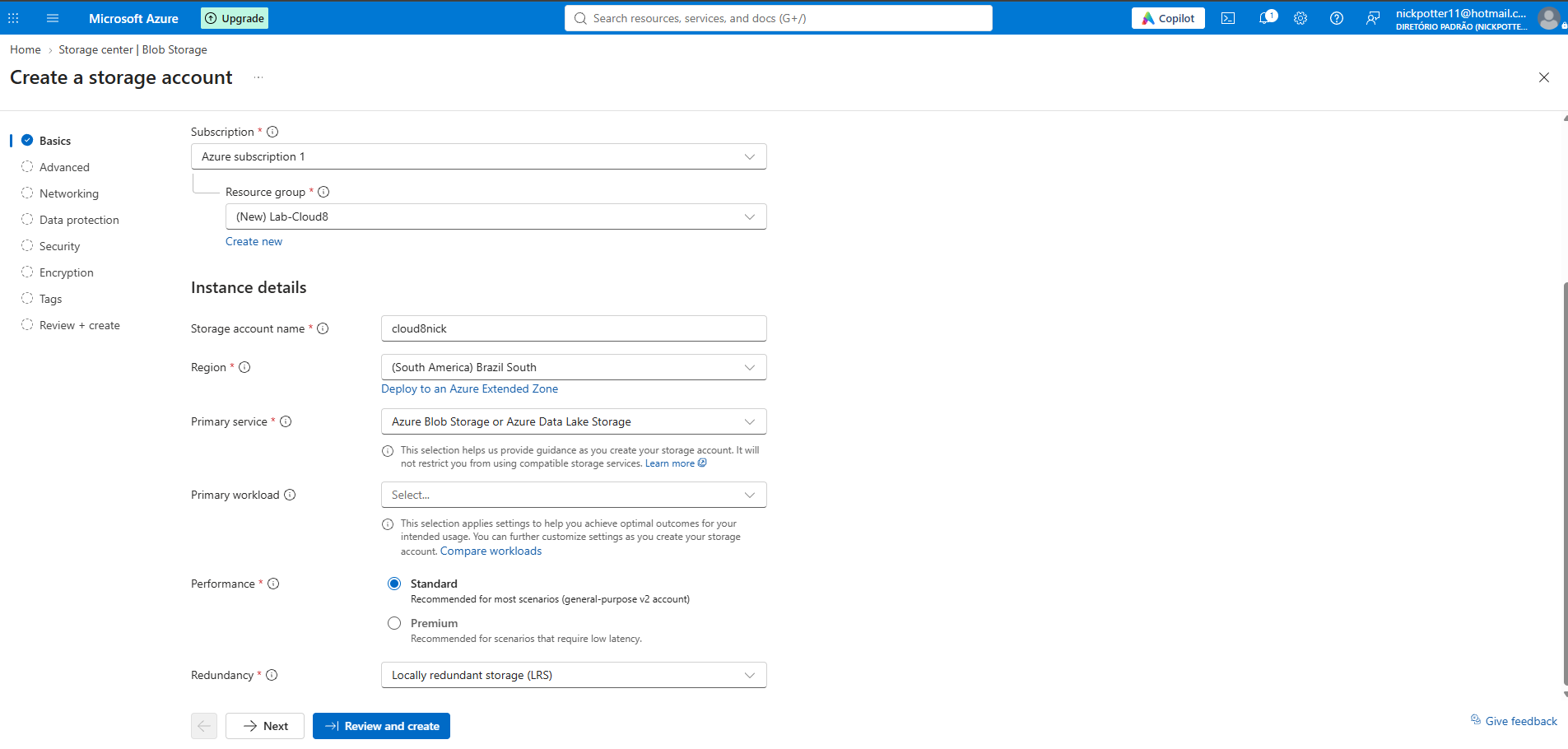
If you haven’t already done so, the first step is to create a Storage Account in Azure. To do this, in the Azure dashboard search bar, search for “Storage accounts”. Click “Create”. In the Basics tab, fill in the information, and define the Subscription and Resource Group where the storage account will be created.
Define a name and region for creating the resource, and under “Preferred storage type” choose “Azure Blob Storage or Azure Data Lake Storage”.
Under Performance, select “Standard”, and under Redundancy select “Locally-redundant storage (LRS)”. However, this is just a suggestion, and the redundancy definition should always follow the user’s business rules.
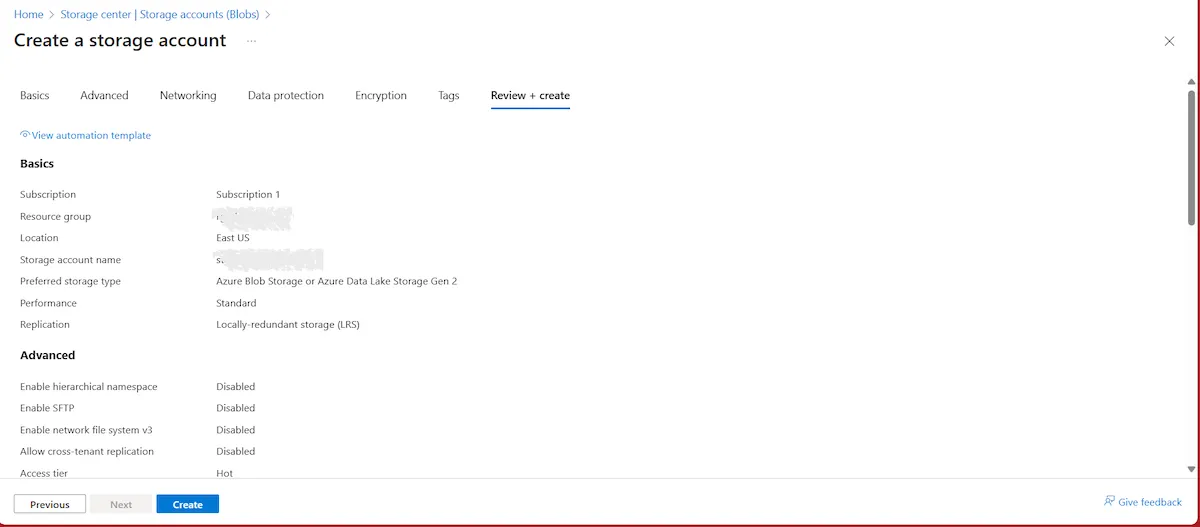
Complete by clicking “Review + create”. Validate the details and click “Create”.
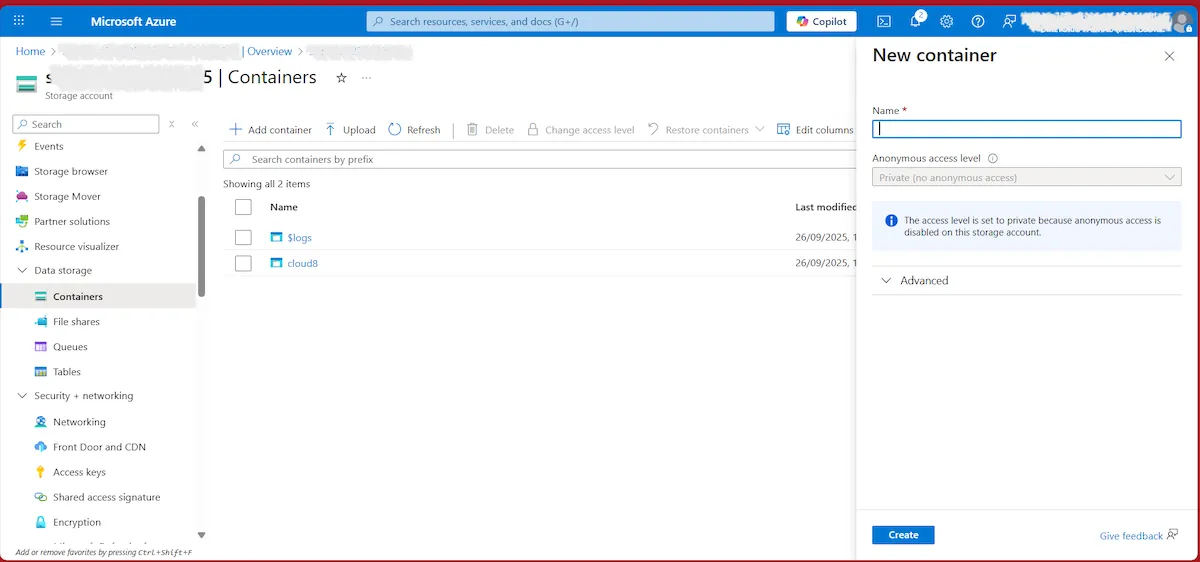
Search for the created storage account. In the left-side menu, look for “Containers”. Click “Add container”, give it a name, and click “Create”. Note down the name of the created container.
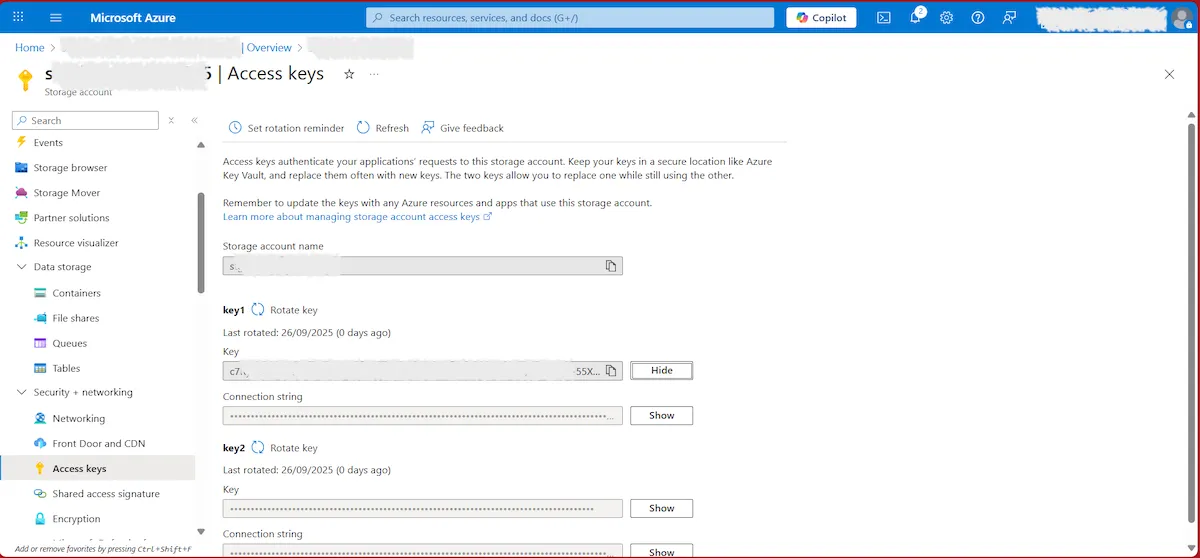
In the left-side menu, locate “Access keys”. Copy the following information to a notepad:
- Storage account name
- Key
Integrating the Storage Account with the Cloud8 Platform #
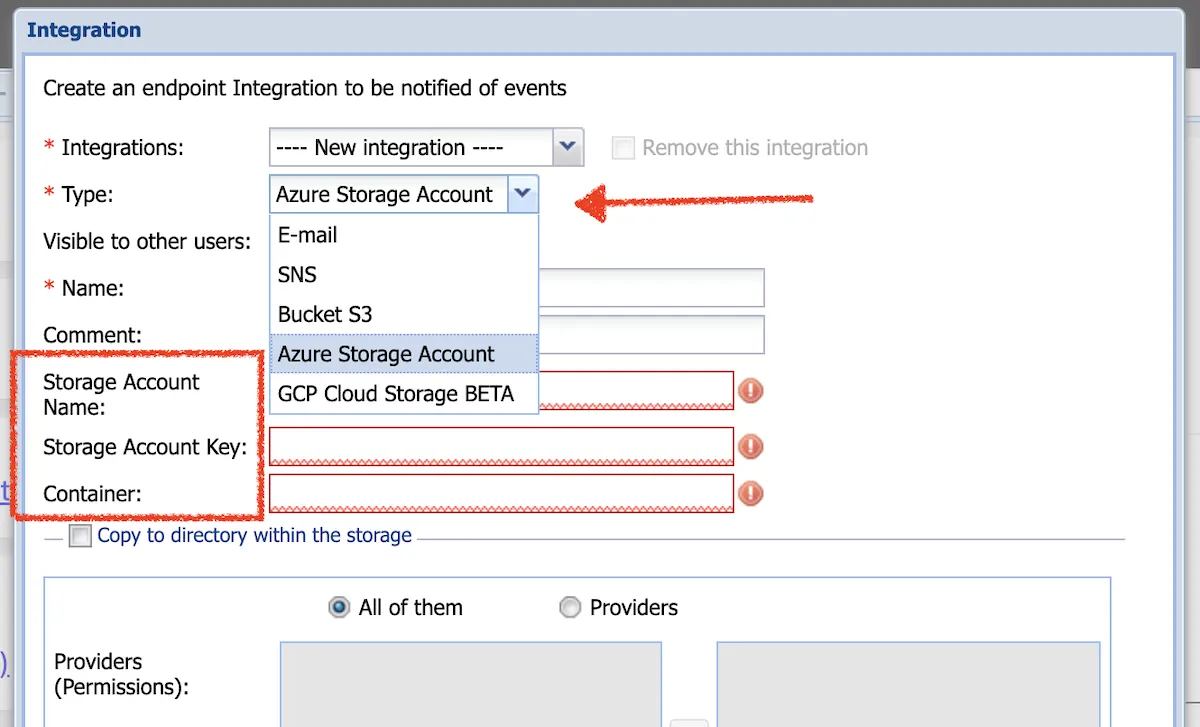
Follow the steps below to create an integration within our MultiCloud Dashboard with the Azure Storage Account.
- Find the “Integrations” option in the side menu
- Select “New Integration” from the first option
- Click “Type” and select the “Azure Storage Account” option
- Give this integration a name
- Fill in the required data: Storage Account Name, Storage Account Key, and Container
How to integrate with GCP Cloud Storage? #
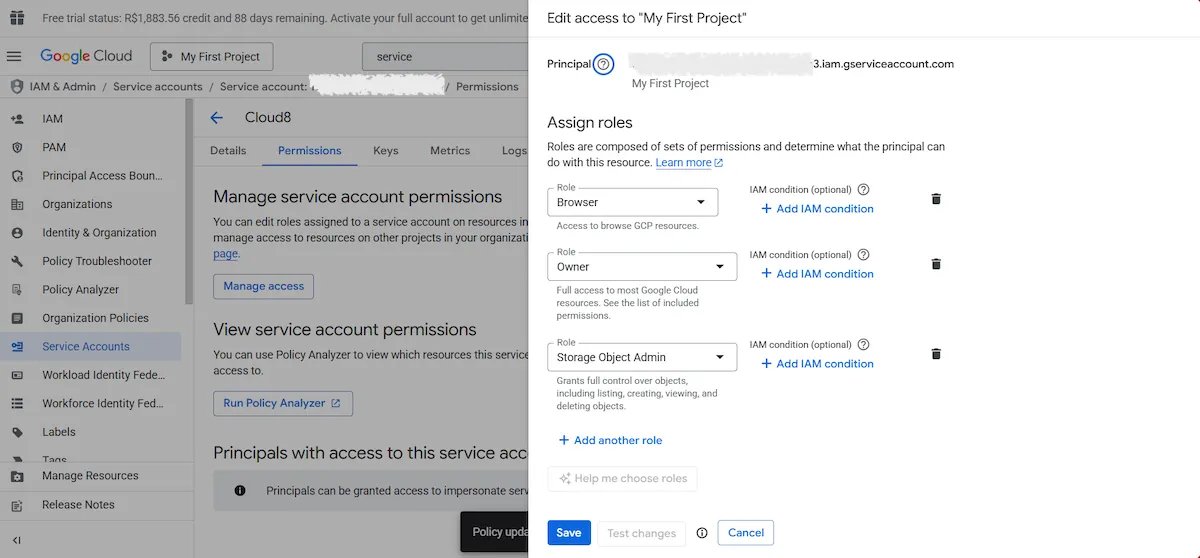
If you haven’t already done so, you first need to create the GCP JSON in the Service Account. To do this, access the GCP Console and search for IAM & Admin. Select Service Accounts from the left-side menu.
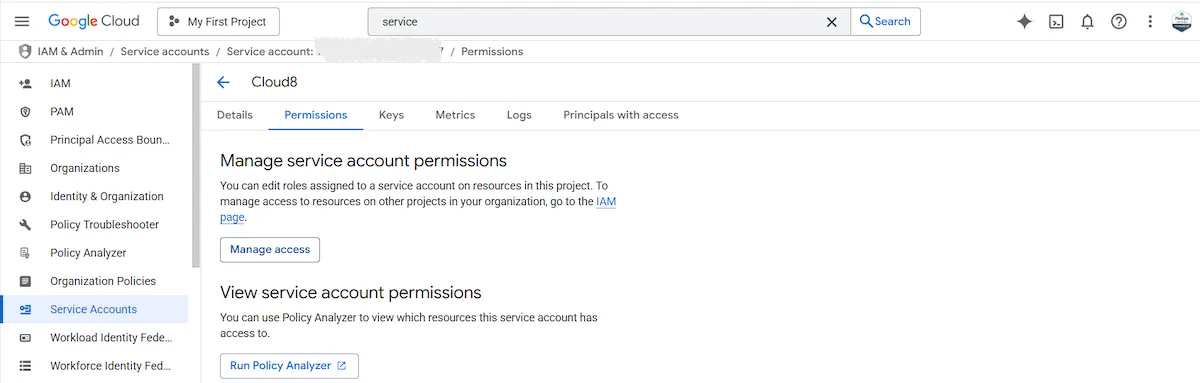
In the Permissions tab, select Manage access | Add another role and choose Storage Object Admin.
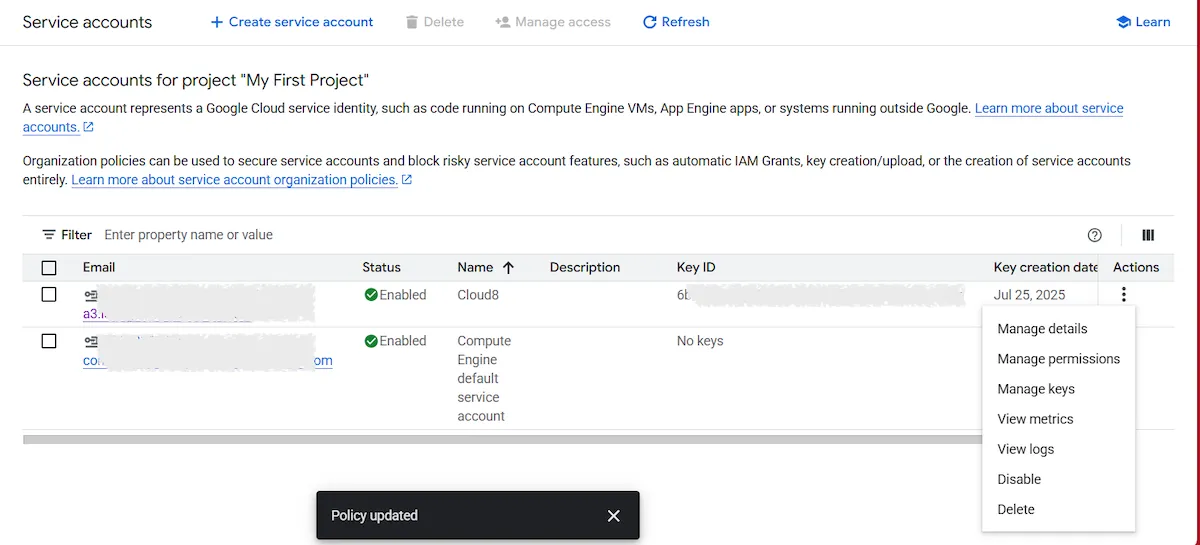
Return to Service Accounts and click the three-dot icon to select the Manage Keys option. Click Add key | Create new key to create a new access key if you haven’t created one yet. Otherwise, granting the necessary accesses in the previous step is sufficient.
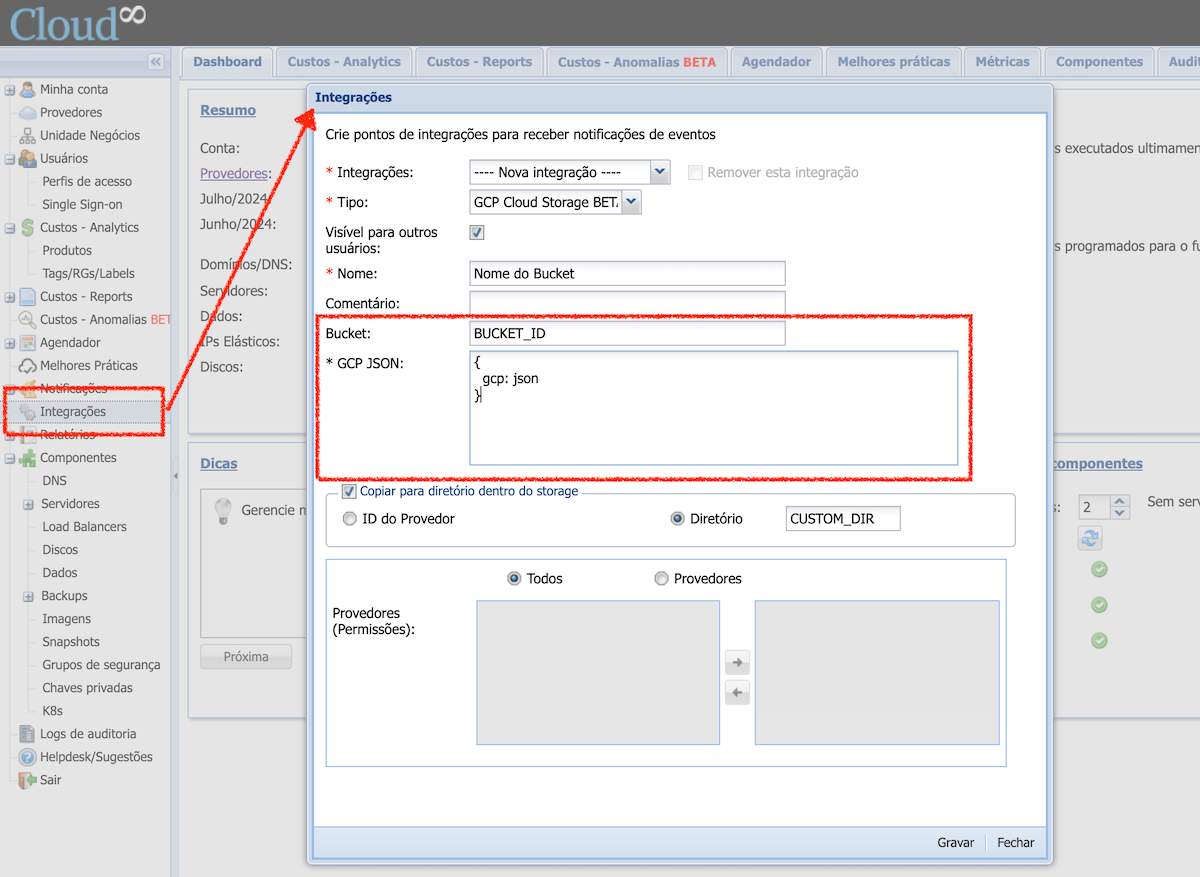
See below how to integrate GCP Cloud Storage into your Cloud8 account.
- Find the “Integrations” option in the side menu;
- Create a new integration of Type “GCP Cloud Storage“
- Add a credential (Service Account JSON file) generated in Access Key;
- Click “Save” and you are done.
How to integrate with Google Drive? #
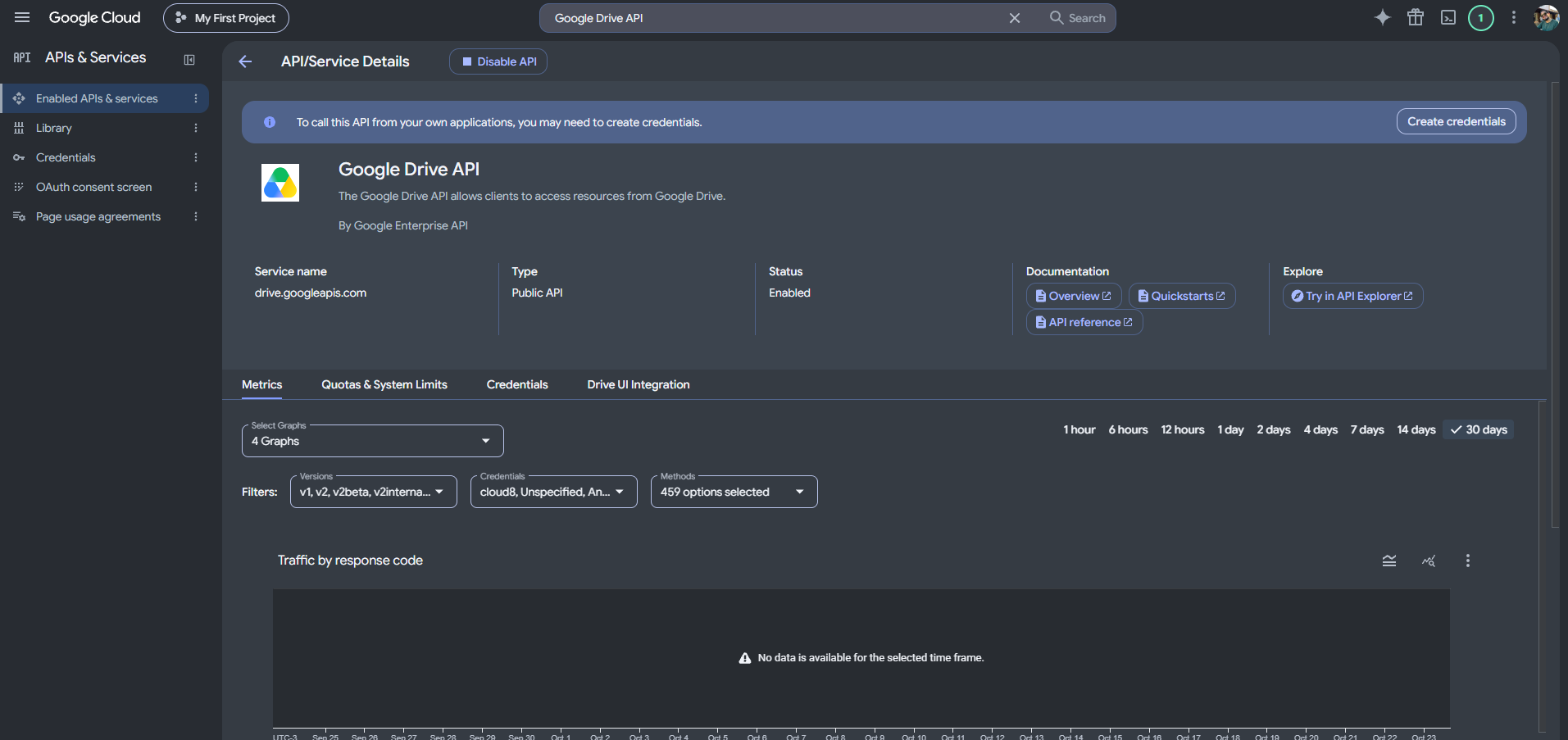
Initially, you need to enable the Google Drive API within the project where the Service Account was created, using the link: https://console.cloud.google.com/apis/api/drive.googleapis.com/metrics?project=xxxxxx
You will also need a JSON file containing the service account. To do this, in the Google console under Service Accounts, select the created service account and under the Keys tab, click Add Key, then Create new key. The Service Account does not need any role in the project: access to Google Drive is granted directly in the Shared Drive by adding its email as a member (see below).
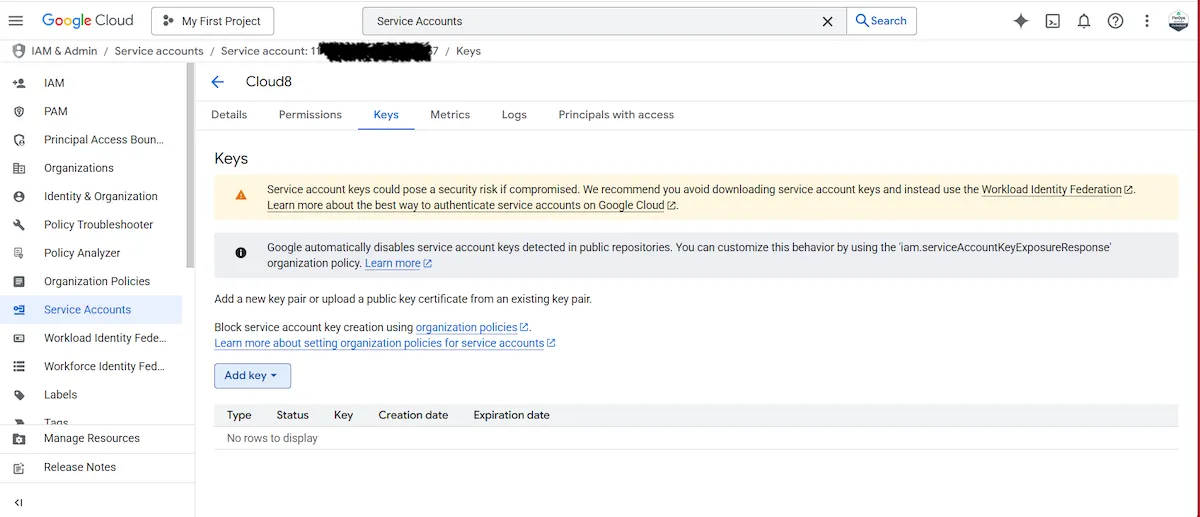
Select JSON, then click Create. A Private Key will be automatically generated.
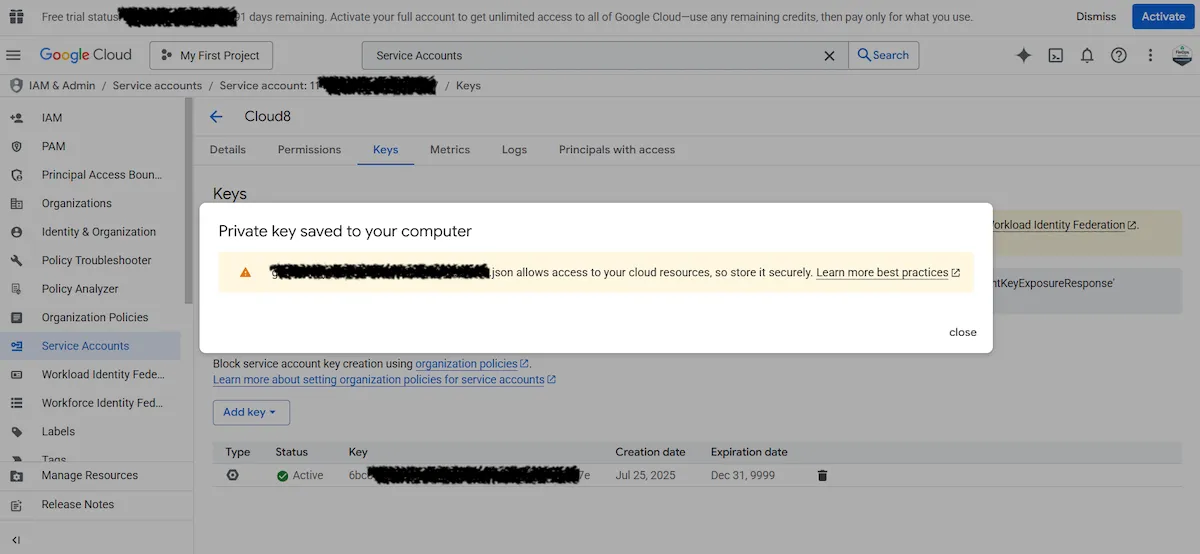
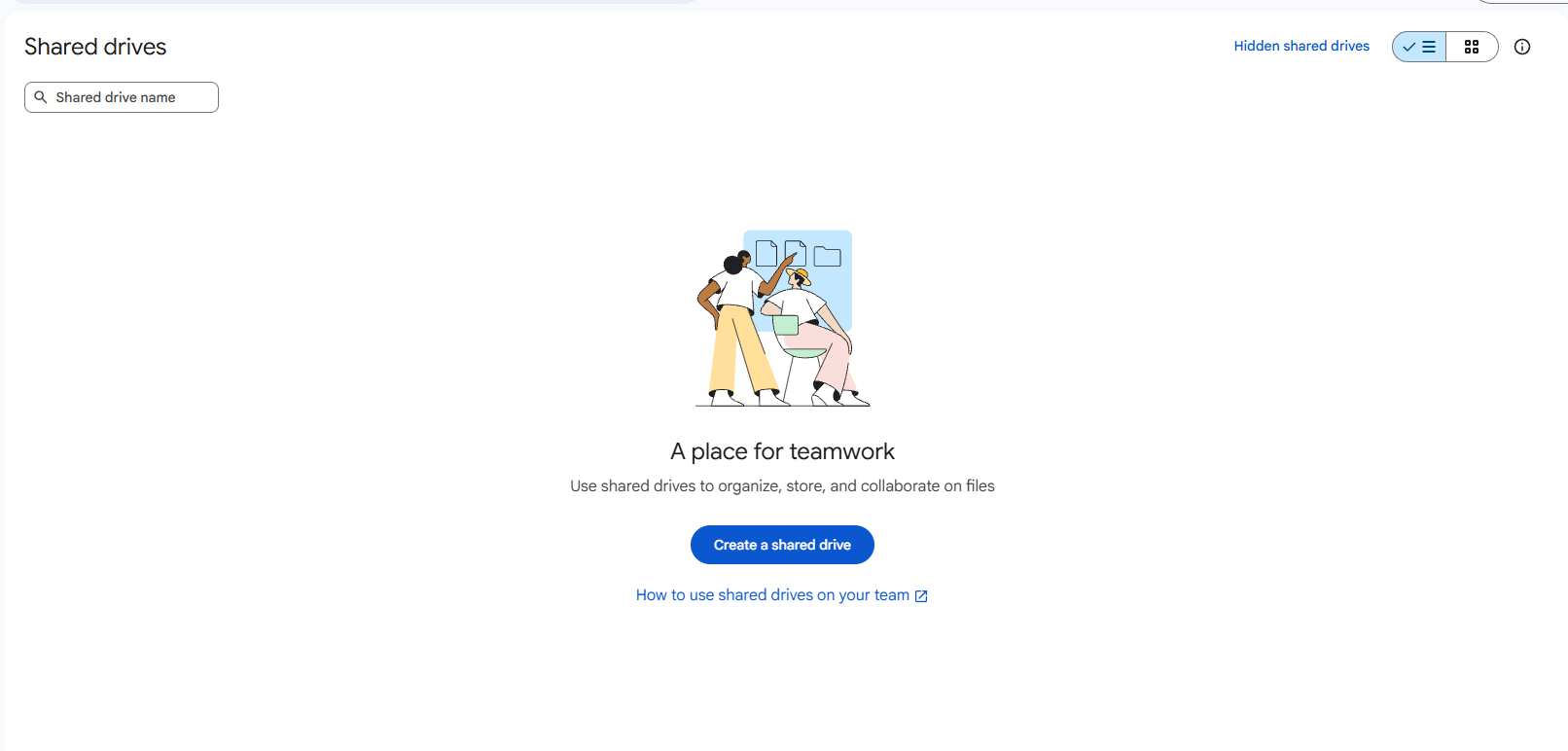
Next, you need to create a Shared Drive via the link https://drive.google.com/drive/shared-drives. Click Create a shared drive.
NOTE: Shared Drives only exist in Google Workspace accounts (work or school accounts) whose edition includes the feature; free personal accounts (@gmail.com) do not have access. Even in Workspace, the organization’s administrator may restrict who can create Shared Drives.
If the Create a shared drive option does not appear, ask your Google Workspace administrator to create the Shared Drive or enable creation for your user. See Create a shared drive and Allow users to create shared drives.
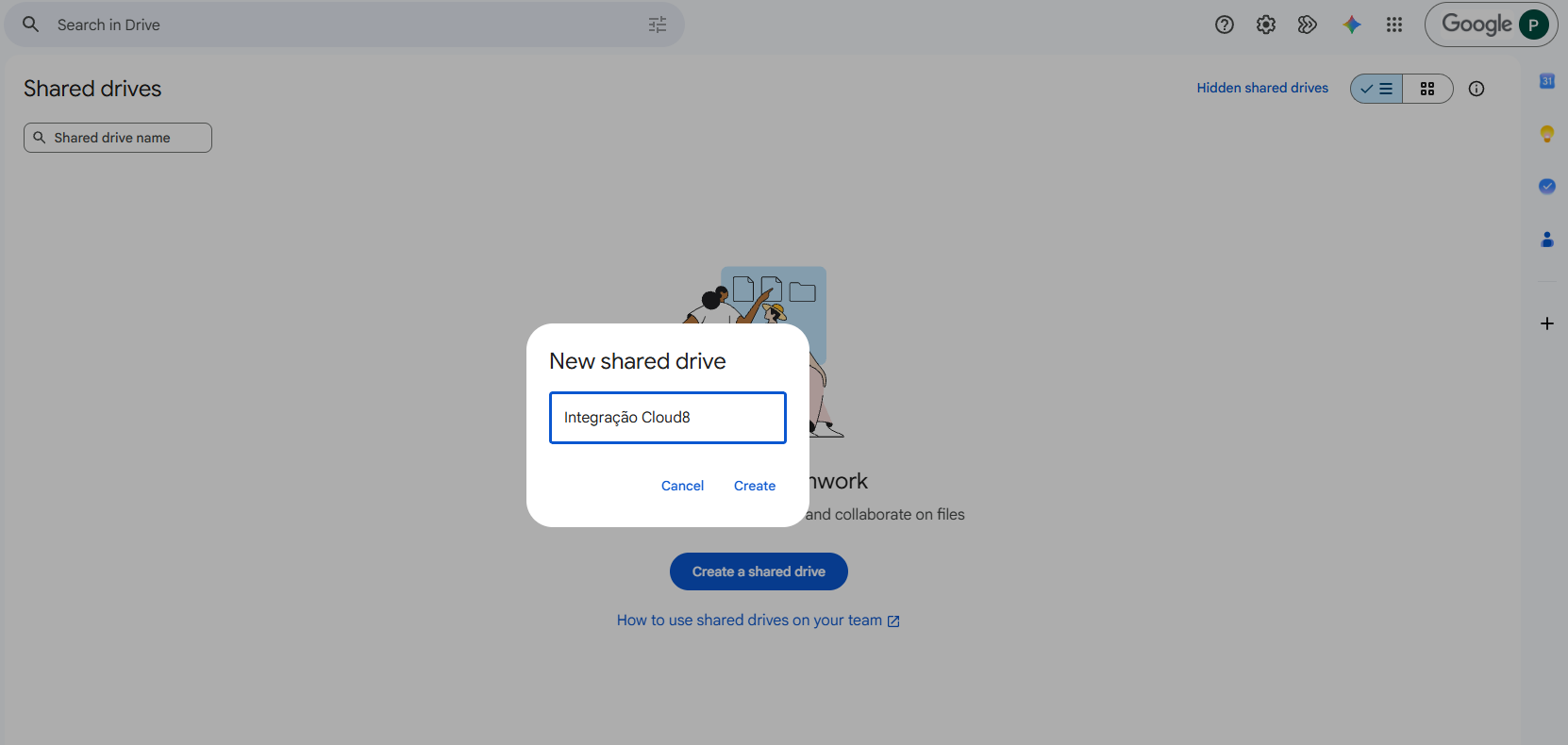
Enter a name and click Create.
Note the Shared Drive Folder ID, which can be obtained directly from the Shared Drive URL. For example:
Example URL: https://drive.google.com/drive/folders/1AbCdEfGhIjKlMnOpQrStUv
Folder ID
1AbCdEfGhIjKlMnOpQrStUv
The ID is the sequence of characters after /folders/. Then, click Manage Members, select the Service Account email, and click Done.
See below how to integrate GCP Cloud Storage into your Cloud8 account.
- Find the “Integration“ option in the side menu;
- Create a new integration of Type “Google Drive“
- Set a Name for the integration;
- Add the Shared Drive folder ID;
- Add the Service account JSON
- Click Save and you are done.
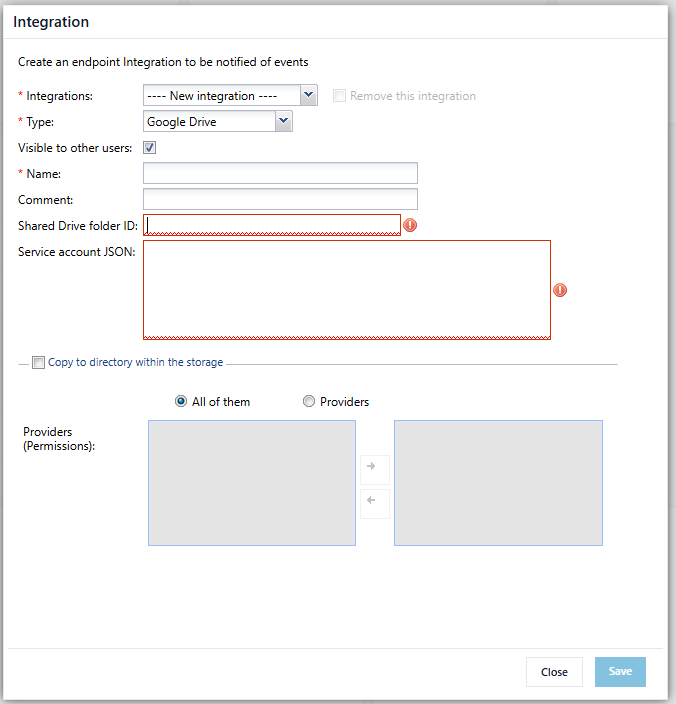
NOTE: Exporting to Google Drive is performed whenever new cost data is available, 2 to 3 times a day. The name defined in Exported file name when saving the Dashboard determines whether the file is overwritten or a new one is created:
| File name | Behavior |
|---|---|
costs.csv (fixed name) | Overwrites the same file on every export |
costs-YYYYMM.csv | One file per month: updates only the file for the processed month |
costs-YYYYMMDDHHMMSS.csv | Always creates a new file on each export |
How to export Dashboard data to Cloud Storage #
Cloud8 clients often have reports in different formats that need to be populated with data available in our reports. The simplest way to do this is through an integration with Cloud Storage. See below how to perform this extraction in quick steps.
NOTE: An AWS S3 bucket was used in the example, but the process is identical for all supported providers.
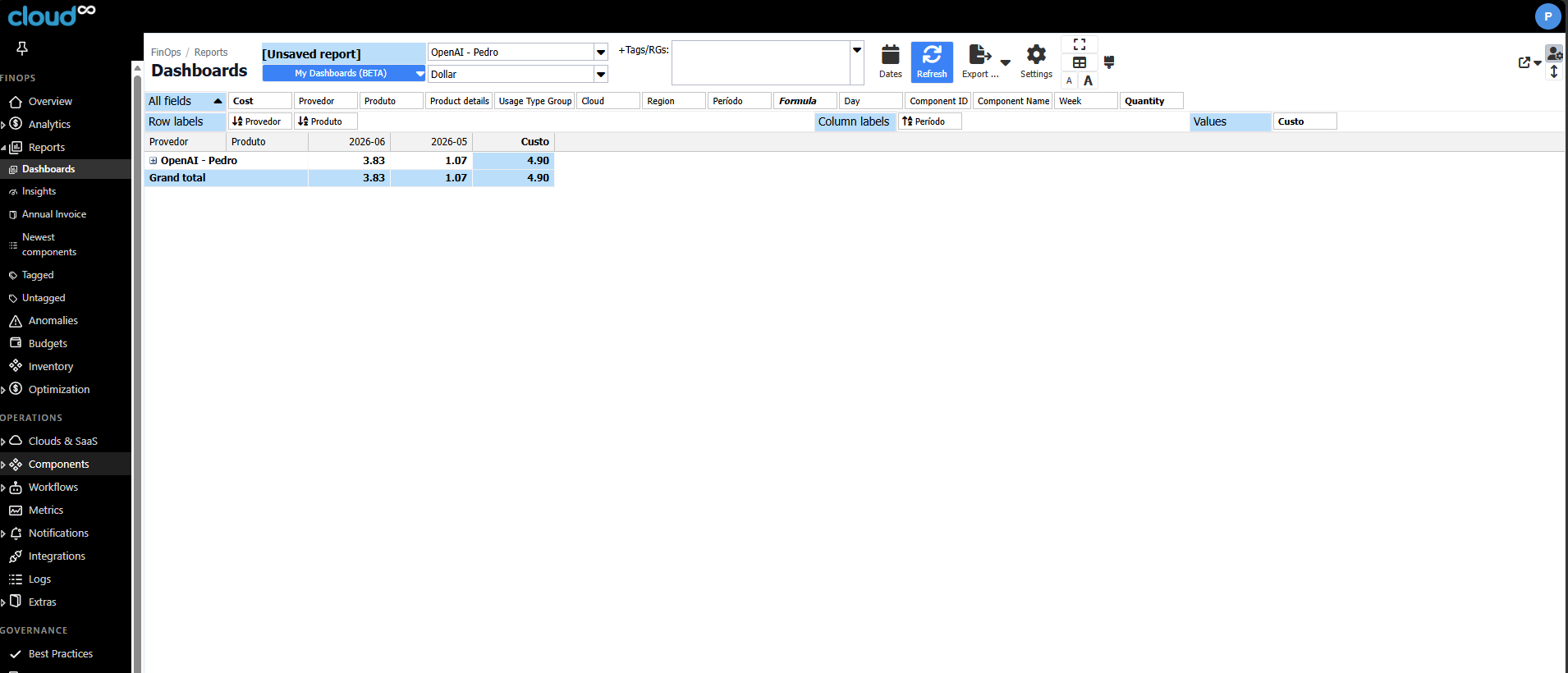
- Click “FinOps – Reports“, then “Dashboards” ;
- Select the desired filters;
- Use the “My Dashboards” button and select “Save New”;
- Among the displayed options, select the integration created in the previous step under Storages for the chosen provider
- Don’t forget to save
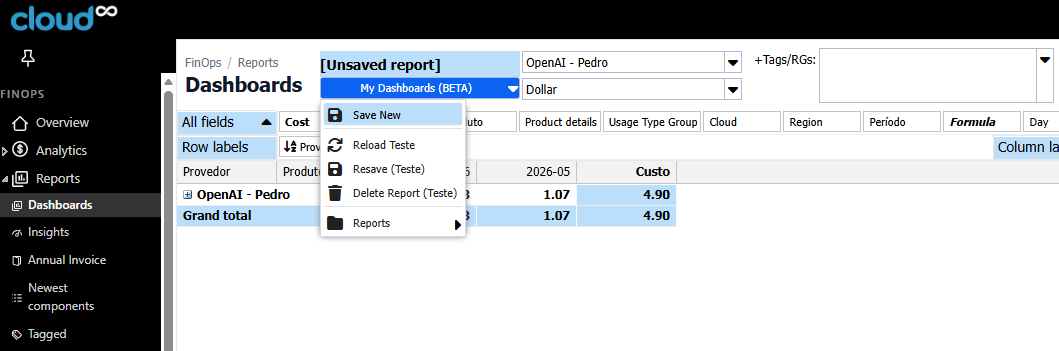
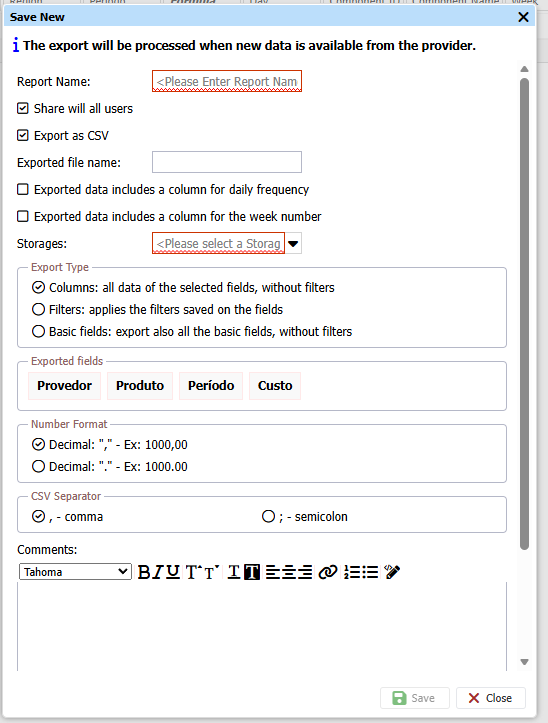
After these two simple steps, the client will receive a complete and consistent CSV file with the markup defined by them, 2 to 3 times a day containing all data.
This way, no API integration, credential generation, scripts, error handling, etc., are required.
<h3 class="wp-block-


